![513a98d6-f274-4016-a0a5-03ee71fe81b7.png]](https://support.tradewing.com/hs-fs/hubfs/513a98d6-f274-4016-a0a5-03ee71fe81b7.png?height=40&name=513a98d6-f274-4016-a0a5-03ee71fe81b7.png)
There are four navigation tabs that remain fixed and cannot be customized in the website builder: Community, Events, and Sponsors.
Besides the four, admins can add, modify, and customize the navigation tabs displayed to members on the upper part of the member site.
When you create a new navigation tab, you have the option to either design a new page within the website builder that will be shown when users click on the tab, or to provide a direct link that will redirect them to an external site.
How to Create a Top Navigation Tab or Dropdown Menu
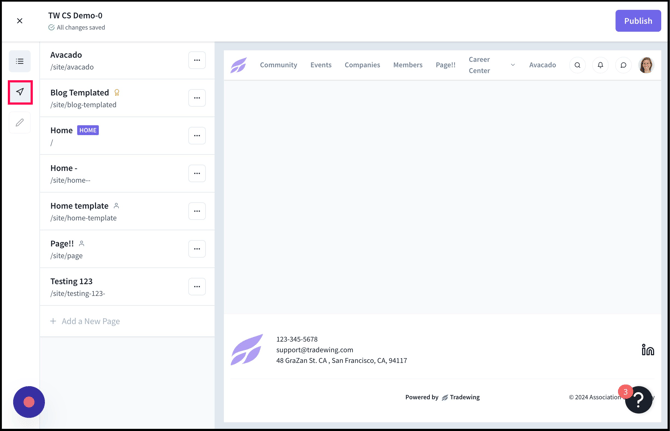
1) Navigate to your website builder from the admin site
2) Click the pointer icon.
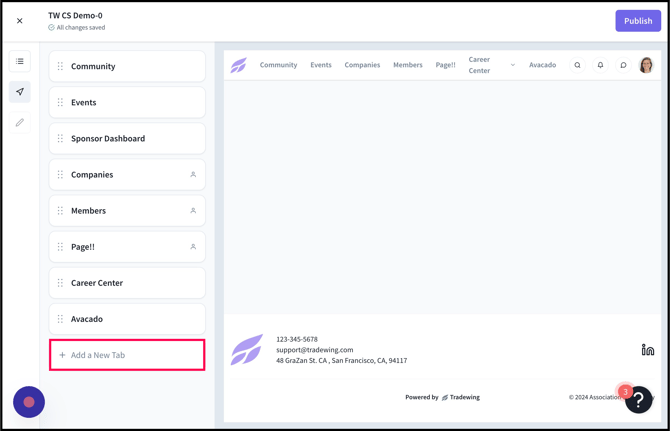
3) Click "Add a New Tab"
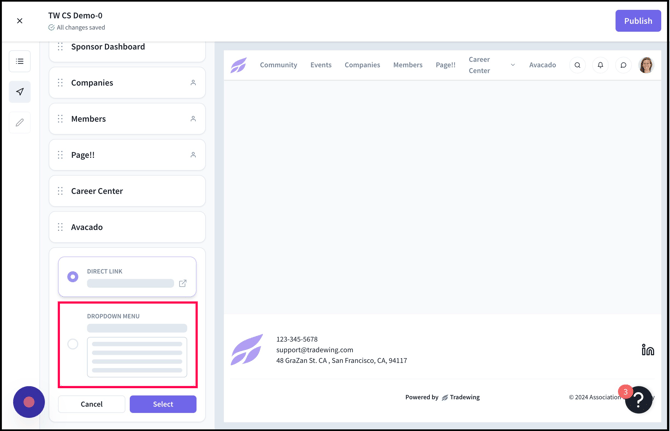
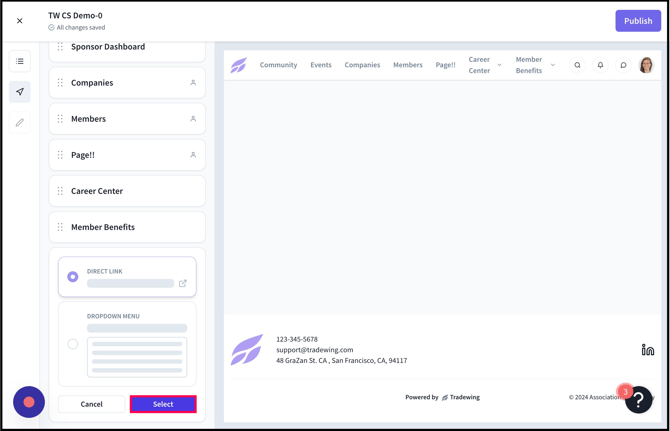
4) Click here to create a dropdown menu
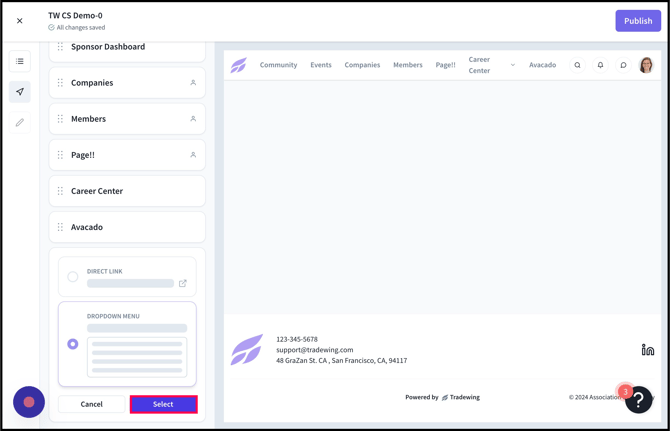
5) Click "Select"
6) Click "Add a Link"
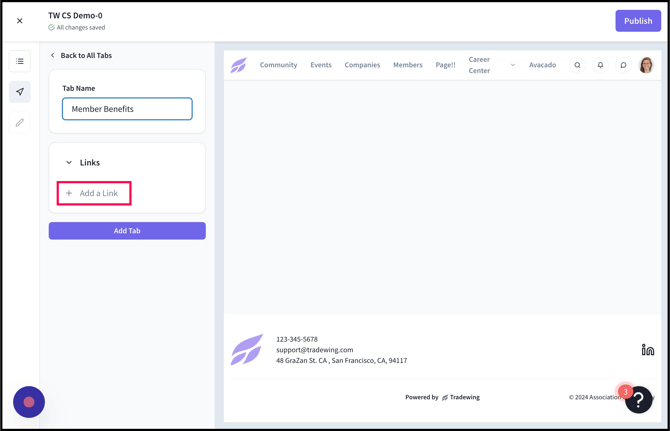
7) Click "Choose a page" to link to an existing created page on your website builder. Learn more about creating webpages
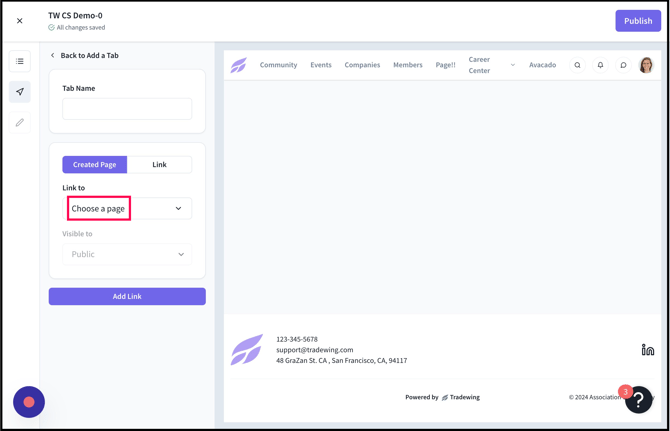
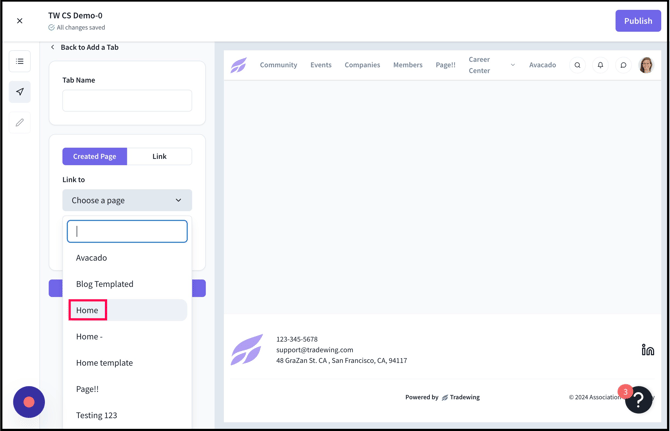
8) Click the page title
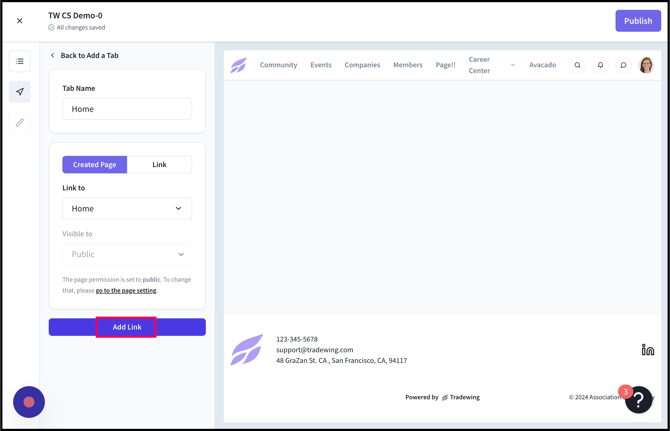
9) Click "Add Link"
10) Alternately, click "Link" to link to a URL
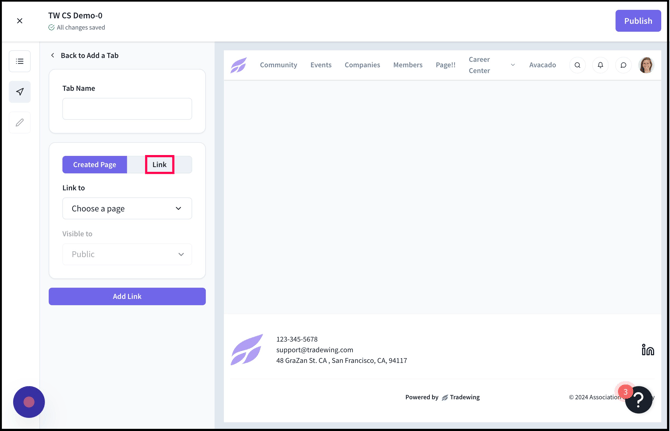
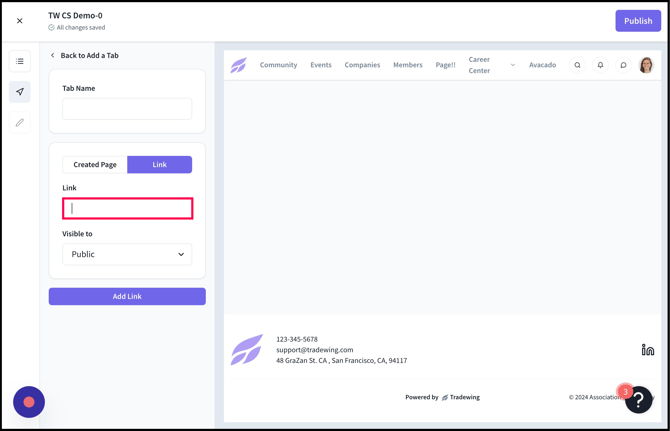
11) Click the "Link" field and type in the URL address
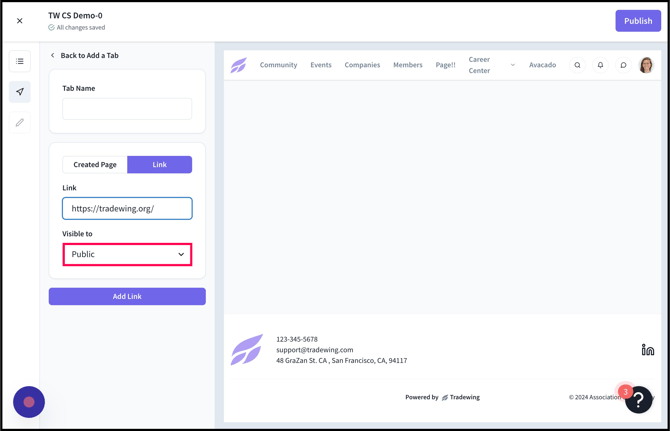
12) Click "Visible to" to set the visibility settings of this URL link
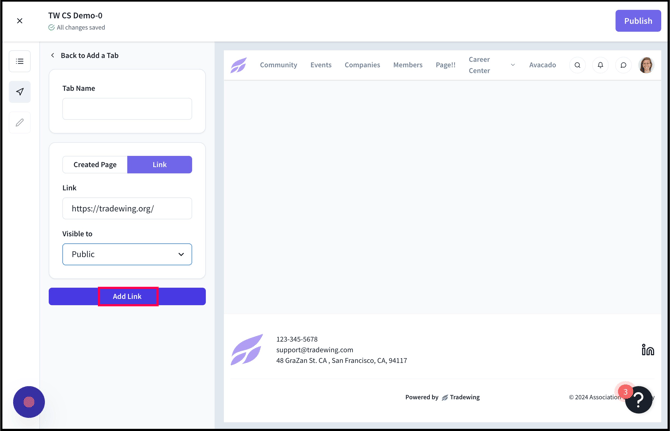
13) Click "Add Link." Don't forget to add a Tab name.
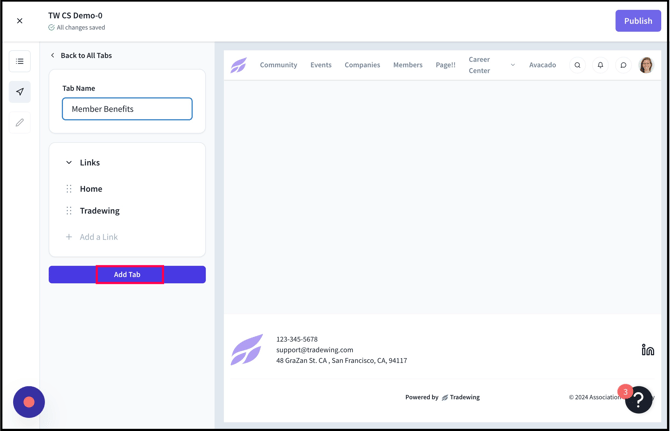
14) Once you've added all the dropdown links to your tab, Click "Add Tab"
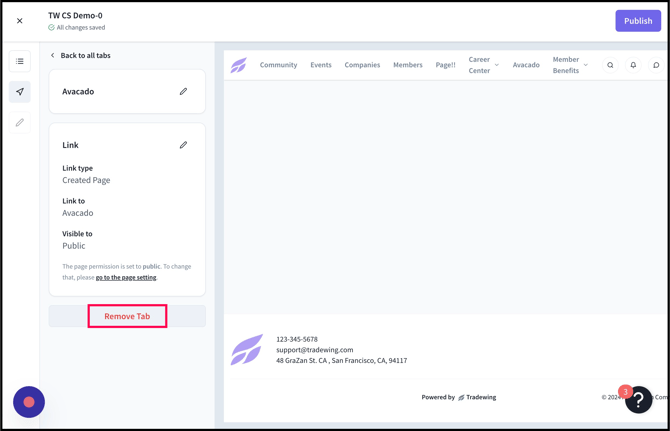
15) Click "Remove Tab" to remove the tab at any time.
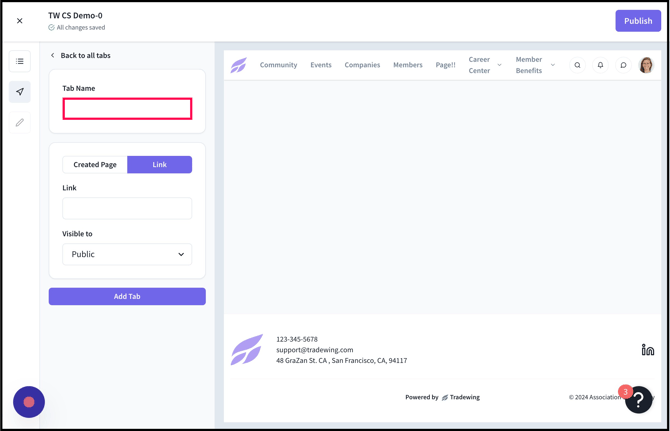
16) Direct Link: When creating a new tab, you can also select just a direct link instead of a dropdown menu.
17) Click "Link" to link to a URL, or "Created Page" to link to an existing website builder page
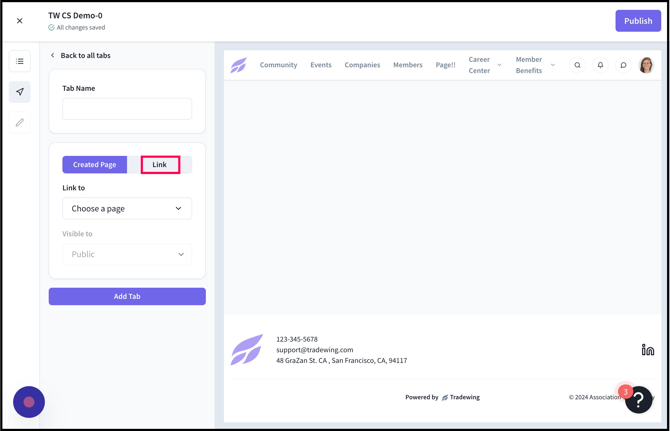
18) Add in the "Tab Name" field and link URL or created page
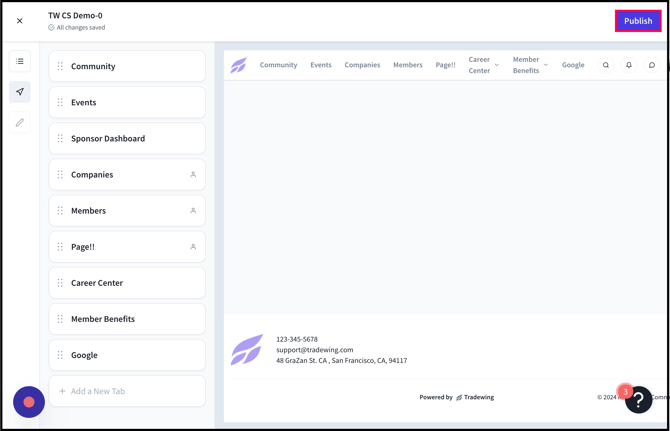
19) Click "Publish" when you're ready to publish all changes
Need Help?
If you have questions about creating or managing groups, please reach out to support@tradewing.com for assistance.