![513a98d6-f274-4016-a0a5-03ee71fe81b7.png]](https://support.tradewing.com/hs-fs/hubfs/513a98d6-f274-4016-a0a5-03ee71fe81b7.png?height=40&name=513a98d6-f274-4016-a0a5-03ee71fe81b7.png)
Tradewing’s Shopping Cart introduces a flexible and streamlined purchasing experience for members, event attendees, and prospective customers. Instead of completing separate transactions for each event ticket or membership, users can now add multiple items to a single cart and complete their purchase in one smooth checkout. This upgrade reduces friction, improves clarity, and increases both event registration and membership conversion.
What the Shopping Cart Allows Users to Do
Purchasing a Membership and Event Tickets
What the Shopping Cart Allows Users to Do
The Shopping Cart enables users to add multiple products into one order, including event tickets, multiple ticket types, memberships, or combinations of these. If events permit multi-ticket purchases, users can buy several tickets at once and assign them to themselves or guests. The cart displays clear pricing, quantities, and totals, making the experience more transparent. Every checkout undergoes system validation to ensure consistency, eligibility, and pricing accuracy.
The Shopping Cart improves user experience and association outcomes in several important ways:
- Increased Event Registrations
- Seamless Membership Upsells
If a non-member attempts to purchase a members-only ticket, Tradewing can guide them to add a membership product to their cart. Once the membership is added, the members-only ticket becomes available, resulting in higher membership revenue.
- Accurate Attendee Information
The system collects names, emails, and any required custom fields for each assigned ticket. It validates eligibility, prevents duplicate entries, and reduces the need for manual follow-up from administrators.
- More Opportunities for Revenue Growth
Users can buy memberships, purchase additional tickets for others, or combine multiple ticket types into a single transaction.
- Improved Reporting and Insights
Each cart and checkout session is tracked, allowing associations to understand purchasing trends and optimize future engagement
How the Shopping Cart Works
- Adding Items to the Cart
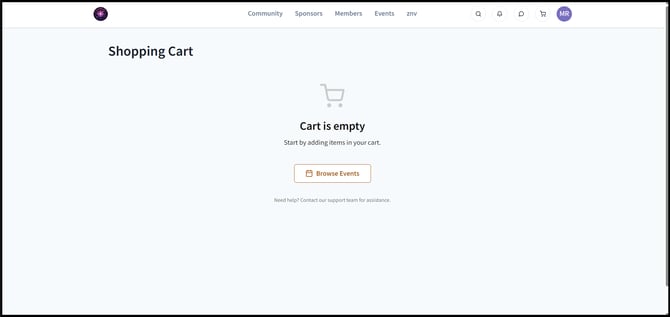
When viewing an event or membership, users select the Add to Cart option. Tickets and products appear in the cart with accurate prices and quantities. When users attempt to purchase a members-only ticket without being an active member, the system presents a message explaining the restriction. If memberships are sold through Tradewing, users may add a membership to their cart to unlock the members-only pricing. - Reviewing the Cart
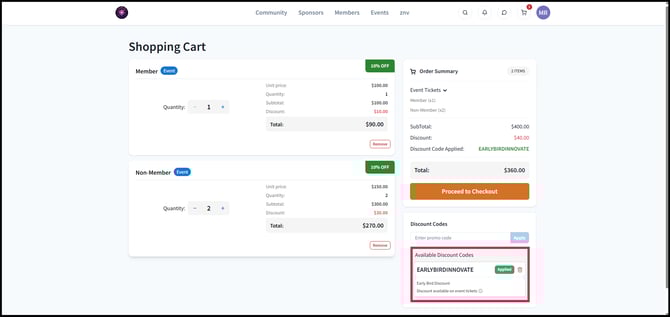
The cart displays a complete overview of selected items, including ticket names, quantities, pricing, subtotals, and totals. Users may adjust quantities or remove items. The system prevents checkout if the cart is empty or if eligibility rules are violated. Certain ticket types, such as link-only tickets, may limit quantity to a single purchase. - Multi-Ticket Assignment
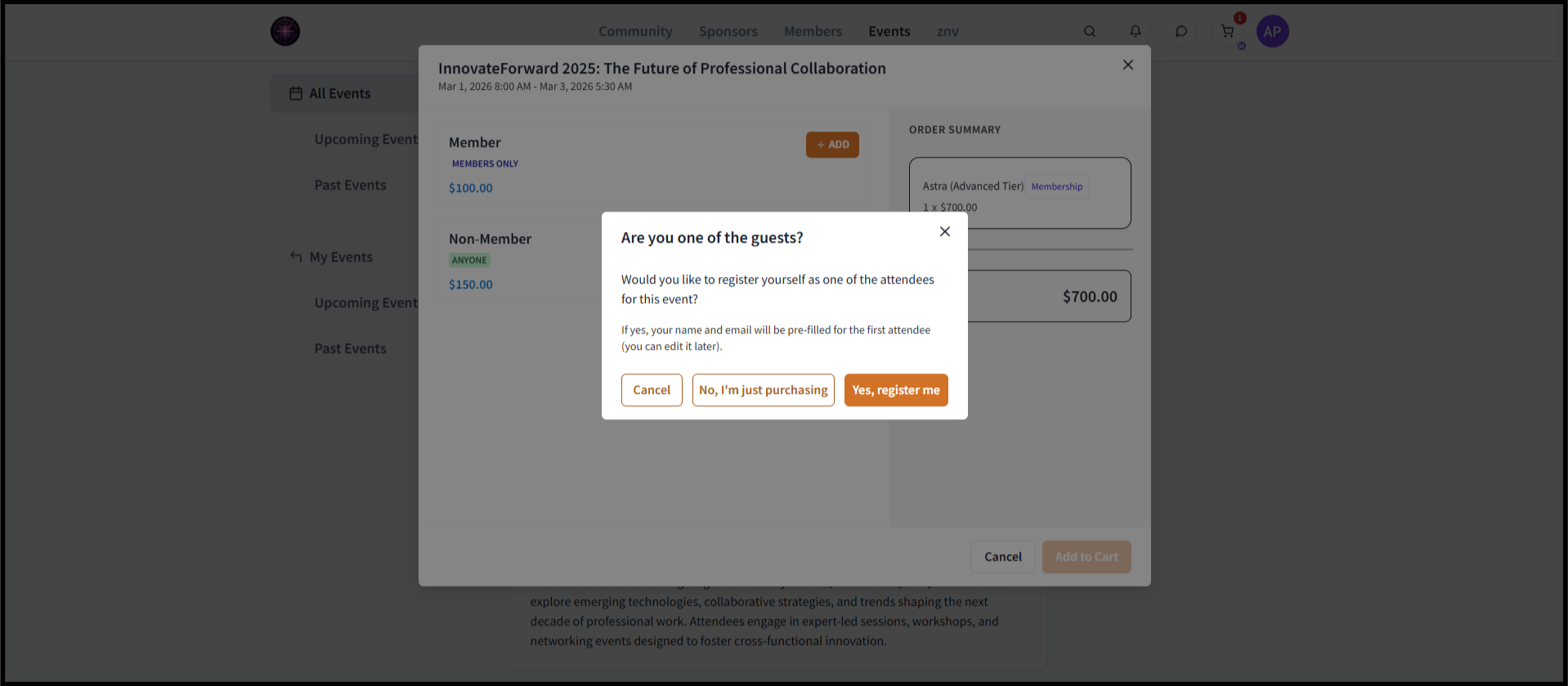
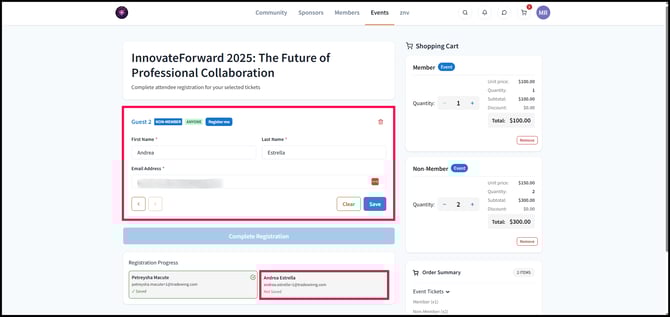
If more than one ticket of a type is purchased, the system guides the user through assigning each ticket. Users confirm whether they themselves are one of the guests, and Guest 1 is auto-filled accordingly. Each guest entry requires a name, email address, and any custom fields configured for the event. The system validates eligibility rules in real time. Attendees may need to be members, group members, admins, allowlisted users, or logged-in users depending on the event configuration. Duplicate guest emails for the same ticket type are not allowed. Unknown emails may be permitted only for audience types such as Anyone or Any Logged-in User. - Checkout Summary
Before paying, users see a detailed breakdown of all items, guest assignments, and final totals. The system prevents duplicate submissions and ensures that all ticket and membership rules remain satisfied. The checkout process supports zero-dollar events or membership promotions. - Order Confirmation and Notifications
After successful checkout, the user receives an order summary showing event names, ticket details, membership purchases, and costs. Guests who do not yet have a Tradewing account receive an invite email prompting them to create an account and claim their ticket.
Purchasing Event Tickets
The Shopping Cart Functionality allows you to purchase single or multiple tickets to events, and assign those guest tickets to other users. To purchase tickets, you can refer to the following steps:
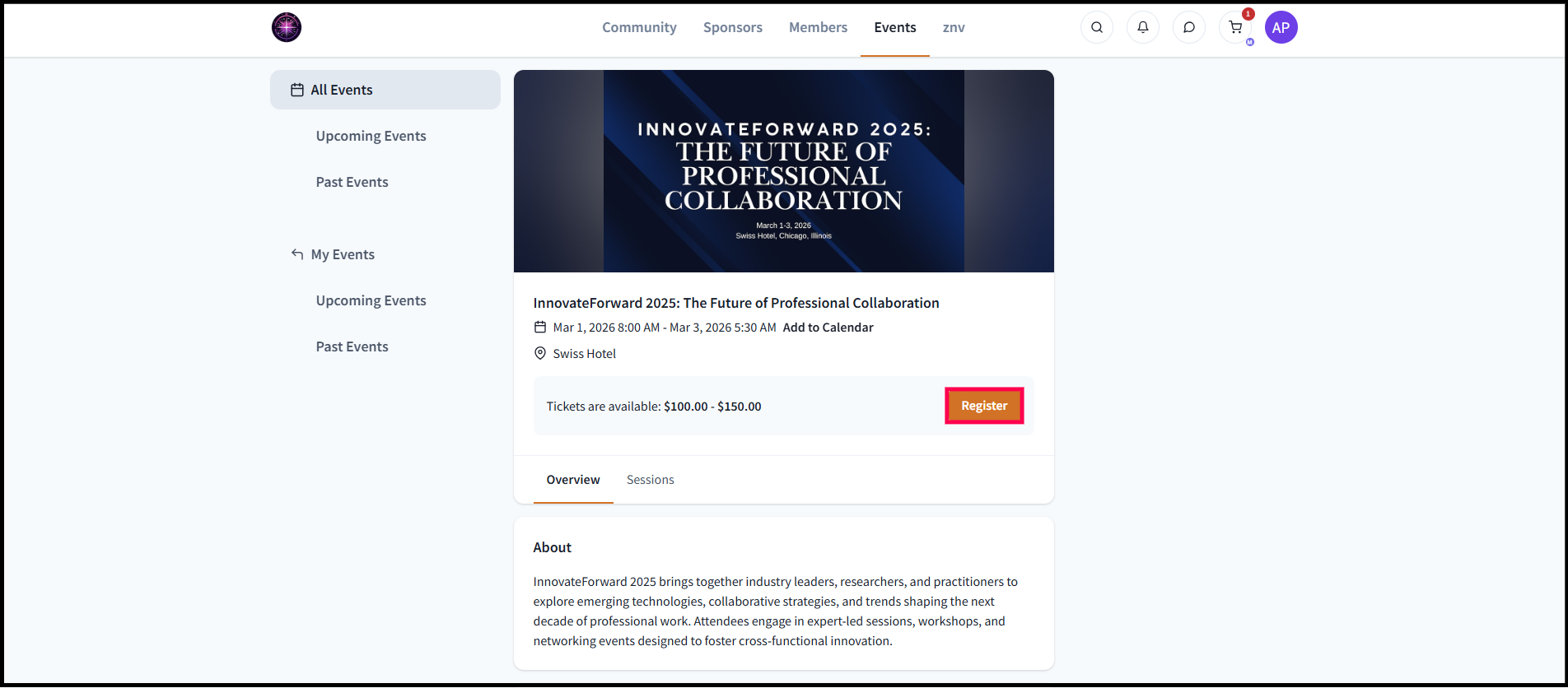
1. Navigate to the Events page.

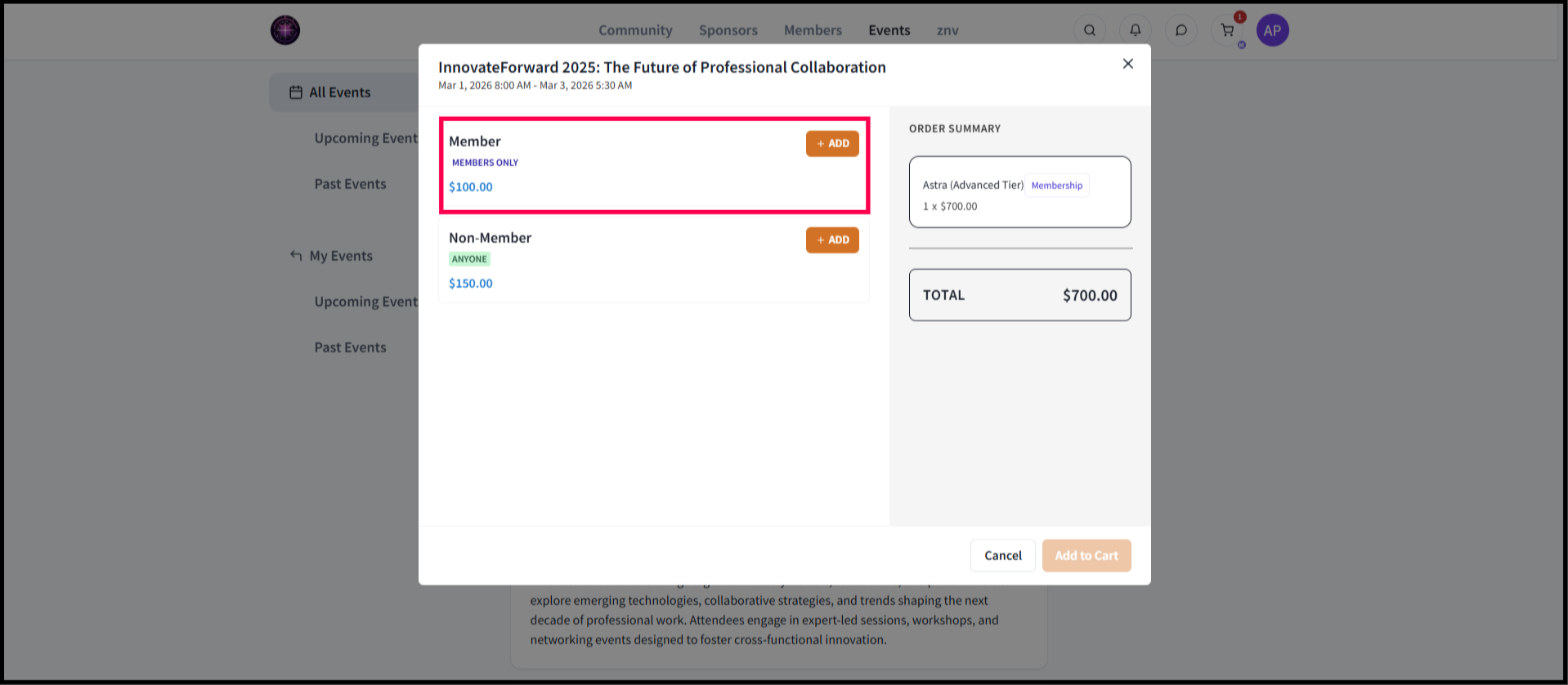
2. Click Register. A pop-up will display all ticket types you are currently eligible to purchase. Some tickets (for example, members-only or admin-only tickets) may be hidden based on your status, so you will only see tickets you are allowed to buy.

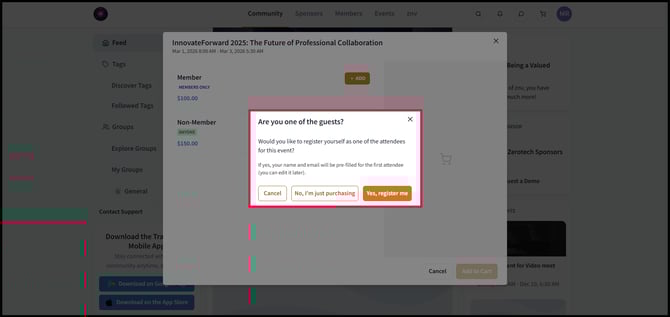
4. You can also purchase multiple tickets for members or non-members. When you do, a pop-up will ask you to confirm whether you’re buying for multiple people and will display a notice that guests who are not yet Tradewing users will receive an invite email after a successful purchase.
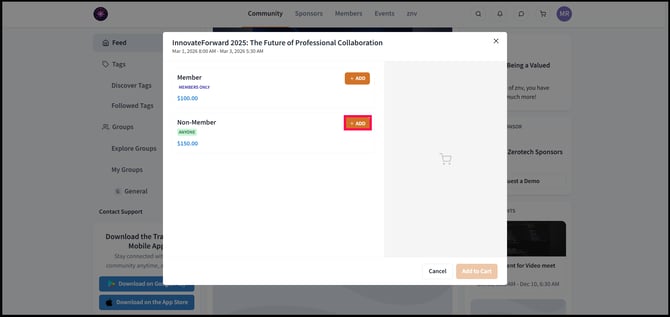


5. Then, after clicking Add to Cart button, you’ll be taken to the shopping cart, where you’ll enter the guest details for each ticket.
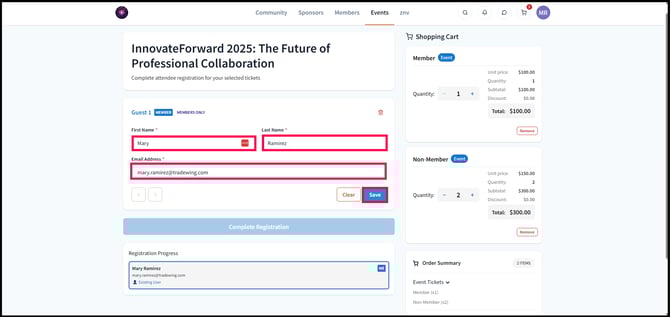
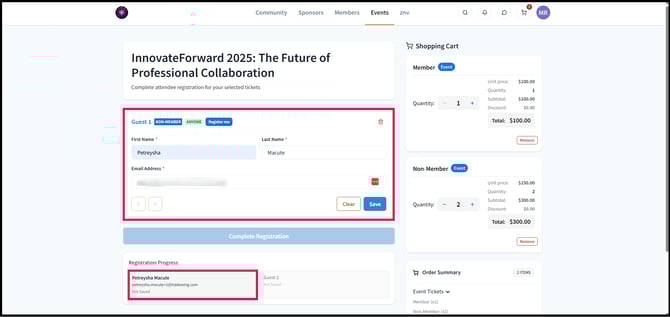
6. For guests who are not yet Tradewing users, you’ll need to enter their first name, last name, and email address. An invite email will be sent to them after a successful purchase.
7. If a promo code applies to your ticket, you can add it during checkout. For more details on using promo codes, refer to this article.

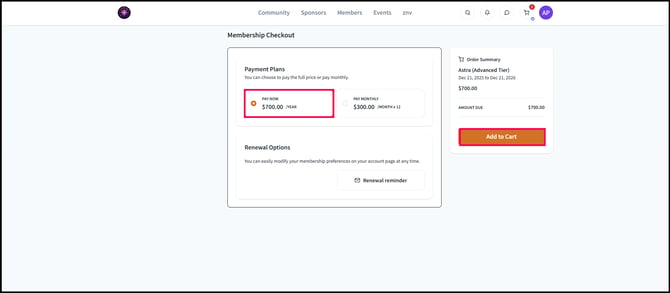
Purchasing a Membership and Event Tickets
You can purchase a membership for yourself, but the system does not currently support purchasing a membership on behalf of another user. You may, however, purchase your own membership and event tickets together in a single transaction. Non-members can buy members-only tickets as long as they have the membership on their cart.
1. Navigate to the membership page. Choose a membership, and click the Add to Cart button.

2. To add event tickets, navigate to the event for which you’d like to purchase tickets. Click Add, then adjust the ticket quantities to reflect how many you want to buy.