![513a98d6-f274-4016-a0a5-03ee71fe81b7.png]](https://support.tradewing.com/hs-fs/hubfs/513a98d6-f274-4016-a0a5-03ee71fe81b7.png?height=40&name=513a98d6-f274-4016-a0a5-03ee71fe81b7.png)
Overview of Tags
In Tradewing, tags serve as a tool for organizing and monitoring the content shared within the community dashboard. Much like hashtags on social media platforms, tags help streamline discussions by categorizing posts by topic. This organization allows users to easily navigate and discover related conversations. When users click on these tags, they can find content that aligns with their interests.
Tags enable members to participate in broader discussions on trending topics, increasing the visibility of their posts, encouraging lively interactions, and drawing greater attention from the community. Learn more about accessing tags and adding them to your posts
Creating Tags
Please note that only admins have the ability to create tags, while members can simply follow the tags that interest them. Tags are created in the admin site through the following steps:
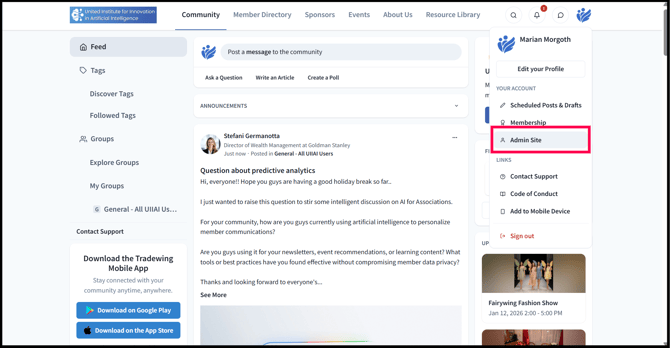
1) Sign in to your account, then click on your profile picture or initials located in the upper right corner of the screen to access the Admin Site.
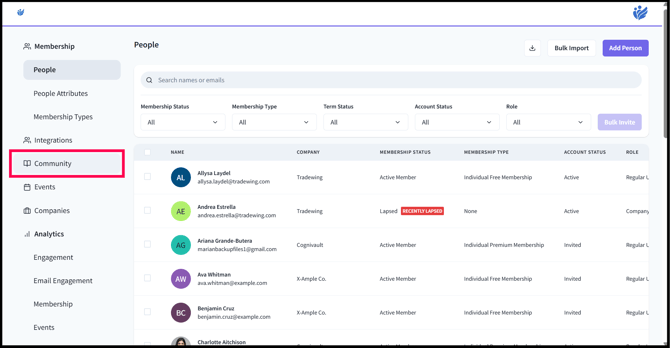
2) Click the Community tab on the left side of the screen.
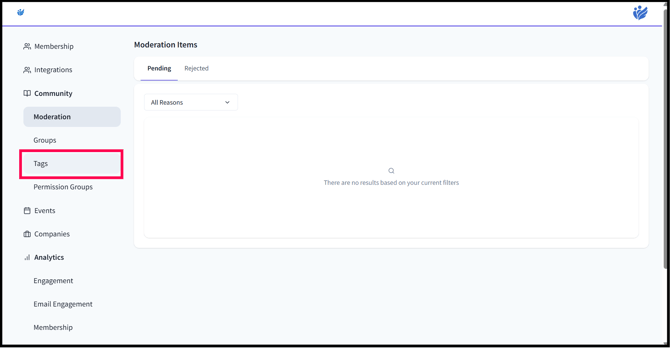
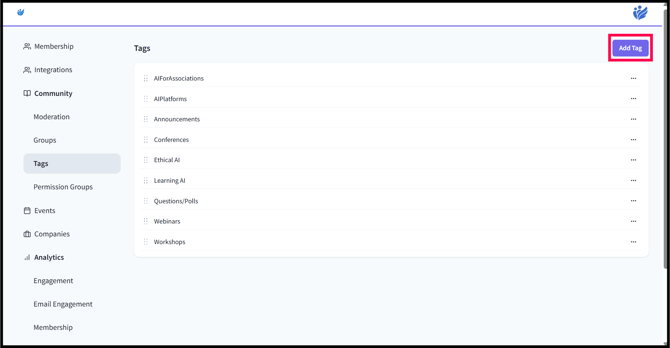
3) Select the Tags tab within the Community section to view all the tags you have created for your community. To add a new tag, click the "Add Tag" button in the screen's upper right corner.
4) Click Add Tag and name the tag that you want to add, then click Submit.
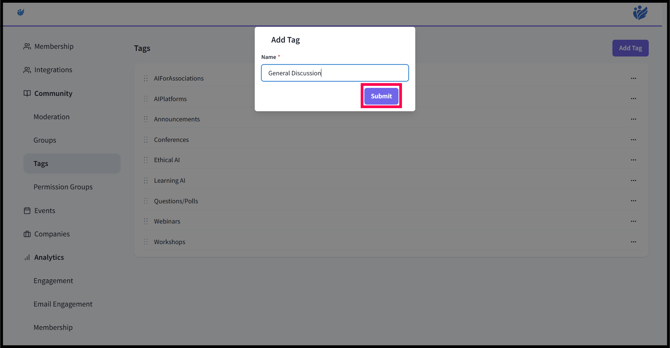
5) A notification that the tag has been successfully created will show up.
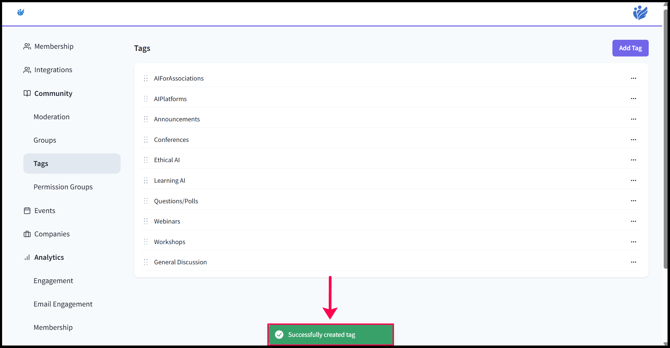
6) In the Member Site, this new tag will appear in the Tags section.
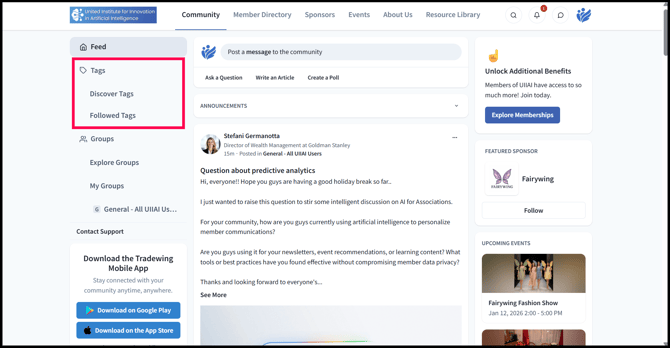
7) Discover Tags show all of the Tags that are newly created and the ones that the you/user hasn't followed yet. To follow a tag, simply click the Follow button. Once you follow a tag, it will disappear in Discover Tags and appear in Followed Tags.
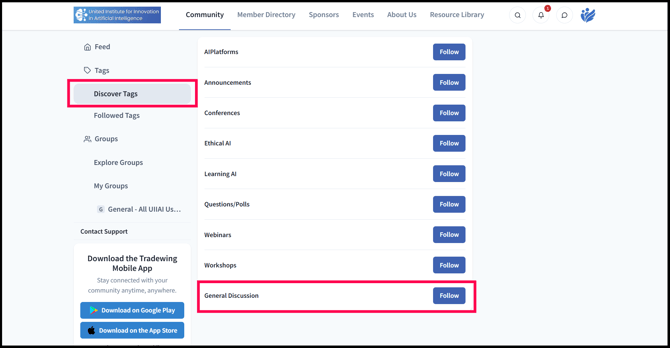
Followed Tags show all of the Tags that you have/the user has followed.
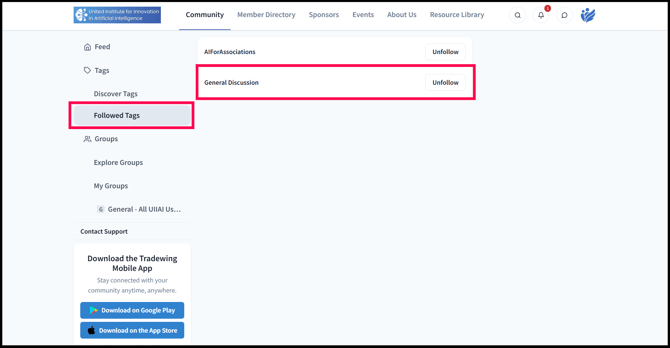
You can unfollow a tag by clicking Unfollow, which will make the tag appear again in Discover Tags.