![513a98d6-f274-4016-a0a5-03ee71fe81b7.png]](https://support.tradewing.com/hs-fs/hubfs/513a98d6-f274-4016-a0a5-03ee71fe81b7.png?height=40&name=513a98d6-f274-4016-a0a5-03ee71fe81b7.png)
Membership Logs
Membership Logs let you track key membership changes—like type updates, start dates, and the admins who made them—so you can keep accurate records and better understand member history.
Previously, admins had limited visibility into how a user received a particular membership—whether it was added manually, purchased through a form, granted via a discount code, or assigned by another admin. This lack of clarity made it difficult to answer member questions, audit membership changes, or confidently manage renewals.
Additionally, there was no clear way to track who added or updated a membership and when the change was made. This led to confusion and extra back-and-forth when multiple admins were managing the same set of members.
How Membership Logs Help
Membership Logs were introduced to solve these challenges. With this new feature, admins can now:
-
See a chronological history of membership changes for each user
-
Identify the source of a membership (e.g., admin-assigned, purchased, system-applied)
-
Track key details like membership type, duration, and payment status
This new level of transparency ensures better internal coordination and makes it easier to support your members with accurate information.
Accessing Membership Logs
-
In the admin dashboard, navigate to Membership > People.
.png?width=670&height=348&name=Screenshot%2028-12-2025%20at%2021.14%20(1).png)
-
Search for and select the member whose information you’d like to view.
.png?width=670&height=348&name=Screenshot%2028-12-2025%20at%2021.14%20(2).png)
-
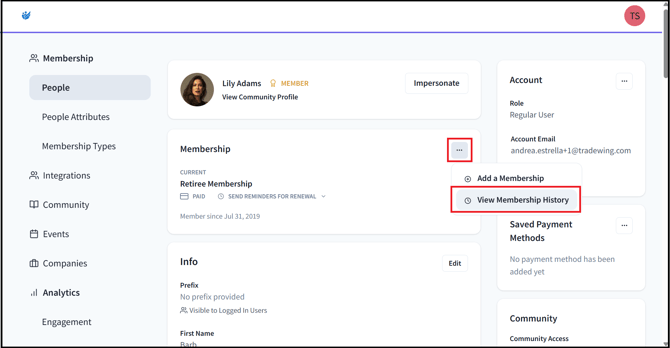
On the member's profile, click the three dots on the Membership card, and select View Membership History.
-
You should see the user's Membership History.
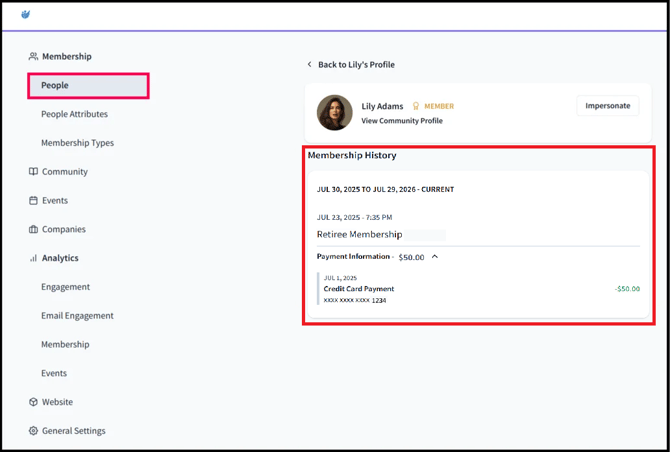
The Membership History section displays:
-
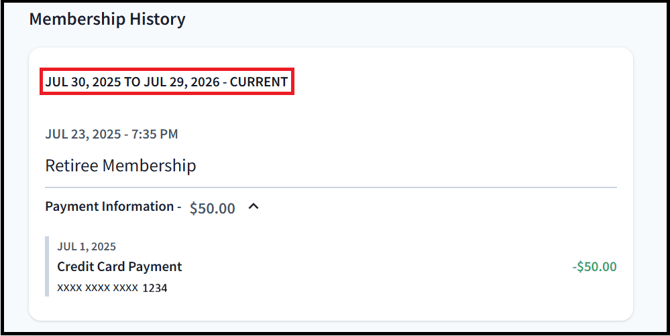
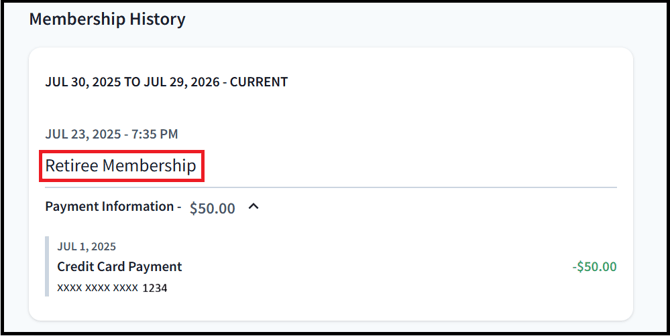
Membership Duration: Shows the Start Date and End Date of the Membership, and whether or not the membership is Active ("CURRENT") or Expired.
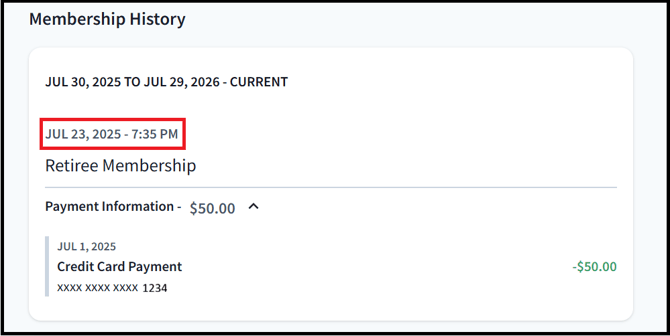
- Payment Processed. The date and time when the payment for the membership was successfully processed.
-
Membership Type: Indicates the current membership tier or category (e.g., Student, Professional).
-
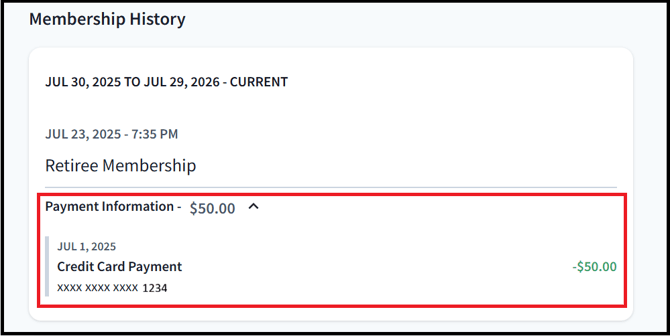
Payment Information:
-
Amount Paid (Ex. "-$50.00")
-
Payment Method (Ex. "Credit Card Payment")
-
Start of Payment (Ex. "JUL 1, 2025")
-
Last Four Digits of the Payment Method Used (Ex. "1234")
-
This view provides a clear and detailed timeline of a member's status, making it easier to track renewals, payments, and updates over time.