![513a98d6-f274-4016-a0a5-03ee71fe81b7.png]](https://support.tradewing.com/hs-fs/hubfs/513a98d6-f274-4016-a0a5-03ee71fe81b7.png?height=40&name=513a98d6-f274-4016-a0a5-03ee71fe81b7.png)
Intro to Promo Codes
Promo Codes provide organizations with a flexible way to offer discounts or special pricing for their events and memberships. This feature allows Admins to create customized codes that users can apply during shopping cart checkout to receive a reduced rate.
These promo codes are ideal for incentivizing event registration, membership sign-up/renewal, rewarding members or volunteers, supporting sponsor initiatives, or offering exclusive pricing to specific groups.
We recommend using Promo Codes for occasions such as early-bird promotions, member-only discounts, sponsor/partner perks, complimentary registrations, event add-ons, and limited-time marketing campaigns.
How to Create a Promo Code
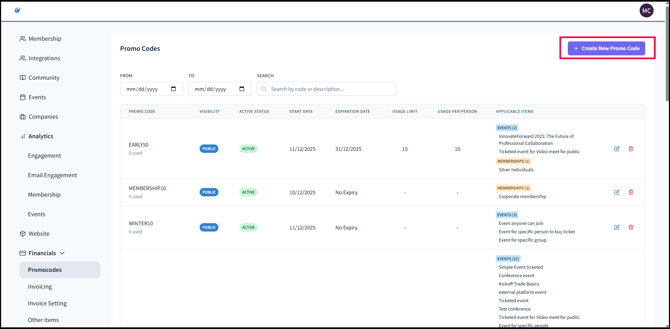
1. In the Financials: Promo Codes module, click + Create New Promo Code.
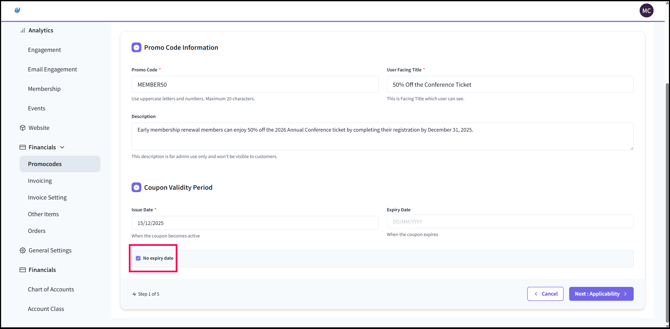
2. For the Basic Info step, fill out the fields under the Promo Code Information.
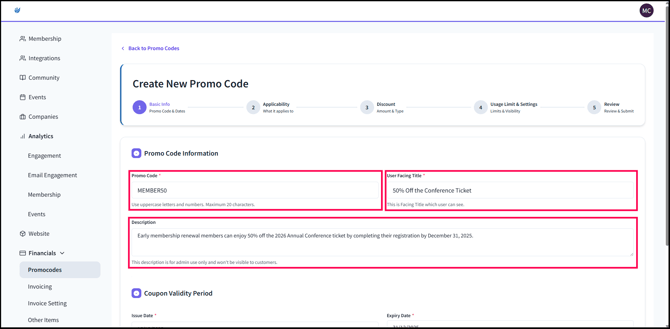
- Promo Code. This is the name of the Promo Code, which is in uppercase letters and numbers only. Spaces are not allowed. Example Promo Code names are the following:
- MEMBER20 - 20% Off for active members for webinars, conferences, which can reinforce membership value and encourage renewals.
- EARLYBIRD - $25 to $50 off / 15% Off early event registration conferences. Widely used event promo code across industries.
- SPEAKERPASS - 100% Off or free registration for event speakers of conferences and summits with multiple presenters. Typically shared privately, not publicly.
- MEMBER20 - 20% Off for active members for webinars, conferences, which can reinforce membership value and encourage renewals.
- User Facing Title. This is the name of the promo code in a way that is clear and easy to understand which is written in plain, friendly language and it is used to describe the promo much accurately. The purpose of this is to help the user understand what something is at a glance.
- Description. This is the description of the Promo Code for admin view. This is not visible in the Member Site.
3. Configure the Coupon Validity Period.
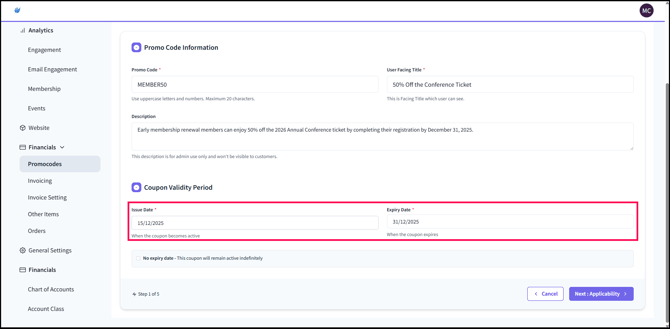
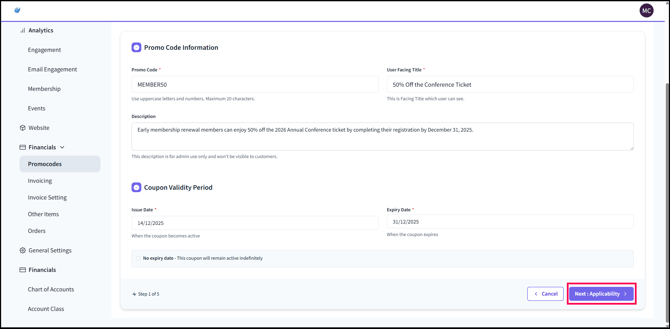
- The Issue Date indicates when the Promo Code becomes valid, while the Expiry Date shows when it will no longer be available. Once the Expiry Date has passed, the Promo Code can no longer be applied during registration.
- If you enable the No expiry date option, the Promo Code will remain valid for the entire duration that the event, membership, or membership renewal is open for registration. Ticking the No expiry date will disable the Expiry Date field, making it not possible for the user to enter an end date to the Promo Code’s validity as it is no longer applicable for non-expiring promo codes.
4. Click Next : Applicability to proceed to the next step.
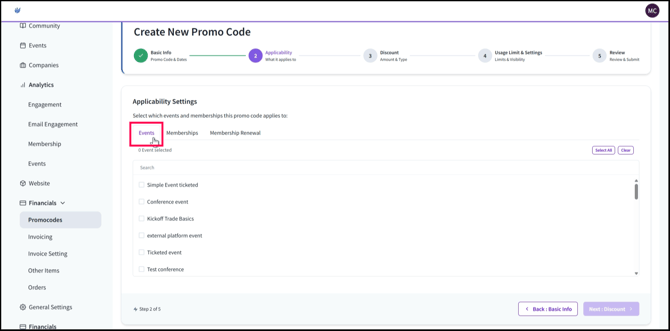
5. Set the Applicability Settings. This setting configures the event, membership, or membership renewal to which the Promo Code applies to. One Promo Code can apply to multiple applicabilities. That is, a promo code can apply to an event or multiple events. In addition, a promo code can also apply to an event, a membership, and a membership renewal.
In the example below, since the MEMBER50 Promo Code applies to the event (CCG 2026 Annual Conference), then the user would have to follow the following:
- Select Events.
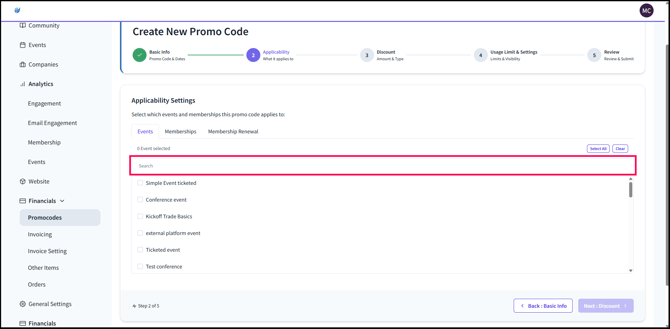
- Search the name of the event (i.e., “CCG 2026 Annual Conference”).
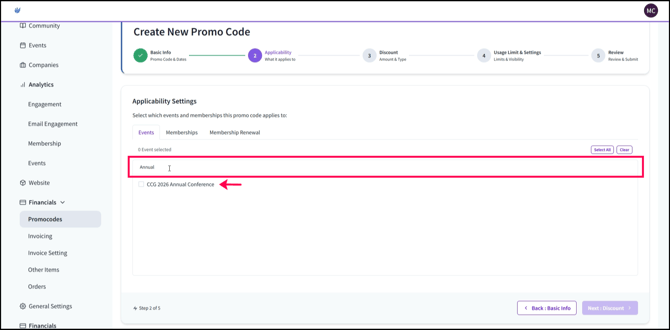
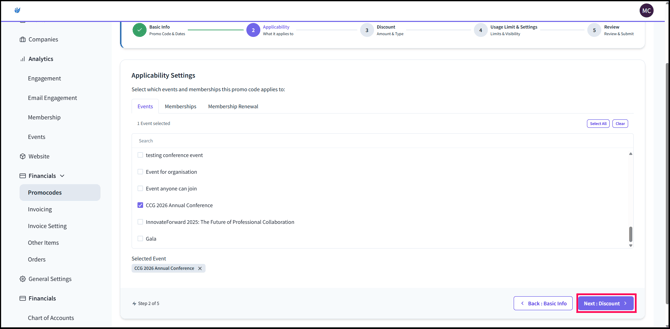
- Check the box of the CCG 2026 Annual Conference. The name of the event will show up under Selected Event.

6. Once done, please select Next : Discount.
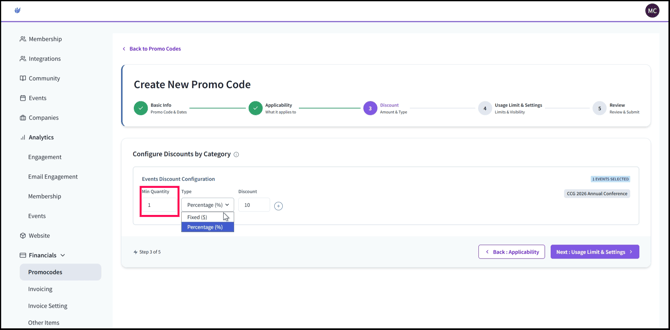
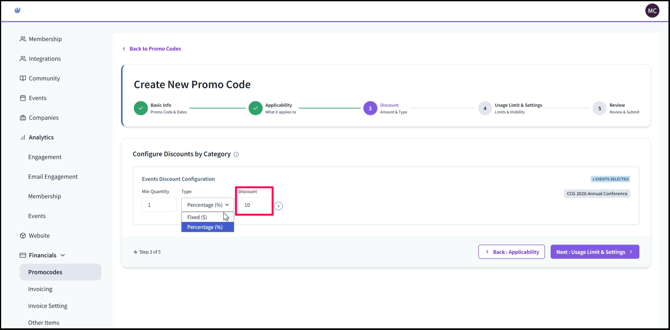
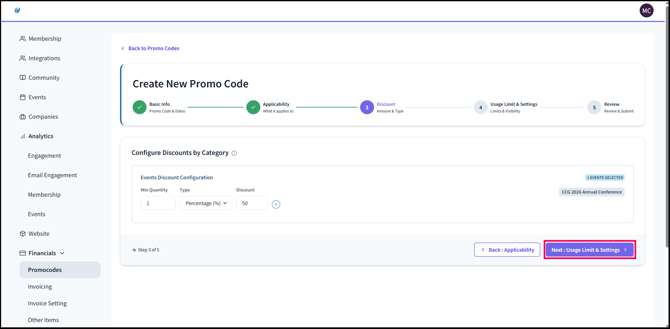
7.Configure Discounts by Category. This section of the Create New Promo Code enables you to set up the discount based on percentage or fixed amount. In the example, MEMBER50 is a promo code for a 50% discount for the 2026 Conference ticket that amounts to $1,245.00.
- Min Quantity. This is the minimum number of tickets/memberships that a registrant must purchase in order for the Promo Code to be applicable. For example, if the Min Quantity is set to ‘1’, then the registrant needs to only purchase 1 ticket/membership in order for the Promo Code to be applicable.
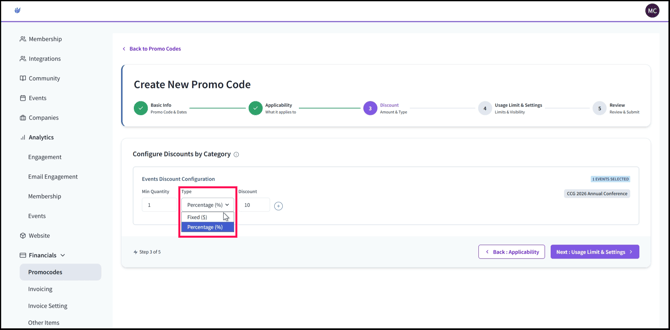
- Type. This field indicates the type of discount that will be applied to the ticket or membership fee.
-
- Fixed ($) - Refers to a fixed dollar amount.
- Percentage (%) - Refers to the percentage.
- Discount. This indicates the fixed dollar amount that will be discounted from the price.
8. Click Next : Usage Limit & Settings.
9. Usage Limits. This section dictates the Usage Limits (Total Usage Limit and Per-person Usage Limit) and Settings (Visibility and Status).
Usage Limit: Total Usage Limit
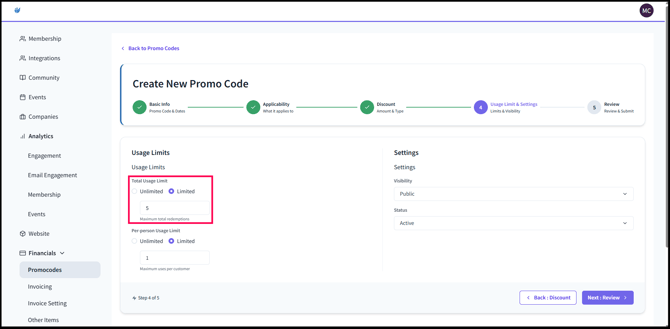
- Unlimited. When this option is selected, there is no limit to the number of times the promo code can be used.
- Limited. When this option is selected, the promo code can be used only a set number of times. This value represents the total number of times the promo code may be applied overall. For example, if the limit is set to 50, the promo code can be used up to 50 times within the selected applicability. Once all 50 uses have been redeemed, the promo code will no longer be available.
Usage Limit: Per-person Usage Limit
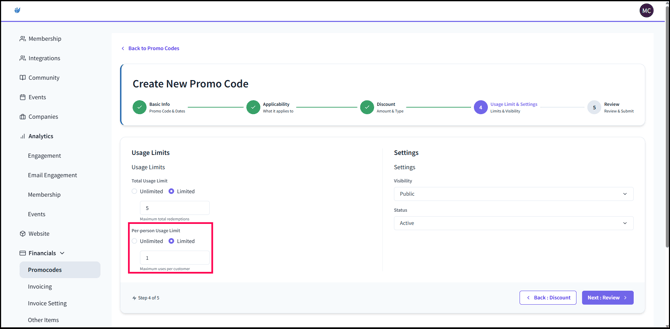
- Unlimited. If you select this option, there won’t be a limit to the number of times that a Promo Code can be availed by a single user.
- Limited. This indicates the number of times that the Promo Code can be used by a single registrant, wherein the registrant is a registrant of an event, membership, or membership renewal. For example, if the number here is ‘3’, then each user can use the Promo Code three (3) times within the Promo Code’s applicability. For instance, for MEMBER50, since the Per-person Usage Limit is ‘1’, then that means that each user can only use the MEMBER50 Promo Code one time.
Settings: Visibility.
This refers to the group/category of users that the Promo Code will be visible to.
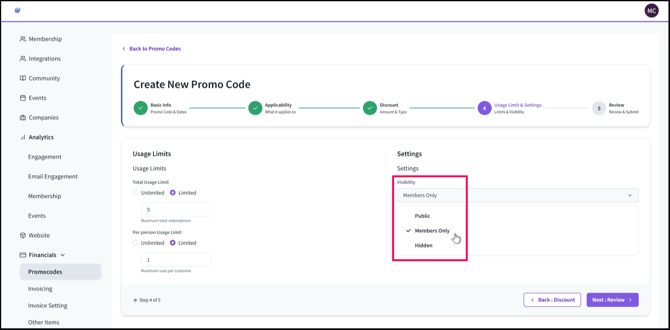
- Public - The Promo Code is visible to all users, regardless of membership status.
- Members Only - The Promo Code is visible only to users whose membership status is set to Active Member.
- Hidden - The Promo Code is not visible to any users and does not appear in the Discount Codes section.
Settings: Status.
This indicates whether a Promo Code is currently enabled and available for customer use during checkout. This setting controls the promo code’s visibility to customers and determines whether it can be applied in the Shopping Cart.
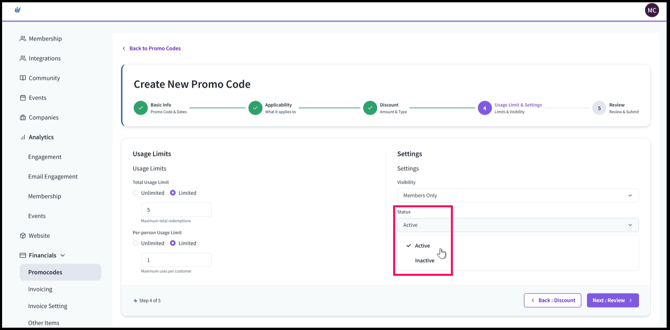
- Active - The promo code is enabled and visible to customers during checkout. It appears in the Discount Codes section of the Shopping Cart.
- Inactive - The promo code is disabled and not visible to customers during checkout. It does not appear in the Discount Codes section of the Shopping Cart, but it remains available in the Admin Site under Financials → Promo Codes for reactivation and editing.
10. After configuring the Total Usage Limit, Per-person Usage Limit, Visibility, and Status, click Next : Review to proceed to the next step.
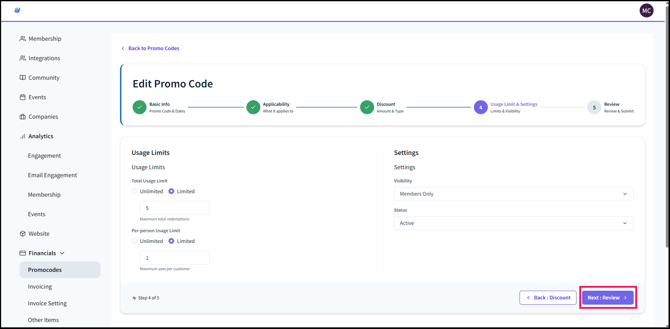
11. Review Your Promo Code. The Review Your Promo Code step in the Create New Promo Code process provides an overview of all of the data that you entered in relation to the Promo Code. This gives you visibility on all of the data which can enable you to make corrections or additions to the information that you filled out.
- If you want to edit some information, such as the Total Usage Limit, you can click Edit:
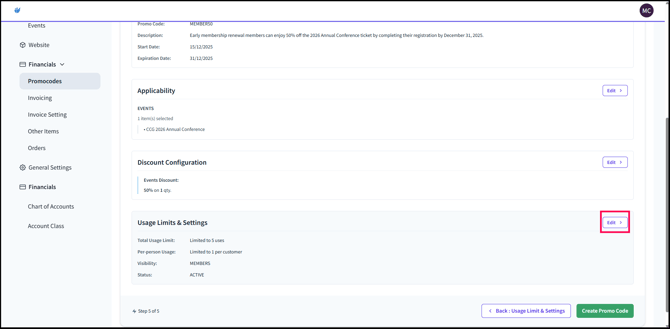
This will bring you back to the Usage Limits & Settings step, where you can edit the Total Usage Limit information.
12. Once you are done reviewing all of the details, you can submit your Promo Code by clicking Create Promo Code.
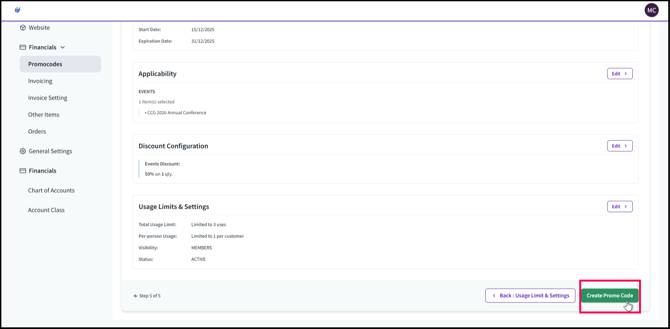
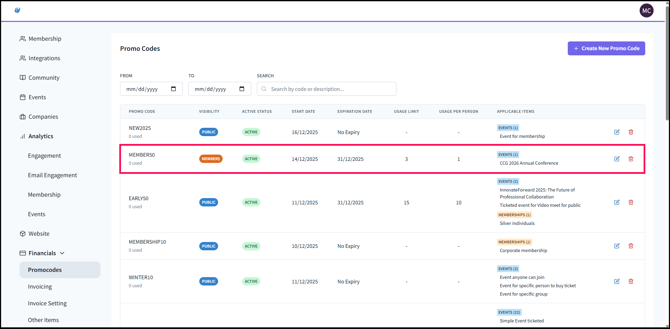
You will be brought back to the Promo Codes main page, which contains all of the existing promo codes created - which includes the Promo Code that you’ve created (i.e., MEMBER50).