![513a98d6-f274-4016-a0a5-03ee71fe81b7.png]](https://support.tradewing.com/hs-fs/hubfs/513a98d6-f274-4016-a0a5-03ee71fe81b7.png?height=40&name=513a98d6-f274-4016-a0a5-03ee71fe81b7.png)

How Invoices Work in Tradewing
Invoices are created by admins on behalf of individuals or organizations. Once created, the invoice is emailed out as a PDF and includes a full summary of what is being billed—event tickets, memberships, or other items, along with pricing, discounts, and the total amount due.
One important part of this process is that entitlements activate immediately when the invoice is created. Contacts can access their memberships or event seats right away, even before payment is submitted. This allows associations to register attendees or grant membership access without waiting on accounting tasks.
Admins have the flexibility to edit invoice items while the invoice is still unpaid or partially paid, ensuring details like attendee names or membership assignments can be corrected before the invoice is finalized.
Viewing an Invoice (Member Site)
Members receive an email containing a PDF copy of their invoice. This document lists everything they’re being billed for, the total amount due, and any discounts applied. Contacts can also request the invoice to be resent at any time.
To view the invoice issued to your profile:
1. Click on the profile icon in the top-right section of the screen, then select “Invoice.”

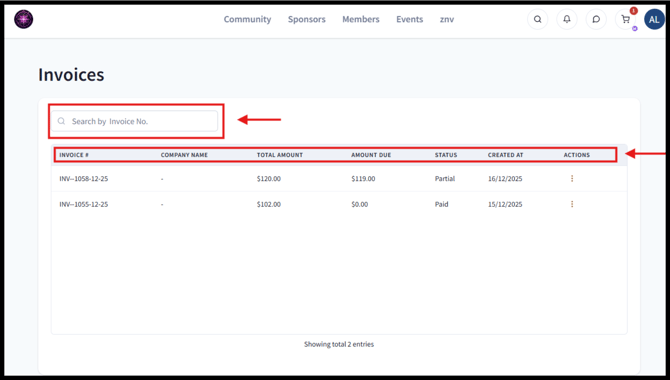
2. Once a contact clicks on Invoice, they will be able to view a list of all invoices created under their email address. They can use the search bar to find invoices more quickly.
Additionally, members will see key invoice details at a glance, including the total amount, invoice number, amount due, status, and the date the invoice was created.
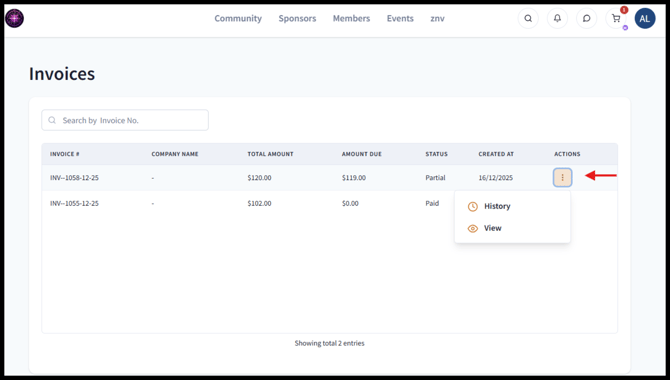
3. Contacts can also click on “Actions,” where they will have the option to view the invoice PDF or view the payment history.
Making Payments
Contacts may submit either full or partial payments depending on their association's policies. Admins record these payments in the system, and once they do, the invoice’s status updates automatically.
Invoice Statuses Explained
- Unpaid: No payment has been received.
- Partial: A portion of the total has been paid.
- Paid: The full balance has been paid.
- Closed: The admin has zeroed out the remaining balance (typically for write-offs).
- Voided: The invoice was canceled before any payments were applied.
Note: Status changes help keep both Contacts and admins aligned on what is owed and what has been paid.
Receipts
Whenever a payment is made, Tradewing sends a receipt to the contact. These receipts use the association’s branding and follow a consistent layout, so contacts always see familiar formatting.
- For payments processed through the shopping cart, the receipt is sent automatically upon payment completion.
- For payments made by check, ACH, cash, or through an invoice, admins have the option to send or not send a receipt.
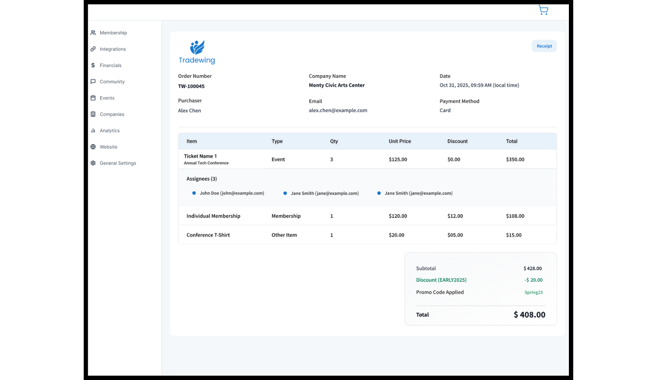
Receipts include:
- Payment date and method
- The order number
- The amount paid
- A detailed summary of items
- Any discount codes that were applied
- Event attendee details when relevant
Here's a sample receipt:
Need Help?
If you’re a member with questions about an invoice, payment, or receipt, please contact your association directly. If you need additional assistance, you can also reach out to support@tradewing.com.