![513a98d6-f274-4016-a0a5-03ee71fe81b7.png]](https://support.tradewing.com/hs-fs/hubfs/513a98d6-f274-4016-a0a5-03ee71fe81b7.png?height=40&name=513a98d6-f274-4016-a0a5-03ee71fe81b7.png)
How to Access Other Items - Admin Site
How to Add Other Items - Admin Site
How to Edit Other Items - Admin Site
How to Add Other Items - Member Site
Intro to Other Items
Other Items provide organizations with a flexible way to offer purchasable items that fall outside of standard memberships or events. This module allows Admins to create and manage customizable items with their own pricing, descriptions, and images, making it ideal for merchandise, add-ons, or specialized services. Other Items can be configured with optional display units to add pricing context (such as “per item” or “per hour”) and rich descriptions to help users understand what they’re purchasing. We recommend using Other Items for association merchandise, event-related add-ons, optional services, donations, or any unique offerings that don’t fit into existing product categories.
How to Access Other Items - Admin Site
- Go to the Admin Site.
- Navigate to Financials from the left-hand menu.
- Select Other Items.
.png?width=177&height=263&name=Untitled%20design%20(5).png)
- The main panel displays a list of all configured items with the following columns:
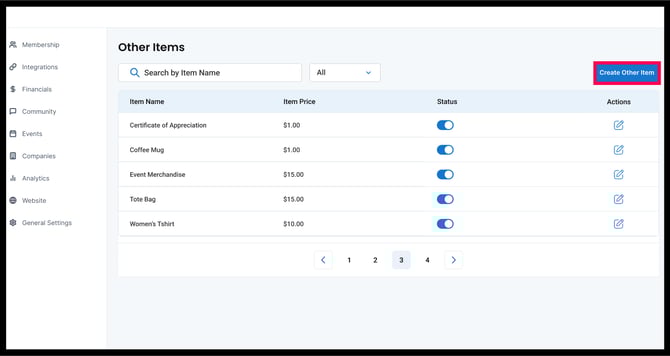
- Item Name: Displays the name of each item (e.g., Certificate of Appreciation, Coffee Mug, Event Merchandise). Text input field. Required Max length: 150 characters. Unique identifier per item.
- Item Price: Shows the assigned price for each item.
- Status: Shows a toggle button to activate or deactivate an item.
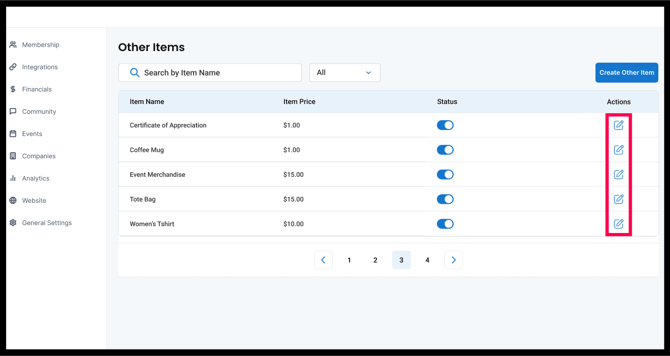
- Actions (Edit): Each item includes a ‘pen’ icon, allowing administrators to update item details.
At the top of the list, there is a search bar where you can look for an item.
How to Add Other Items - Admin Site
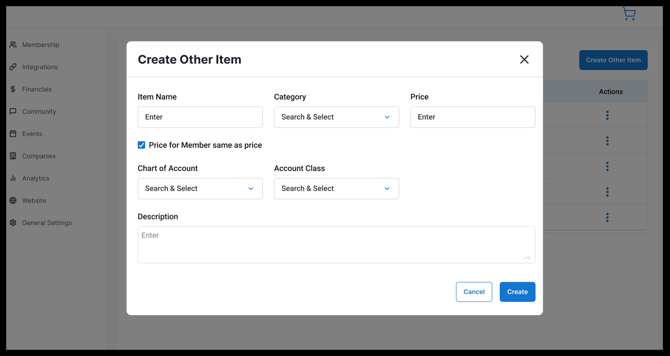
- Click the Create Other Item button located at the top-right corner of the Other Items box.
- Fill out the fields below:
Field Name
Input Type
Purpose
Notes
Item Name
Text Input
The mandatory name of the item.
(e.g., "Custom Consulting Fee")
Max length: 150
Category
Search & Select Dropdown
Assigns the item to an existing category.
Crucial for reporting and organization.
Price
Text Input
The base selling price of the item.
Must be a numeric value.
Currency input. Must be greater than or equal to $0.00. Supports decimals.
Price for Member same as price
Checkbox
Determines if the member price defaults to the base price.
If unchecked, a separate field for the member price may appear.
Chart of Account
Search & Select Dropdown
Links the item to the relevant accounting ledger code.
Essential for financial tracking.
Account Class
Search & Select Dropdown
Classifies the item for accounting purposes.
(e.g., Revenue, Expense, Asset)
Description
Large Text Area
Provides additional details or notes about the item.
Used for internal reference or customer display.
Action Buttons
Cancel, Create
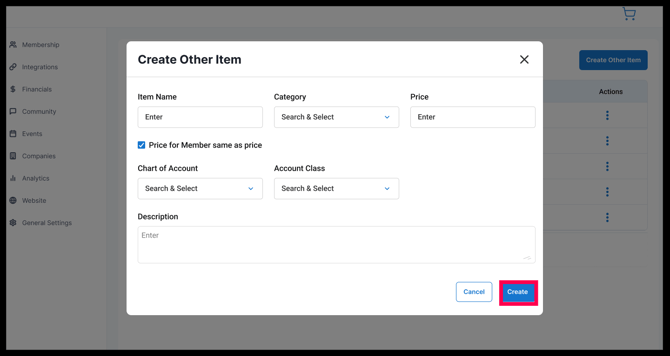
Create saves the item; Cancel closes the dialog without saving.
- Click Create to save the item to the list.
How to Edit Existing Other Items - Admin Site
- Locate the item you want to update.
- Click the Pen icon under the Actions column.
- Update the item details as needed.
- Save your changes.
How to Add Other Items - Member Site
The Other Items section is located below the Order Summary panel on the right-hand side of ‘Your Cart,’ positioned above the Discount Code section. There is also a View More link, indicating that the displayed list is truncated and a larger selection of merchandise exists.
- Item Examples: The screenshot shows three distinct examples:
- Coffee Mug ($29.99)
- Tote Bag ($99.99)
- Merchandise ($20.99)
- Pricing: Each item has a displayed price, which is the cost the user will pay if they add it to the cart.
- Action: The primary action is the Add button next to each item.
- Once in Your Cart, locate the Other Items below the Order Summary.
.png?width=670&height=718&name=Untitled%20design%20(9).png)
- The system will display a list of all available Other Items, including item names and prices.
- Click View More to display more items in the list.
- Select the item that you want to add (e.g., Coffee Mug, Event Merchandise, Certificate of Appreciation).
- Review the cart to confirm and make any necessary adjustments before checkout.
- Correct item(s)
- Correct quantity
- Correct pricing
- Once confirmed that everything is correct, click Proceed to Checkout.
.png?width=670&height=803&name=Untitled%20design%20(8).png)