![513a98d6-f274-4016-a0a5-03ee71fe81b7.png]](https://support.tradewing.com/hs-fs/hubfs/513a98d6-f274-4016-a0a5-03ee71fe81b7.png?height=40&name=513a98d6-f274-4016-a0a5-03ee71fe81b7.png)
Creating Subgroups
1) Navigate to the Admin Site
2) Click "Community"
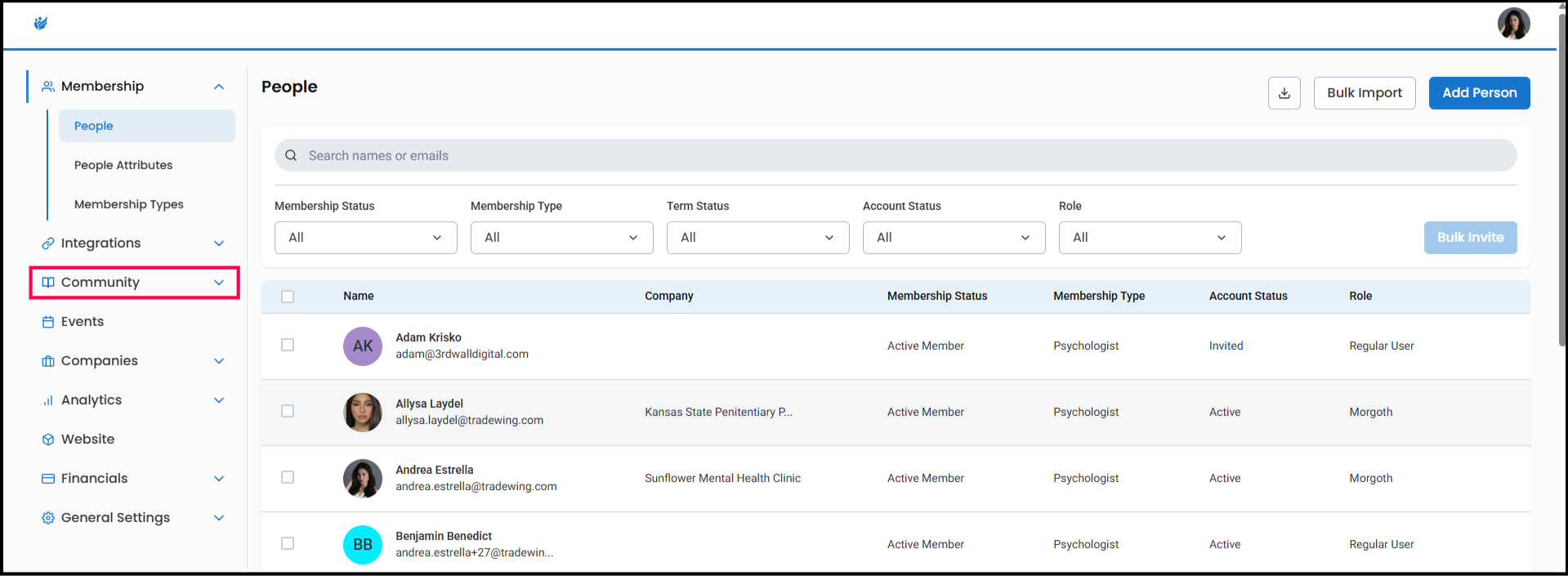
3) Click "Groups"
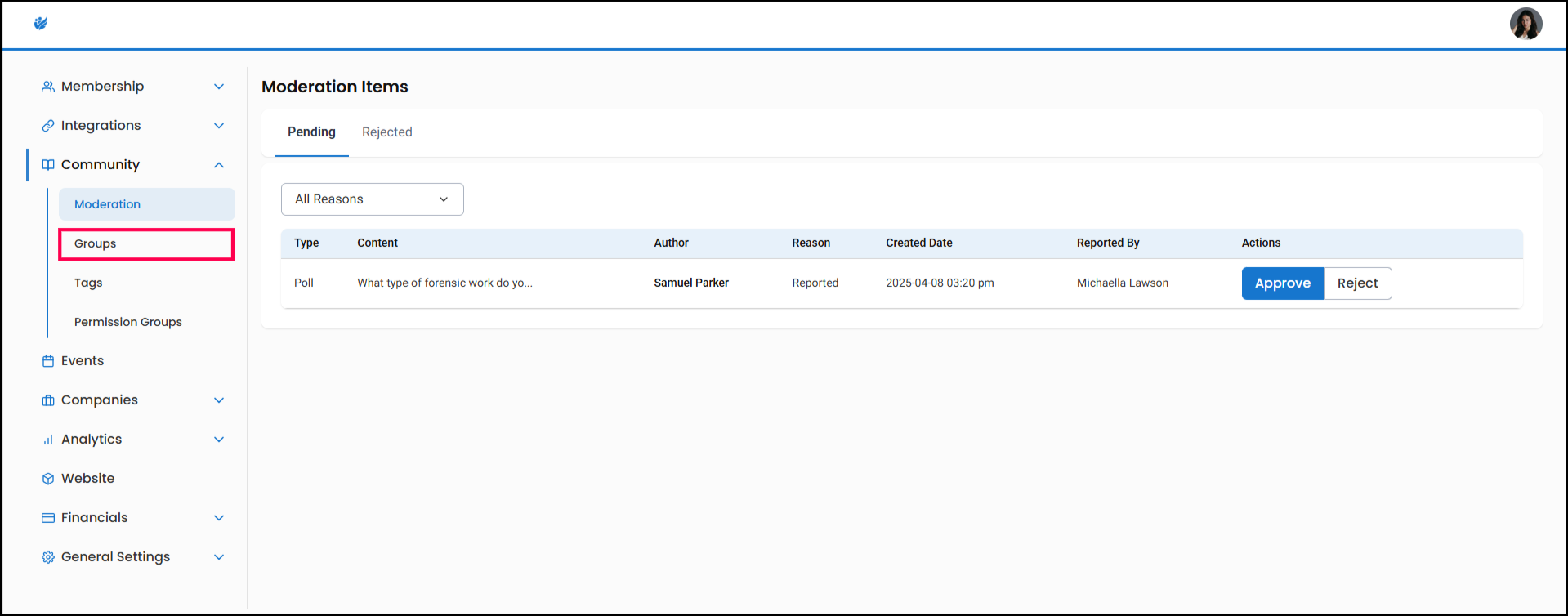
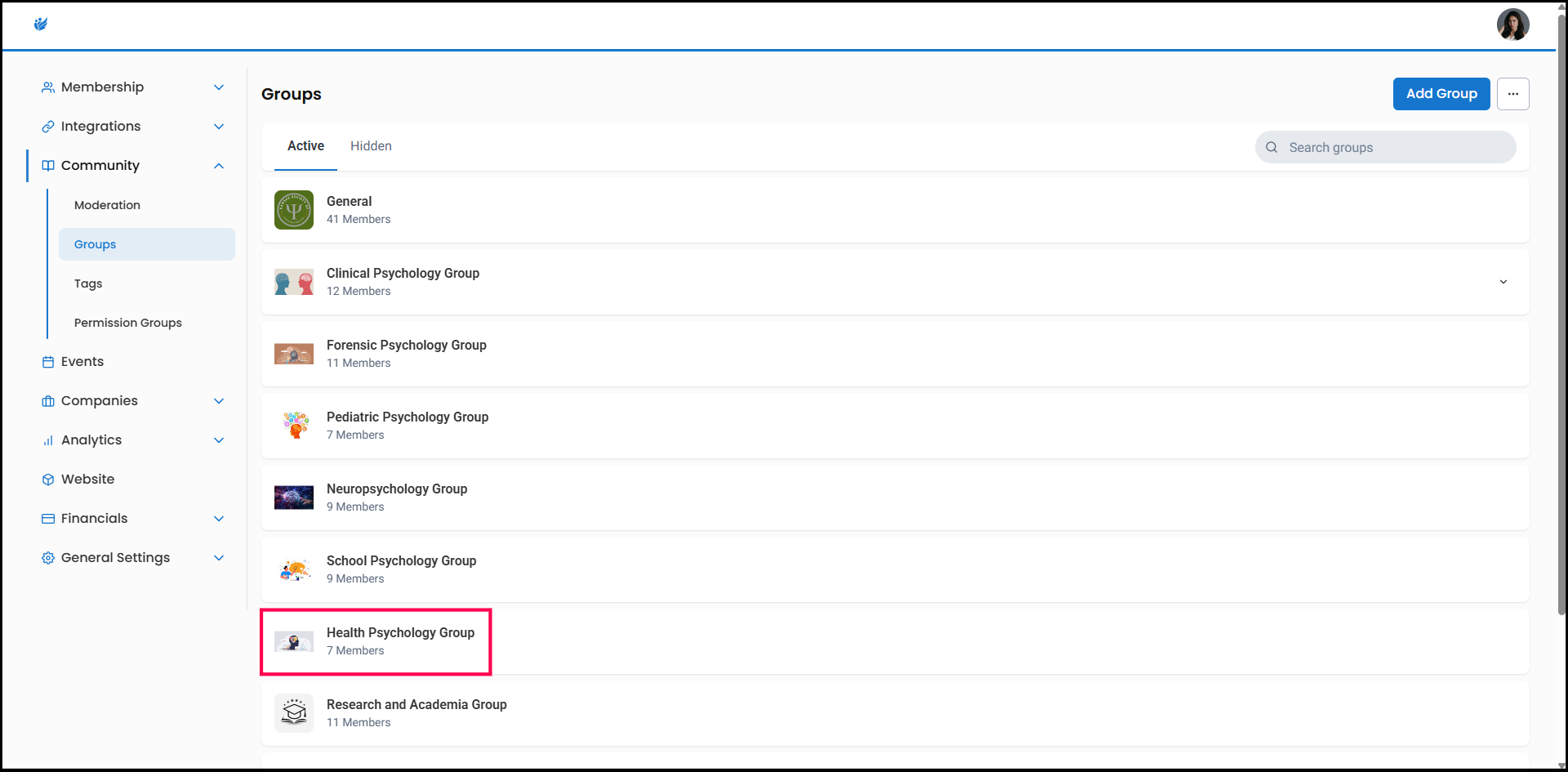
4) Click the group you want to add a subgroup to.
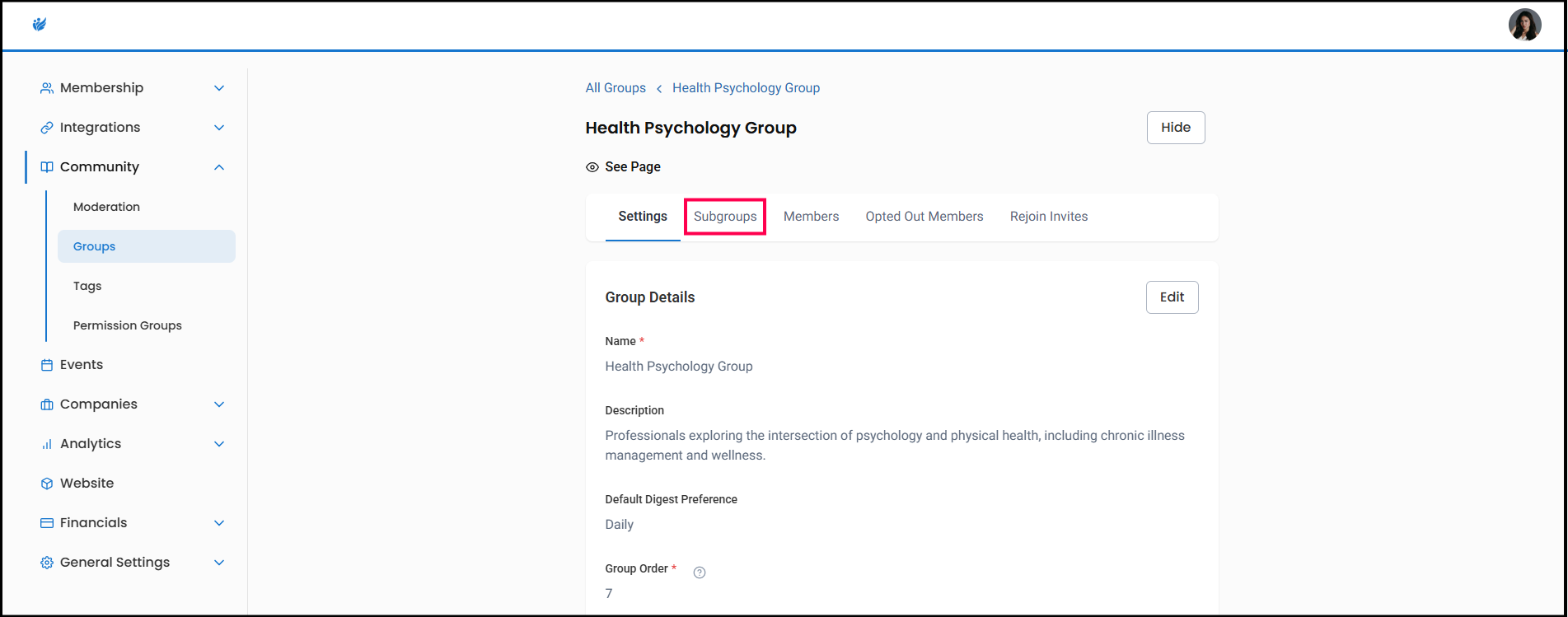
5) Click "Subgroups"
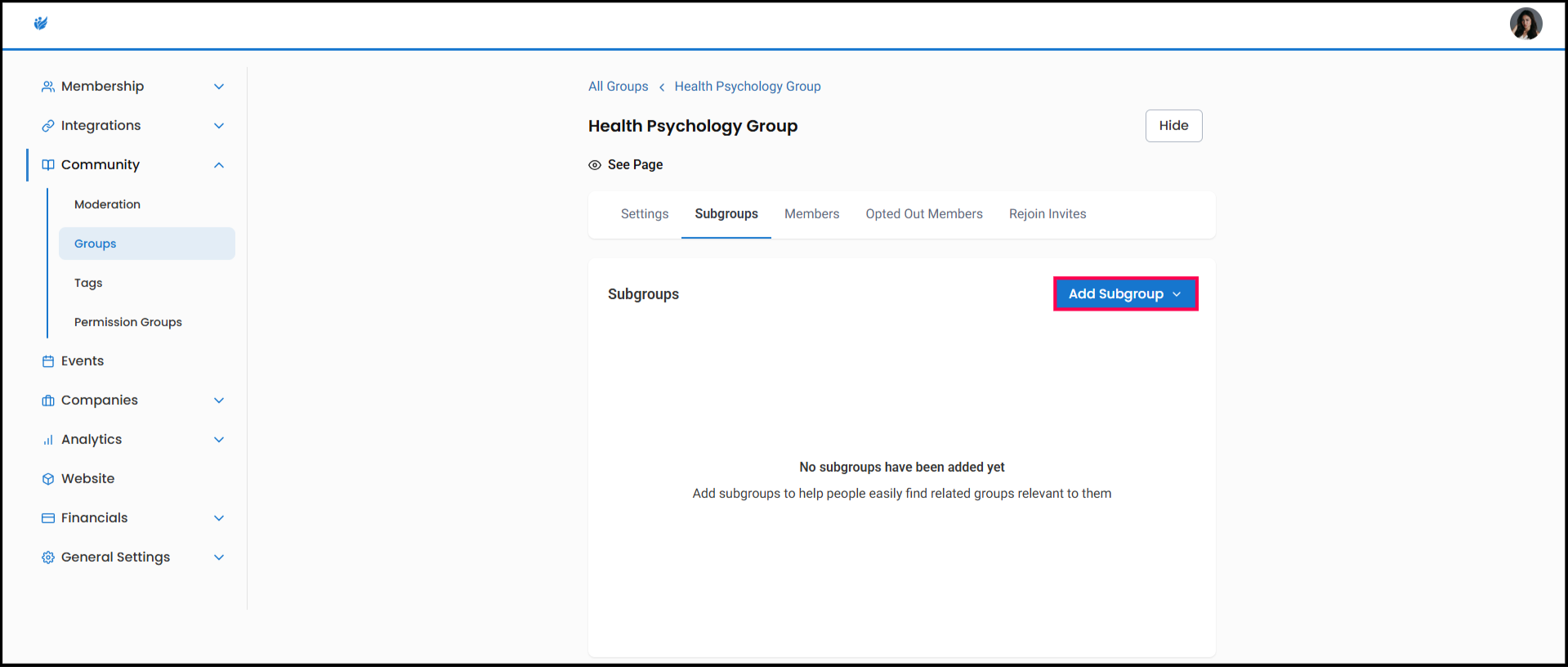
6)Click "Add Subgroup"
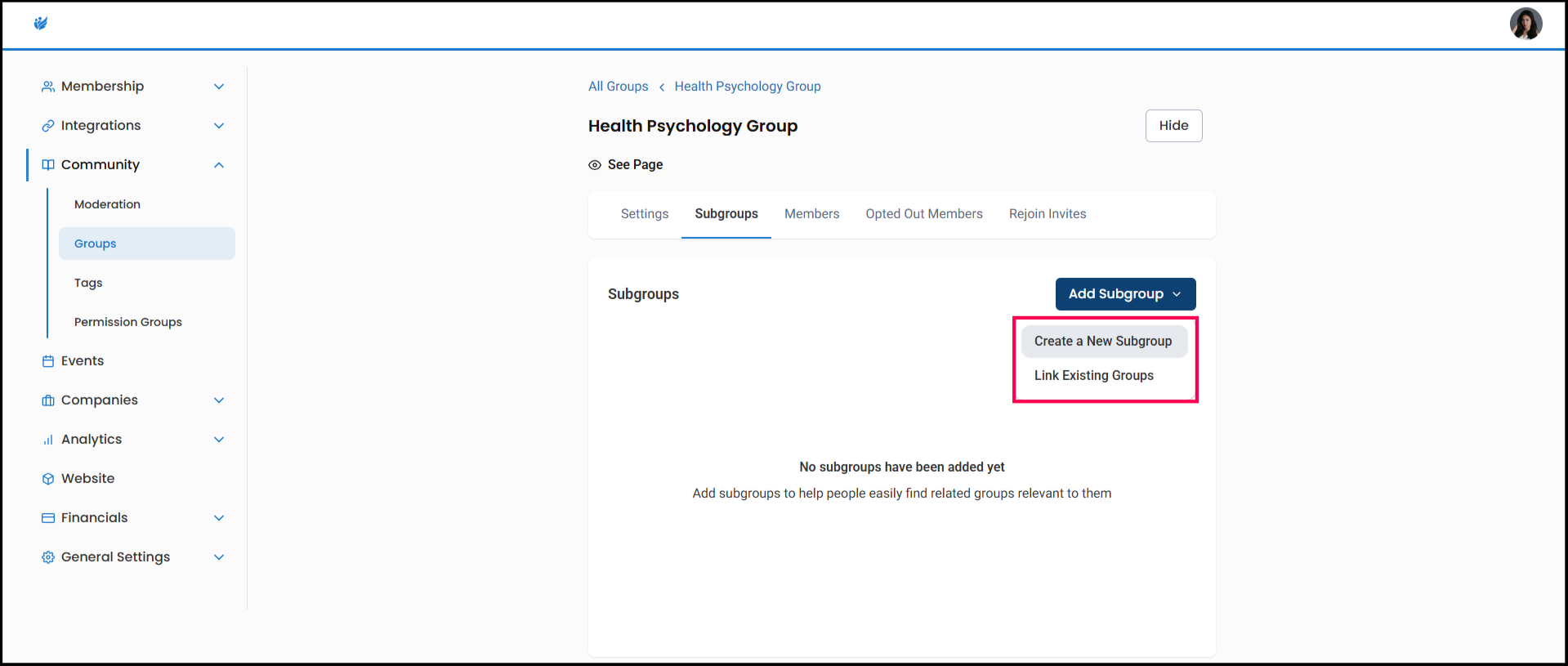
7) You can click on "Create a New Subgroup" or "Link Existing Groups"
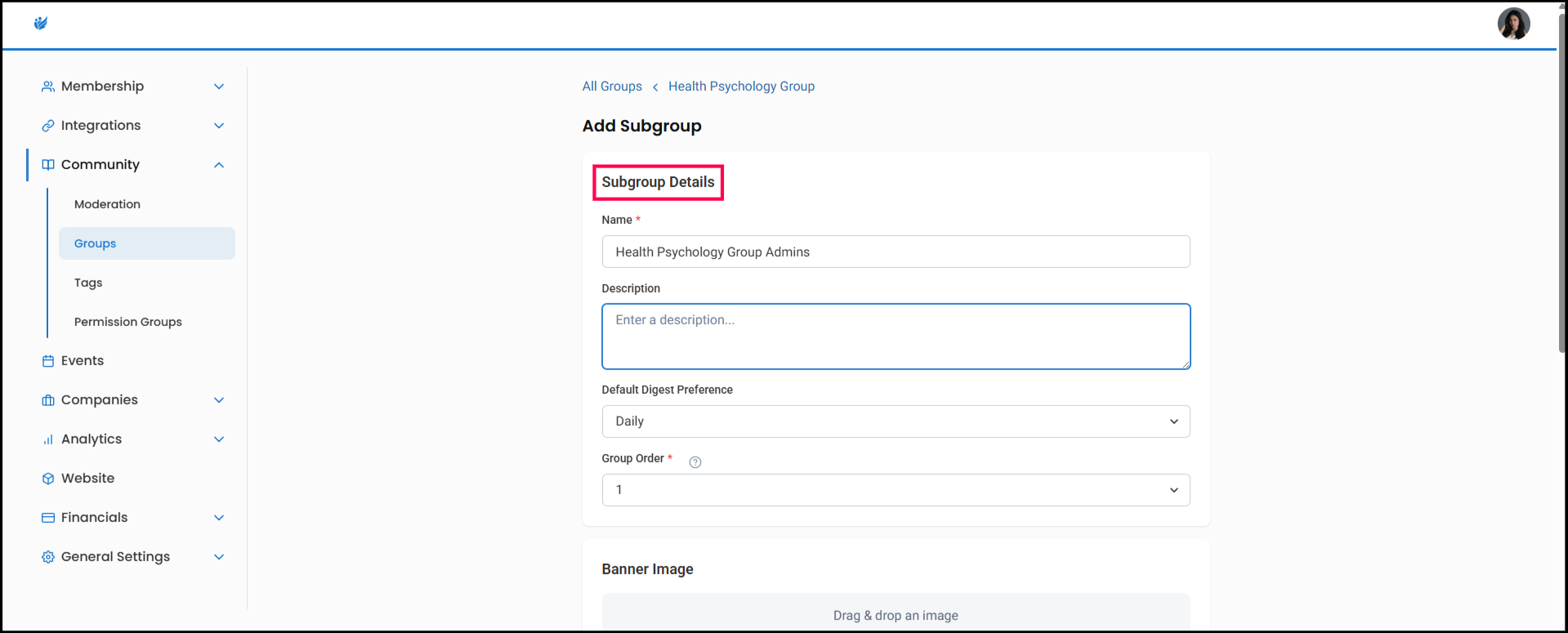
8) If you click, "Create a New Subgroup", you will be prompted to add a name, and have the option to add a description, set the daily digest preference (how frequently the members of this group will receive communications), and arrange it in the All Groups order.
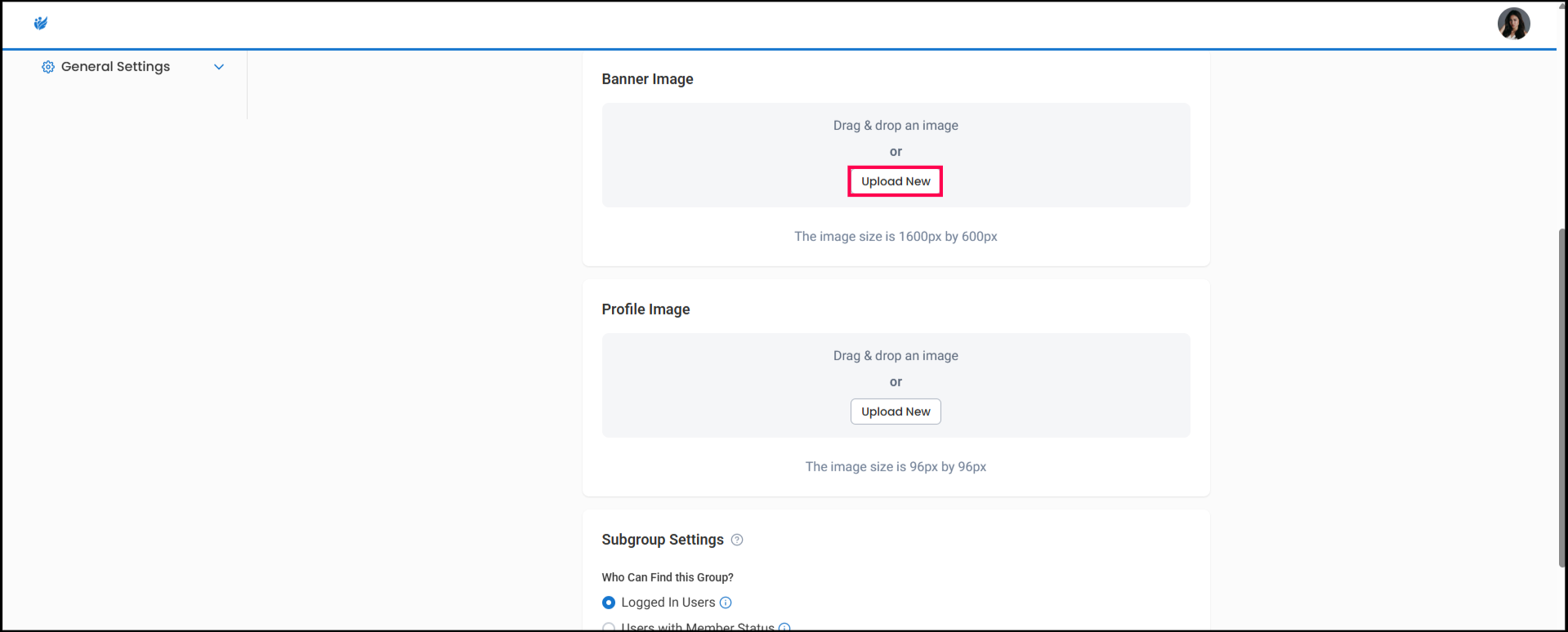
9) Click to upload banner and profile images
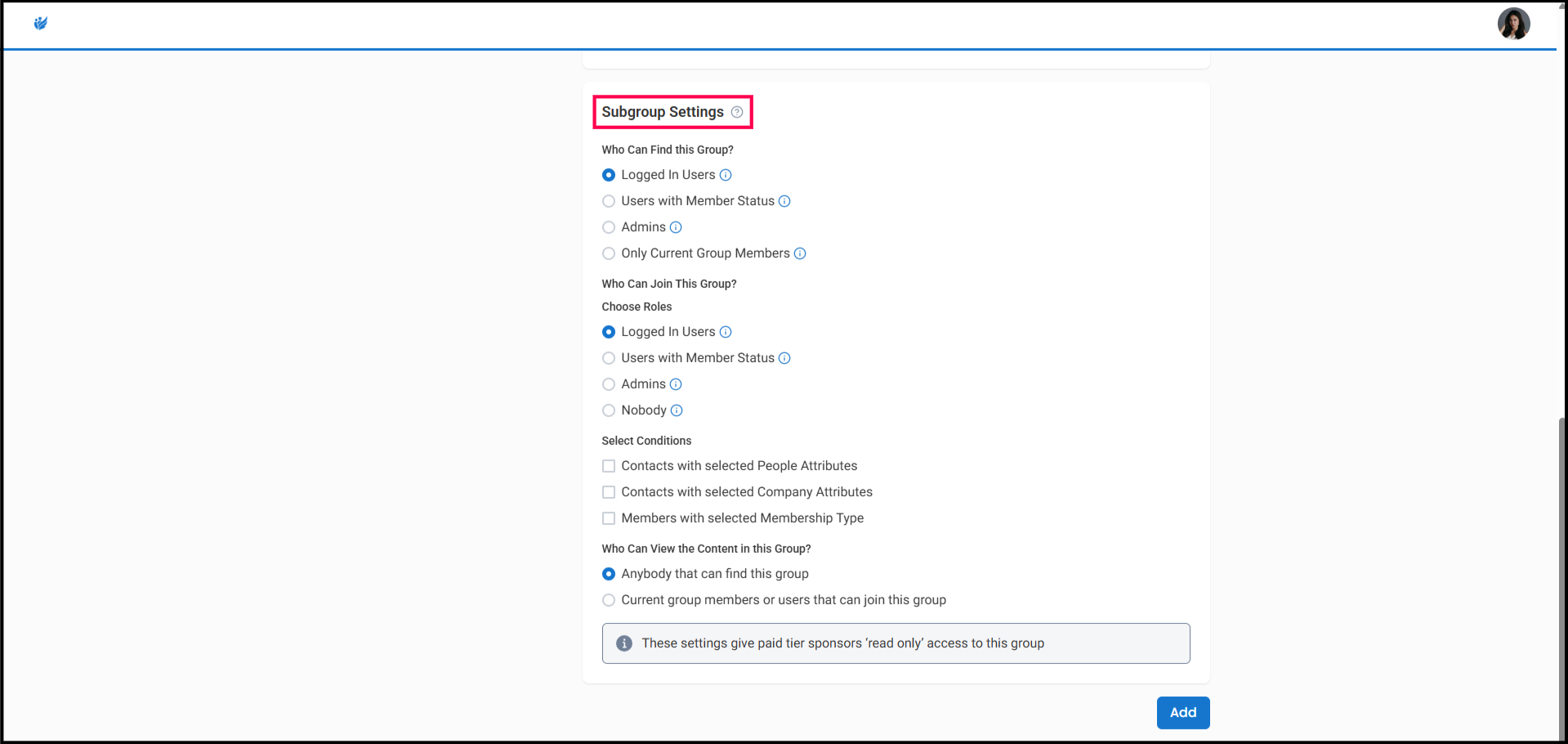
10) Under Subgroup Settings, choose who can find, join, and view content in this group.
-
Who can find this group?
-
This controls who can see this Group within the community - this is visibility only and does not always determine accessibility
-
-
Who can join this group?
-
This controls who has the ability to elect to join this group on their own
-
- Select conditions
- This allows you to automatically add members to your subgroup by selecting people attributes, company attributes, or membership types.
-
Who can view the content in this group?
-
This determines if the content can be visible by anyone that can find the group, or if its limited to the members and eligible members of the group
-
Note: Subgroup settings can only be the same or more restrictive than the parent group's settings.
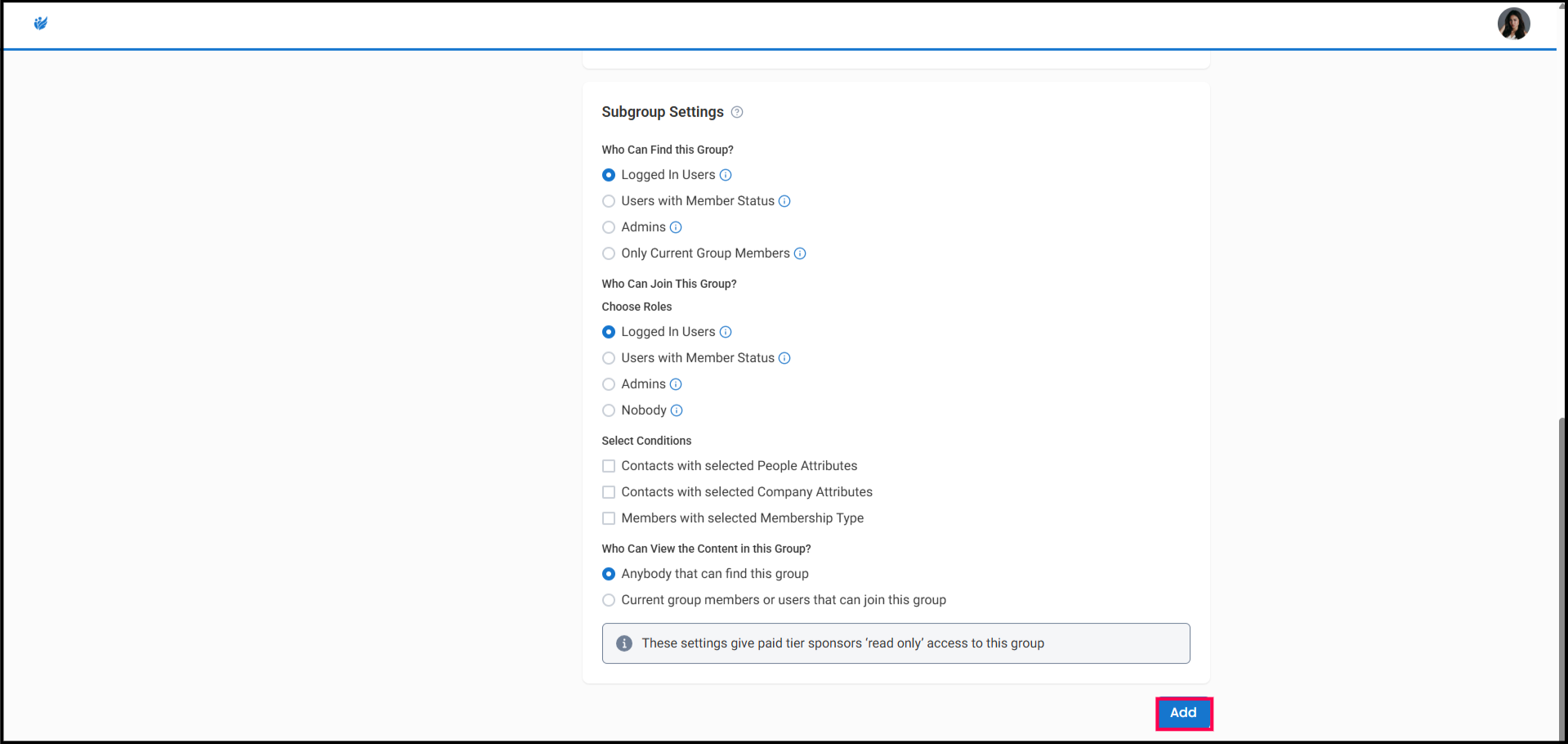
11) Click "Add" to create your new subgroup
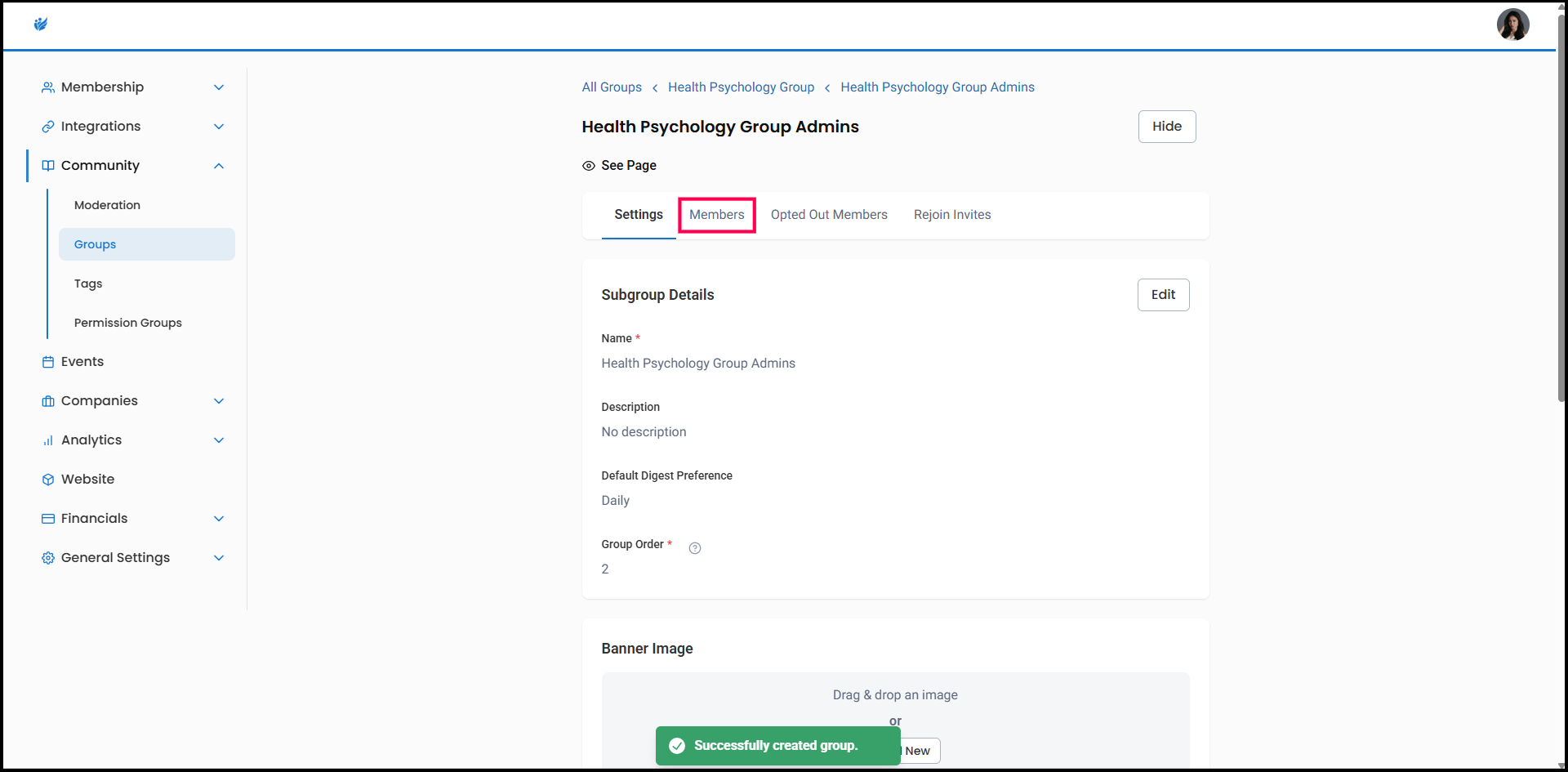
12) Click the "Members"
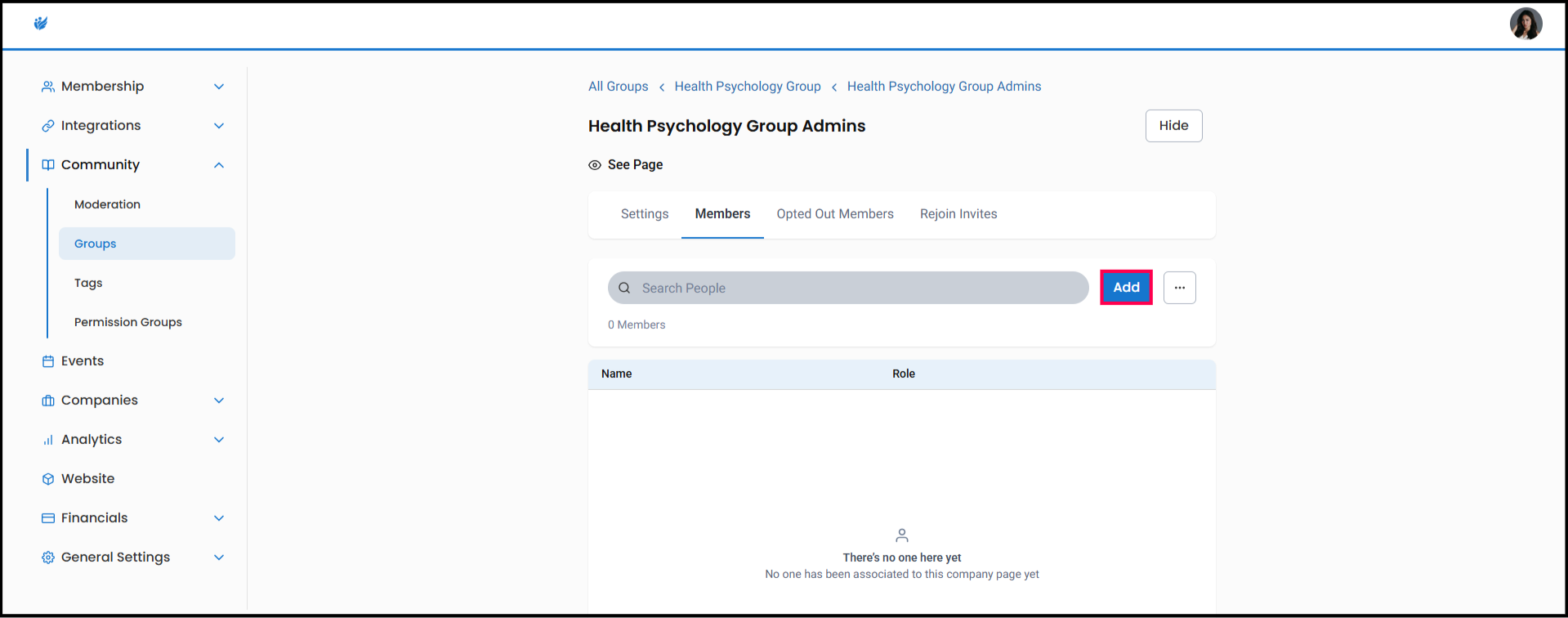
13) Click "Add"
Linking to Existing Group(s)
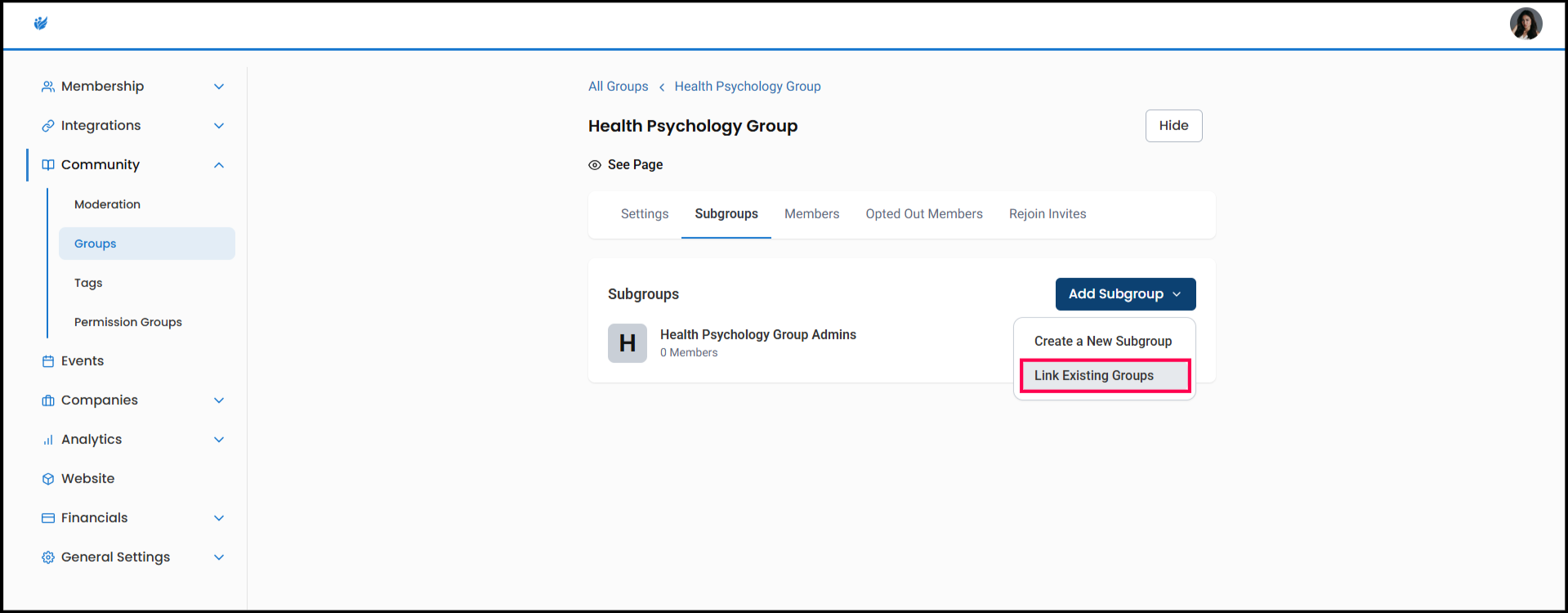
1) To create a subgroup linked to an already existing group, Click "Link Existing Groups"
Note: If you choose to link to an existing group, all members of that group will be automatically added to the parent group of your subgroup.
(For example, if you linked "Poodle Owners" as a subgroup within the group "Dog Friends," the members of "Poodle Owners" would also now be members of the parent group, "Dog Friends.") If you choose to later unlink the subgroup, those members will still remain in the parent group.
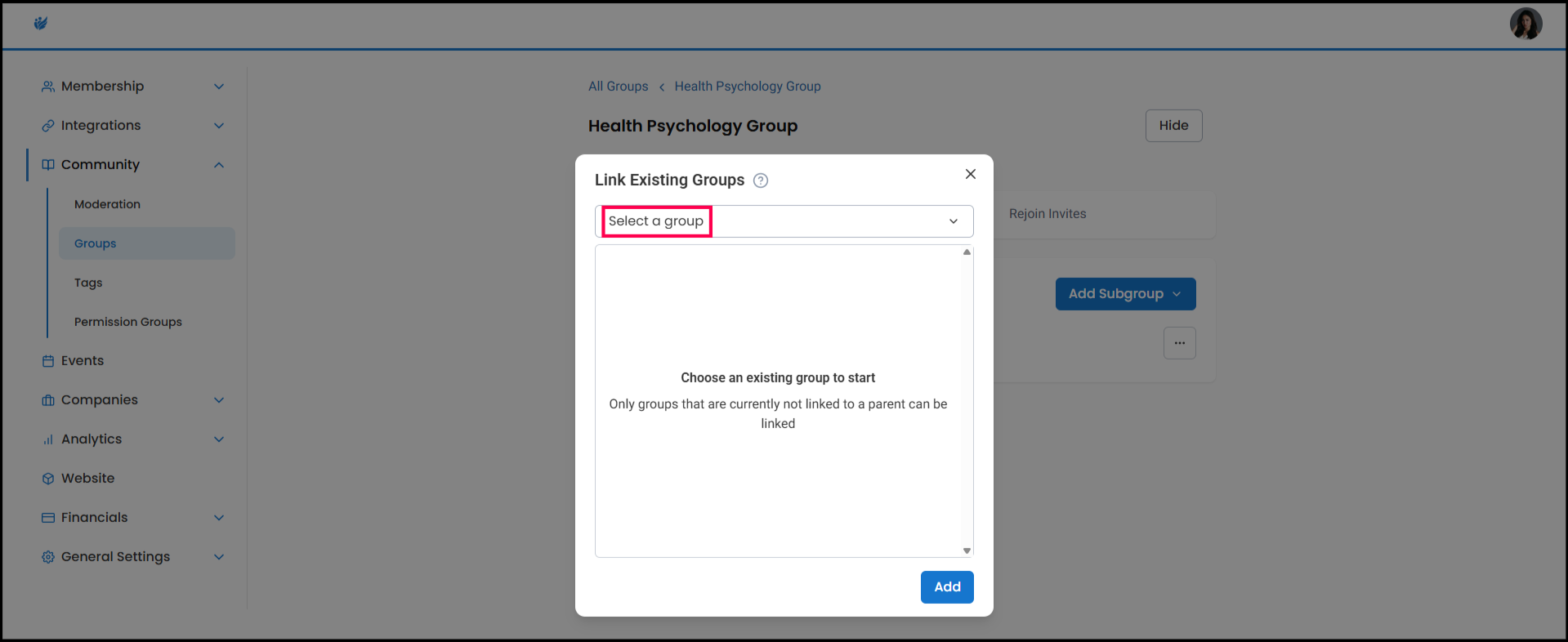
2) Click "Select a group"
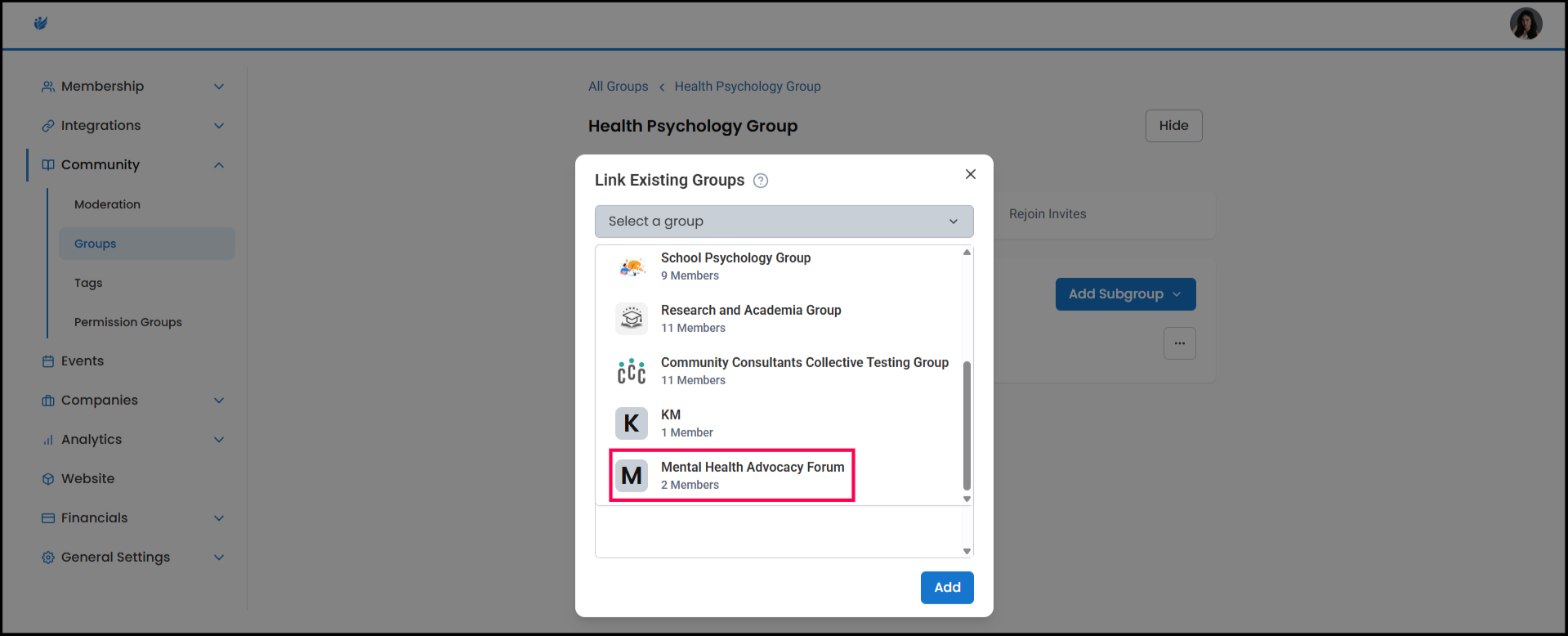
3) Click on the group(s) you'd like to link
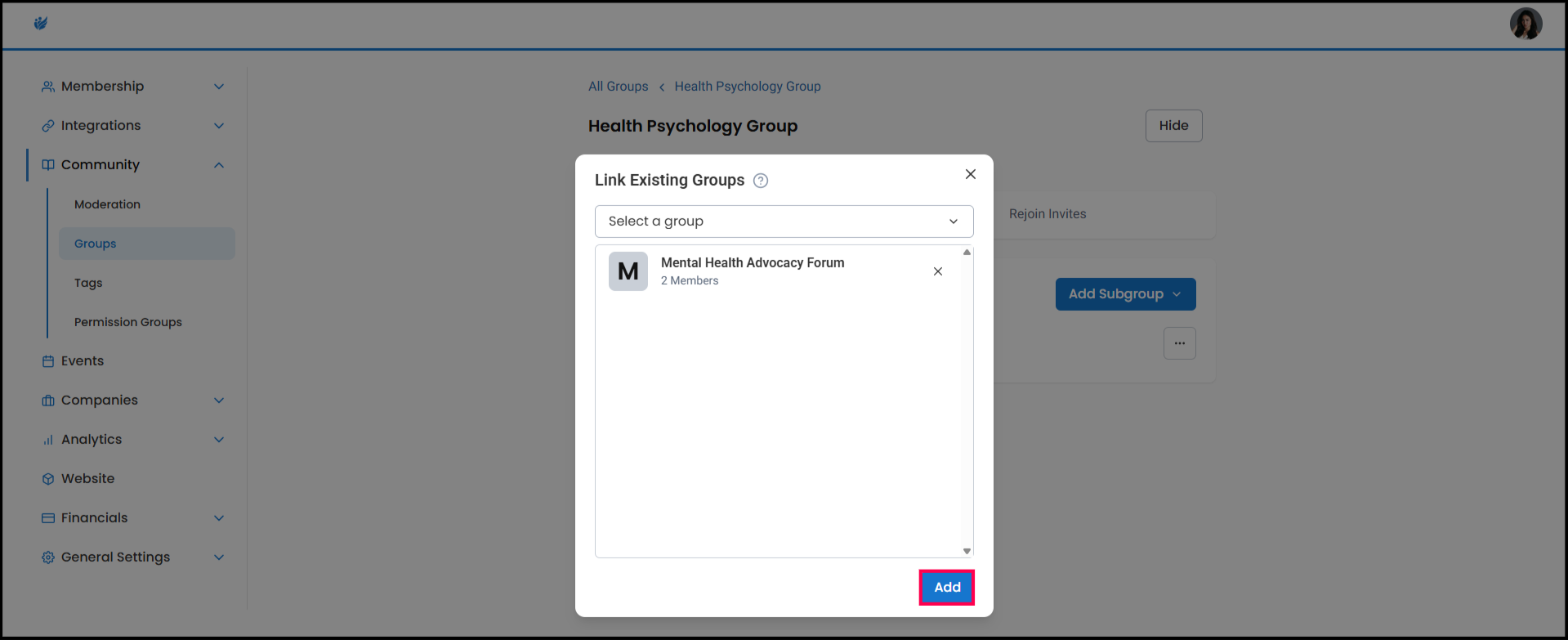
4) Click "Add"
5) The parent group now has a "Subgroups" tab on the group page where you can view and join the subgroups.