![513a98d6-f274-4016-a0a5-03ee71fe81b7.png]](https://support.tradewing.com/hs-fs/hubfs/513a98d6-f274-4016-a0a5-03ee71fe81b7.png?height=40&name=513a98d6-f274-4016-a0a5-03ee71fe81b7.png)
Admins/Account Owners/Page Admins must do the following in order to edit the existing attributes:
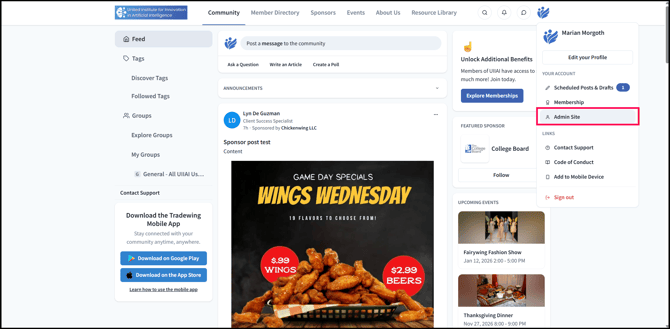
1) Visit the Admin Site.
.png?width=670&height=330&name=Screenshot%2023-12-2025%20at%2019.06%20(1).png)
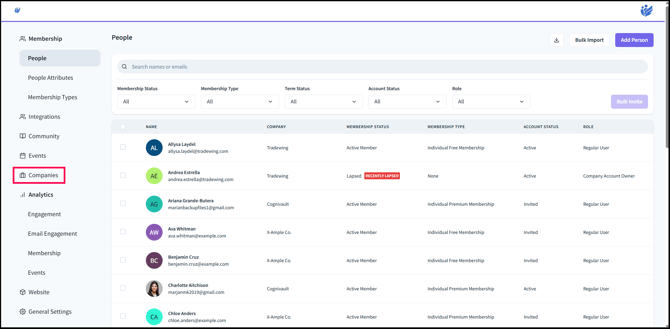
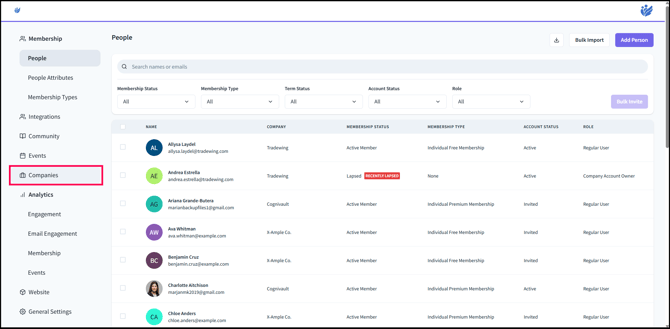
2) Click Companies.
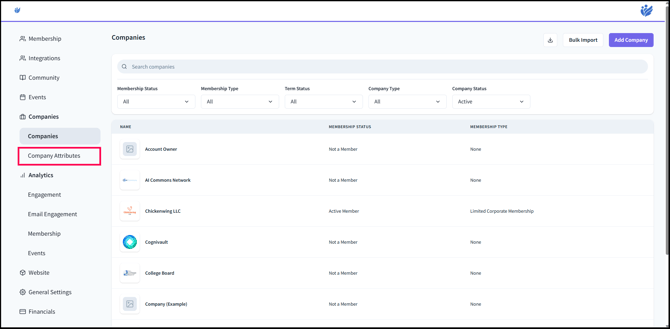
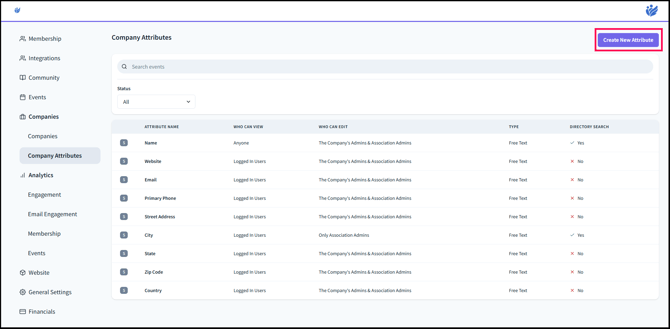
3) Click Company Attributes.
4) Click on any attribute under Attribute Name to view more and edit.
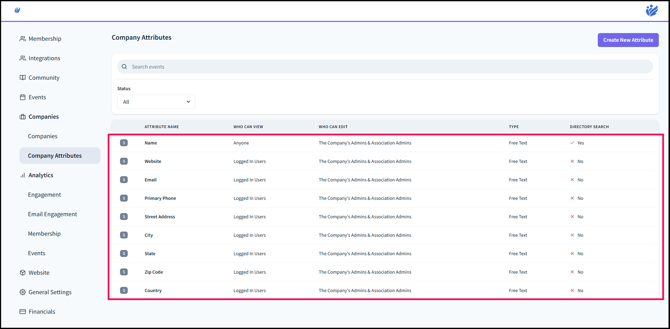
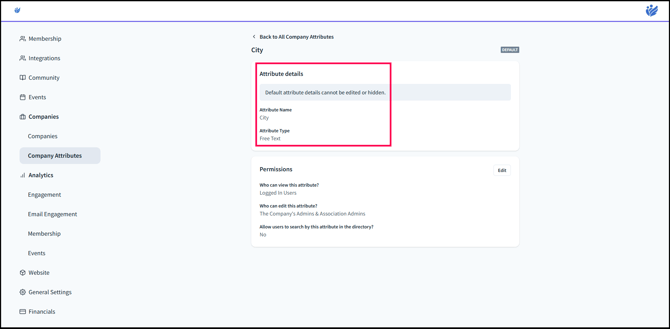
5) Default Attributes, such as City, cannot have its Attribute Name or Attribute Type edited. These Default Attributes are attributes that are automatically created once an instance/community is created.
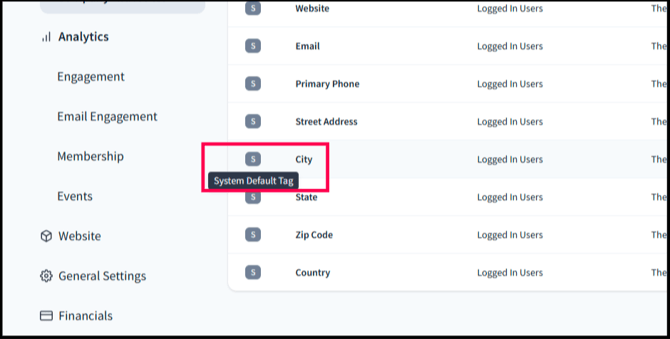
You will know if an attribute is a default attribute if it has the System Default Tag symbol (a capital "S") to its left side:
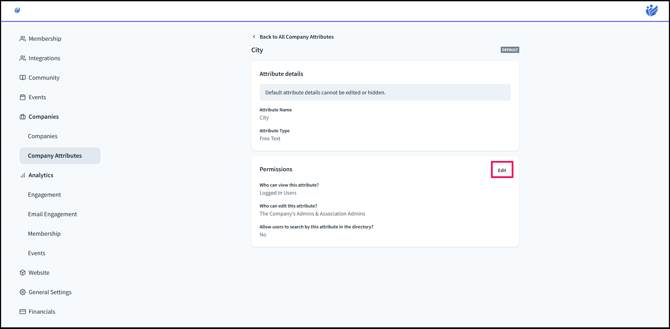
6) However, you can still edit the Permissions, such as Who can view this attribute?, Who can edit this attribute?, and Allow users to search by this attribute in the directory?. To edit these settings, click Edit.
Take Note: The "Who can view this attribute?" Permissions setting of the default attribute, Name, is set to Anyone and cannot be changed since this is the Company's identifier.
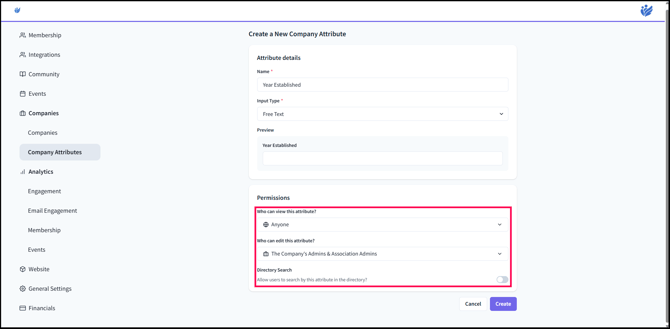
- Who can view this attribute? - Refers to the group or category of users that will be able to view this company attribute under the company profile:
.png?width=670&height=330&name=Screenshot%2023-12-2025%20at%2019.26%20(1).png)
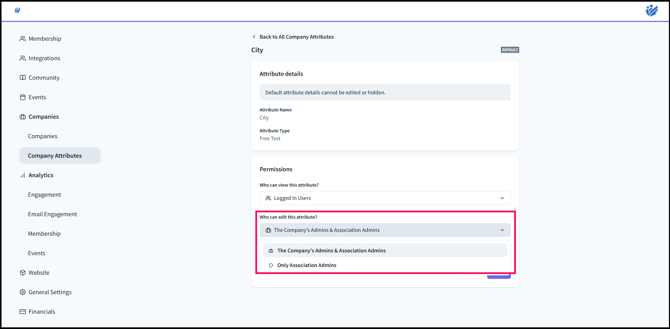
- Who can edit this attribute? - Pertains to the user/s who are able to edit the company attribute's details and permissions. For example,
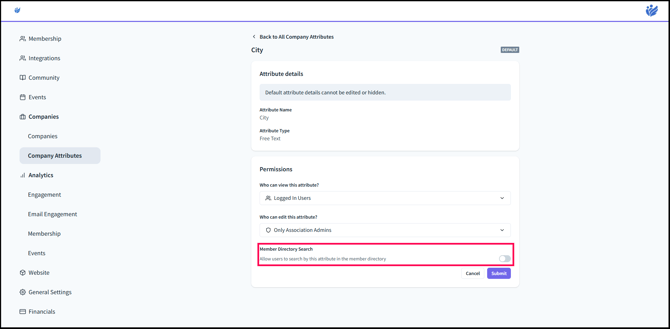
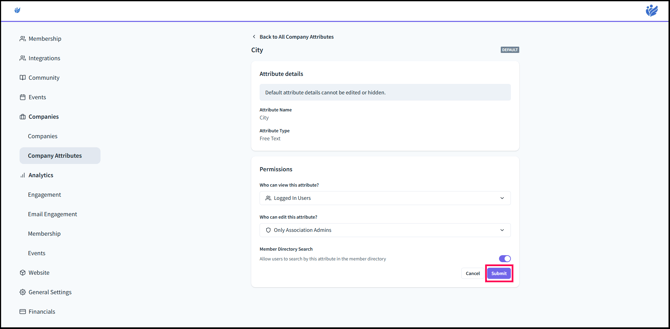
- Member Directory Search - Enabling this means that the users will be able to search the company using the attribute information. For instance, for City, users will be able to look up the company using the city that the company is located in.
.png?width=670&height=330&name=Screenshot%2023-12-2025%20at%2019.48%20(1).png)
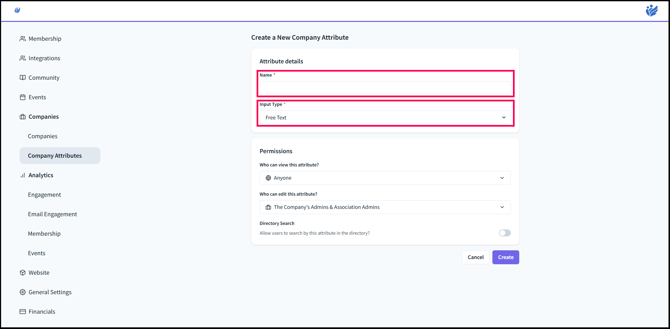
- Free Text - An input type where the user can enter any text without predefined restrictions.
- Single Select - An input type where the user chooses one option from a predefined list.
- Multi Select - An input type where the user can choose multiple options from a predefined list.
.png?width=670&height=330&name=Screenshot%2023-12-2025%20at%2019.54%20(1).png)
.png?width=670&height=330&name=Screenshot%2023-12-2025%20at%2019.56%20(1).png)
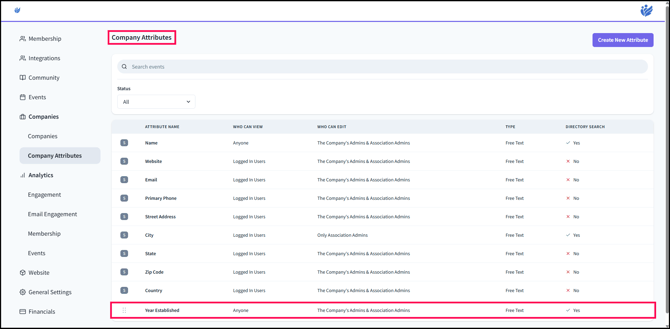
9) Once created, this will appear as such in the Company Attributes list.
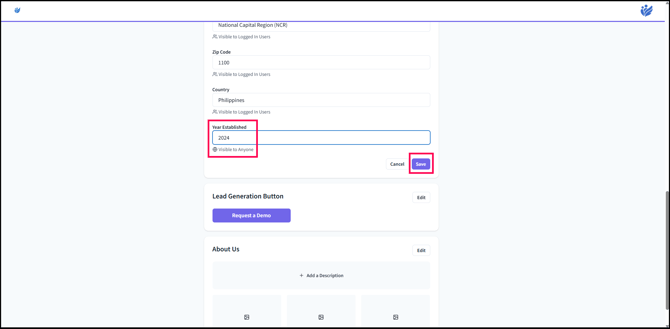
10) The company attribute will appear like this in the Info section of the Company.
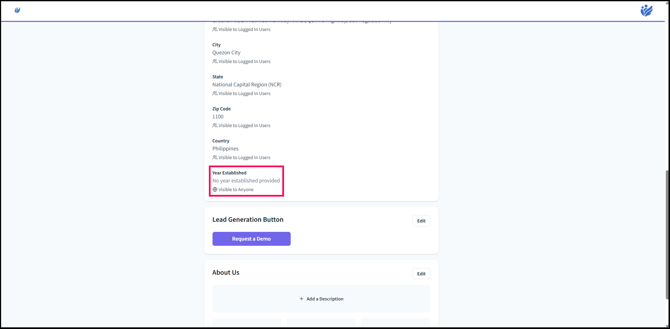
11) Editing the company attribute will look like this. The user, once done editing, can click Save.