![513a98d6-f274-4016-a0a5-03ee71fe81b7.png]](https://support.tradewing.com/hs-fs/hubfs/513a98d6-f274-4016-a0a5-03ee71fe81b7.png?height=40&name=513a98d6-f274-4016-a0a5-03ee71fe81b7.png)
Overview of Invoicing for Admins
Tradewing’s invoicing system is designed to support both sides of the process. Contacts receive a clear view of what they owe and immediate access to purchased items, while Admins get a reliable workflow for creating, customizing, adjusting, and tracking invoices—without losing payment history or accuracy.
Customizing Invoices
Admins have the ability to customize the invoices sent from their Tradewing instance. This feature allows associations to create fully customized invoices that align with the association’s brand guidelines.
Here’s a step-by-step guide on how to customize invoices:
1. On the admin site, navigate to Financials and click Invoice Settings.
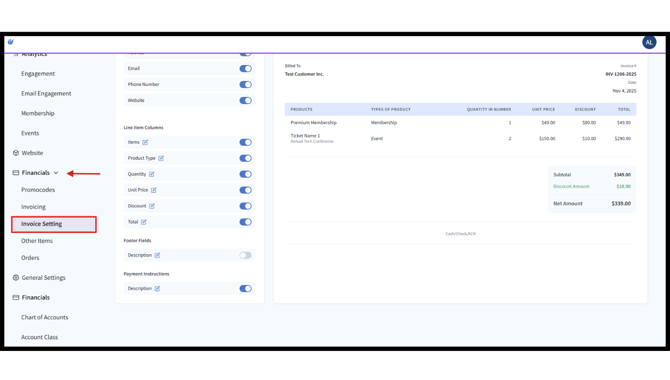
2. There are two sections under Invoice Settings: Invoice Template and Invoice Number Settings.
a. Invoice Number Settings – This section allows admins to customize the invoice number used on generated invoices.
Admins can choose a prefix, starting number, and suffix for the invoice number to align with the association’s standards. An Invoice Number Preview is available in the lower-left section for reference.

b. Invoice Template – This section allows admins to customize the fields and columns displayed on the invoice.
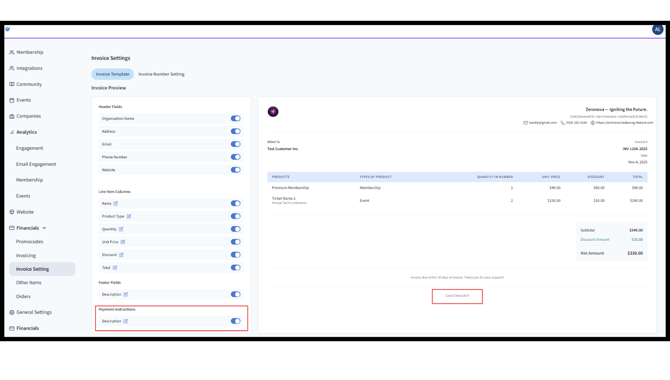
Admins can toggle fields on or off based on what they want to include. Additionally, the left-side panel provides a live preview of how the invoice will look as they make customization changes.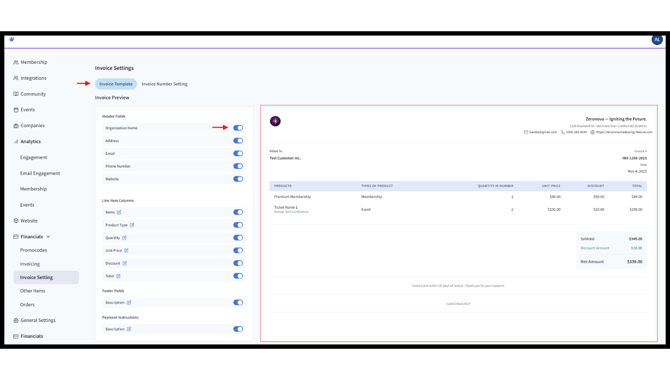
-
-
- Header fields, such as the organization name, address, email, phone number, and website, can be toggled on or off. The information used in this section is pulled from the branding and contact details configured in General Settings.

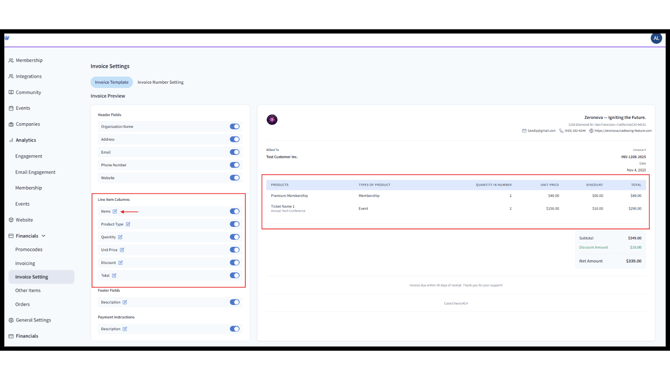
- Line item columns define the columns used in the invoice breakdown. Admins can toggle columns on or off and fully customize each column’s name by clicking the pencil icon next to the column name.
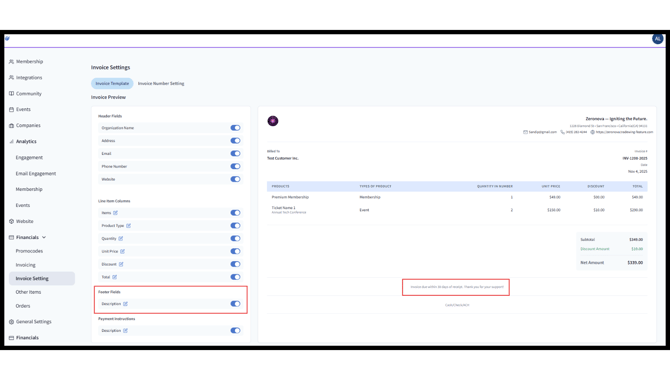
- Footer fields allow admins to include descriptions or additional instructions at the bottom of the invoice. This section can be toggled on or off, and the text can be edited by clicking the pencil icon.
- Payment Instructions allow admins to add specific instructions or additional information on how contacts can settle the invoice. This section can be toggled on or off and edited by clicking the pencil icon.
- Header fields, such as the organization name, address, email, phone number, and website, can be toggled on or off. The information used in this section is pulled from the branding and contact details configured in General Settings.
-
Creating an Invoice
Admins follow a simple workflow when generating an invoice. They can navigate to the admin site, then go to Invoicing under Financials. From there, click Create Invoice to start the invoice creation process.
Although much of the work happens behind the scenes, here is what the process typically looks like:
1. Choose a Contact
To start the invoice creation process, admins must first choose a contact category (Individual or Organization). Admins can search for an existing individual or organization to designate as the contact.
If the contact does not yet exist, a quick-create modal appears, allowing the admin to add the necessary details—such as name, email, and, for organizations, the account owner.
Once the contact has been selected, the admin must then choose a due date for the invoice. 
2. Add Billable Items
Admins can include:
-
- Event Tickets: Each ticket requires attendee information before the invoice can be saved or sent.
- To add an event ticket, the admin must select a ticket from the dropdown menu and choose the quantity to be invoiced. After making the selection, click Add.
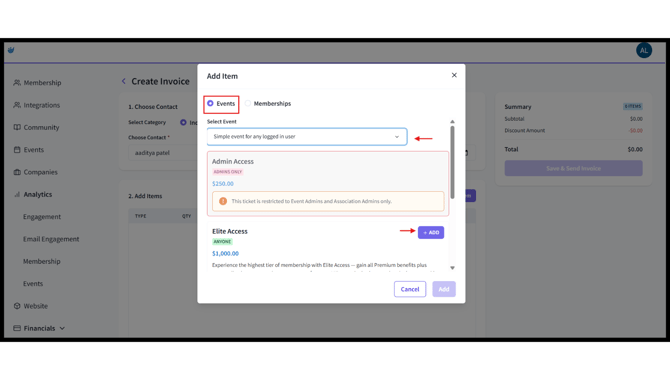
- After clicking Add, the admin must navigate to the Event Attendees section and fill out the required details for each guest or attendee, including first name, last name, and email address.

- Fill out the required details for each guest or attendee, including first name, last name, and email address.
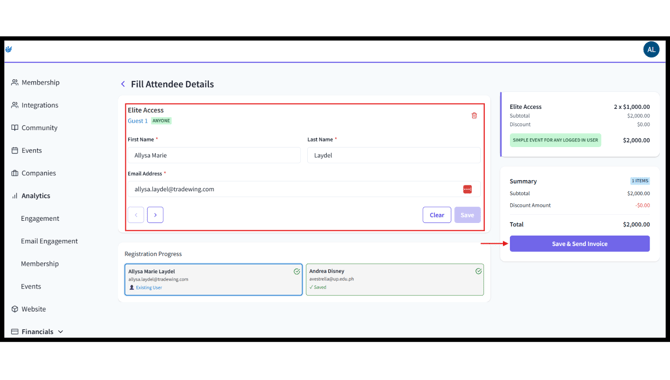
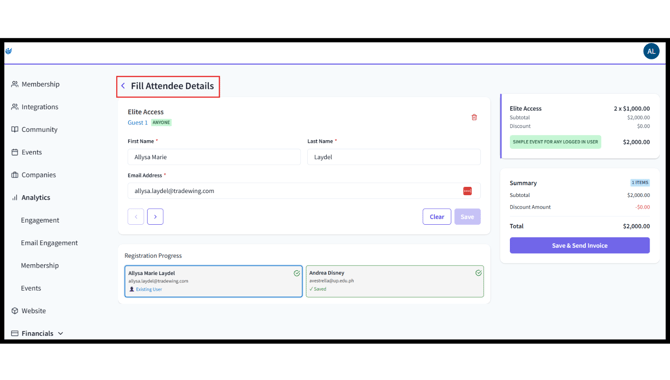
- To apply discounts or add additional memberships to the same invoice, the admin must click the back arrow next to Fill Attendee Details before clicking Save & Send Invoice.
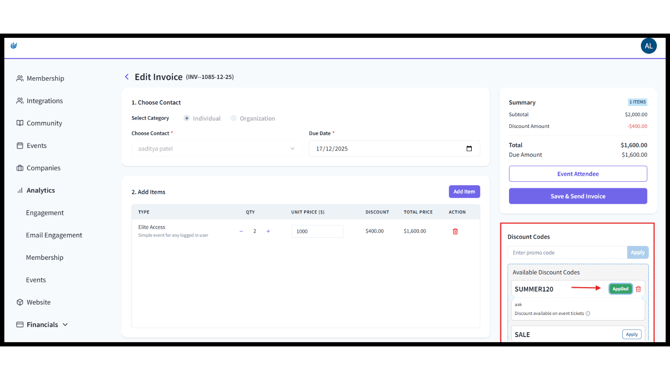
- To add an event ticket, the admin must select a ticket from the dropdown menu and choose the quantity to be invoiced. After making the selection, click Add.
- Memberships: The system checks to ensure the user does not already have an active membership of the same type.
- To add a membership, the admin must select Memberships, then choose whether it is for a New Membership or a Membership Renewal. From the dropdown menu, the admin can select the appropriate membership. After making the selection, click Add.
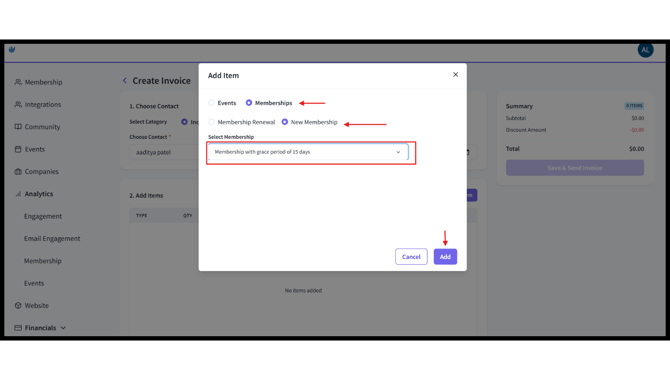
- To add a membership, the admin must select Memberships, then choose whether it is for a New Membership or a Membership Renewal. From the dropdown menu, the admin can select the appropriate membership. After making the selection, click Add.
- Other Items: A flexible option for additional services or fees.
- Event Tickets: Each ticket requires attendee information before the invoice can be saved or sent.
Note: If a ticket is restricted to active members, an admin can still add that ticket for a non-member as long as a membership is also included on the same invoice. The added membership updates the contact’s status, allowing the ticket to be added.
3. Apply Discounts
Admins can apply discount codes or manual discounts at either the item level or the order level.
The system validates discount eligibility and ensures the order total never drops below zero.
When an admin clicks Apply, if the discount is applicable to the selected item or order, the discounted amount is automatically reflected in the order summary in real time.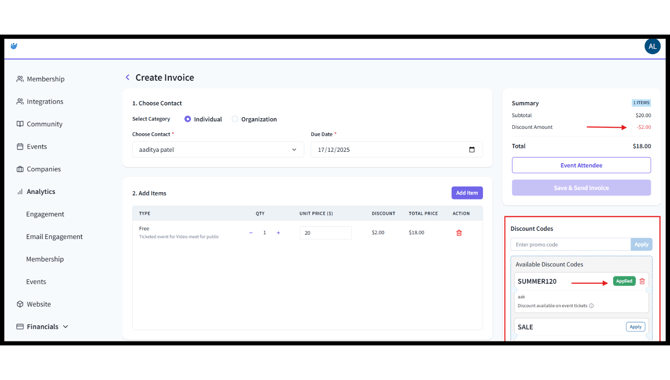
4. Save or Send the Invoice
Admins may save the invoice as a draft or send it immediately. Once created, entitlements—such as tickets, memberships, or other items—are automatically granted to the appropriate users.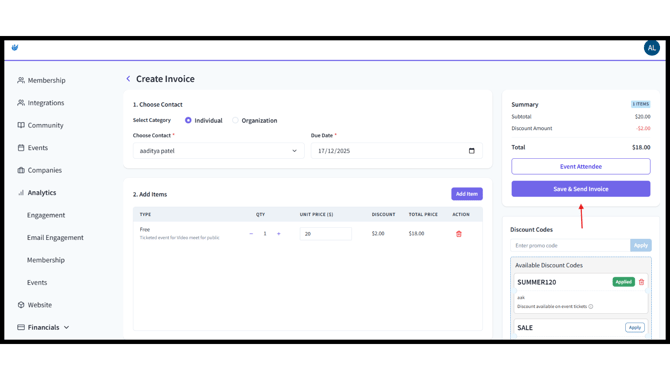
Managing Invoices
Admins have several tools available for managing invoices once they are created.
They can:
- Edit invoices (as long as they are Unpaid or Partial)
- Receive Partial or Full Payment through ACH, CASH, CHECK, OTHERS
- Send Receipt after Payment
- Void Payment/ Void Invoice
- Resend the invoice PDF
- View full payment history
- View the invoice
Once an invoice is marked Paid or Voided, it can no longer be edited—only viewed or resent.
Correcting/Editing Invoices
Both admins and Contacts may occasionally need a change made to an invoice. Admins can adjust quantities, update attendee information, correct membership assignments, or add missing items—as long as the invoice has not yet been fully paid or closed.
Contacts should simply contact their association if:
- An attendee needs to be updated
- A membership was assigned to the wrong user
- They need the invoice resent
- They believe an item or total is incorrect
Admins can update the invoice and the system will automatically recalculate totals and preserve payment history. Here’s a step by step on how to edit/correct an invoice:
1. To edit an invoice, an admin should go to the admin site and navigate to the Financials section. From there, click Invoicing and locate the invoice that needs to be corrected. Click Actions next to the invoice, then select Edit. 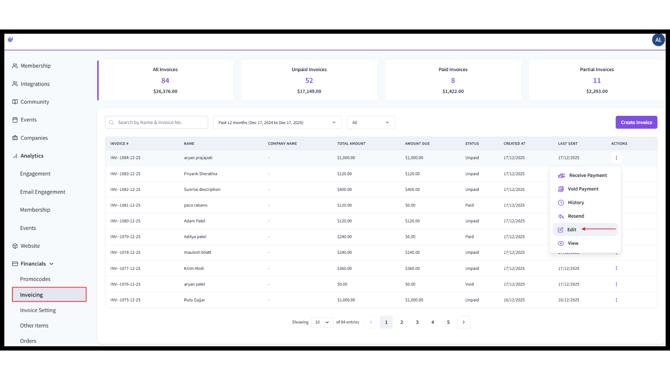
2. For created invoices, admins can only edit the due date, price, quantity, event attendee information, and apply a promo code. Editing is not allowed for contact details such as the contact’s name or category. 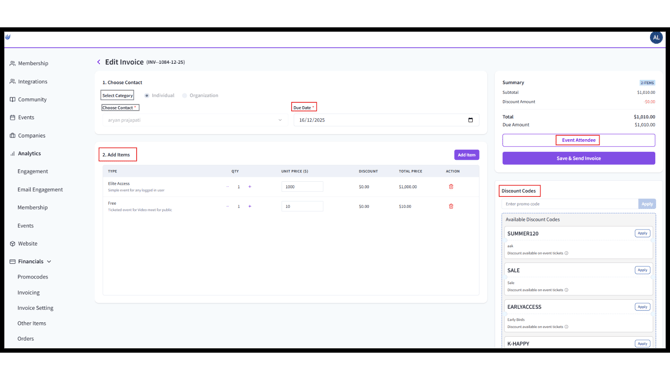
3. Admins can perform a final review of the invoice. Once everything is corrected and finalized, they can click Save and Send Invoice. 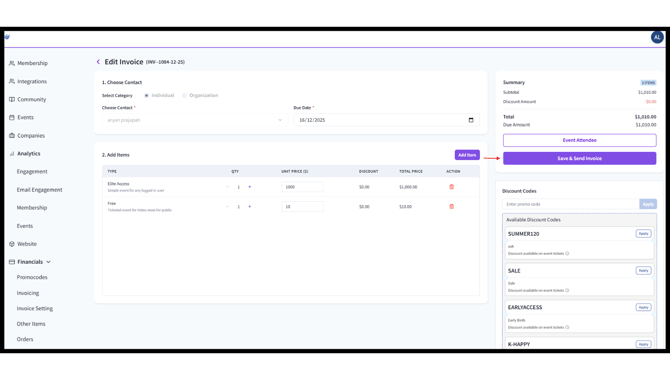
Need Help?
If you’re an Admin handling a complex invoicing scenario, or a contact with questions about an invoice or payment, please reach out to support@tradewing.com.