The Quick Call feature is best for quick meetings where you can connect with a small group, share the meeting link directly with invitees, and get started without scheduling a Tradewing event in advance. Use it for last-minute check-ins, quick questions, or brief team discussions.
To create a Quick Call, follow the steps below:
1. From the Admin Site, open the Meetings tab, click Create a Meeting, and select Quick Call.
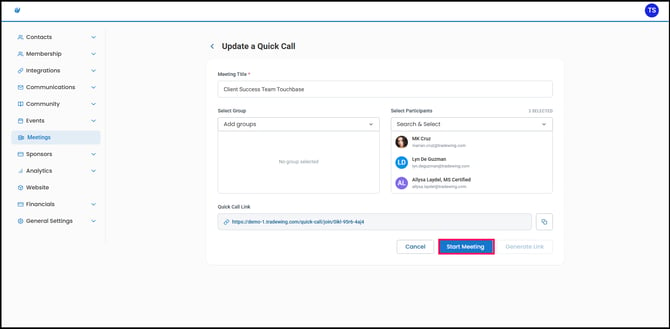
2. Enter a name for the meeting. Next, either generate a link to share with invitees yourself or invite participants directly.
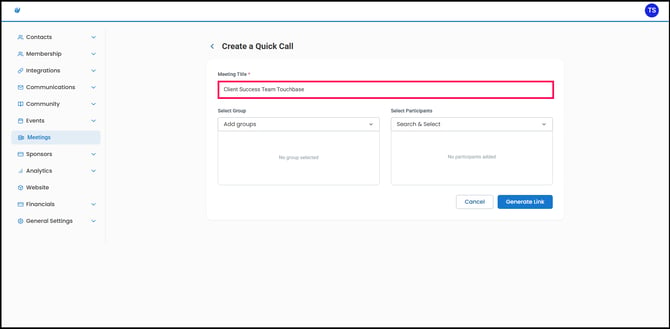
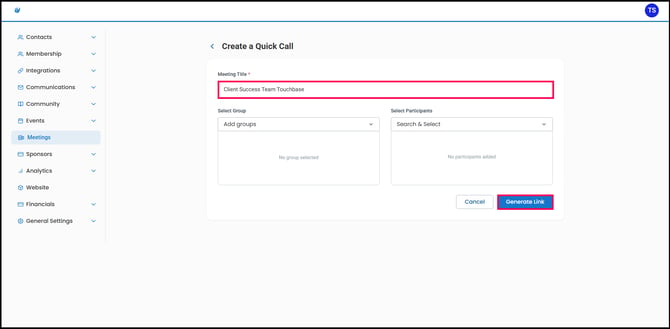
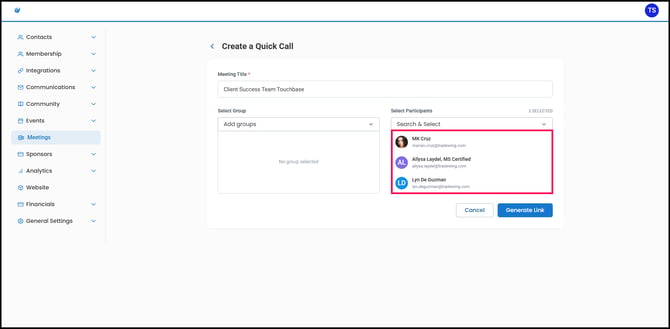
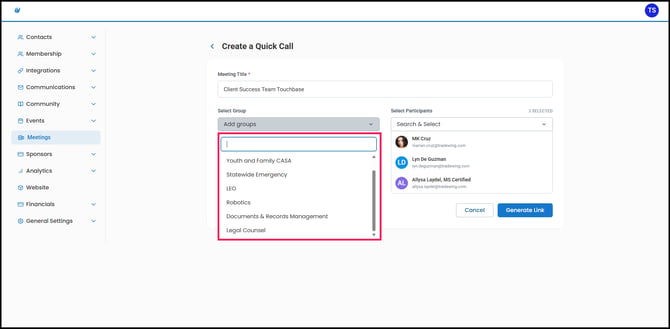
3. To send invitations automatically, open the Search and Select tab. Choose either a specific group or individual participants, and review your selections before continuing. When you’re finished, click Generate Link to create the meeting link and complete the invitation process.
4. Once the link is generated, you may copy it.
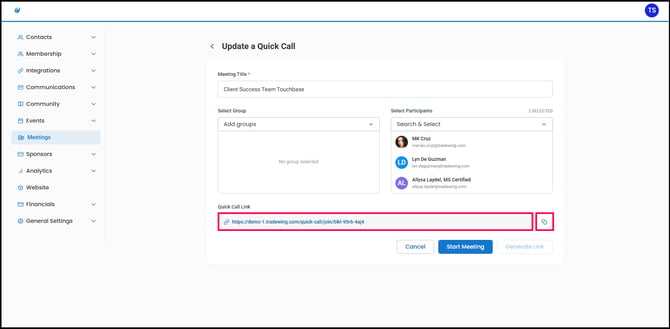
Alternatively, you can start the meeting by clicking Start Meeting.
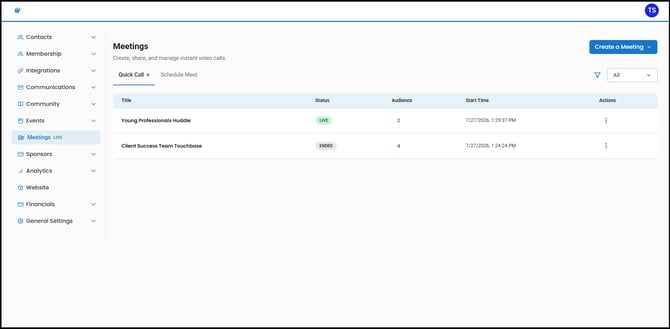
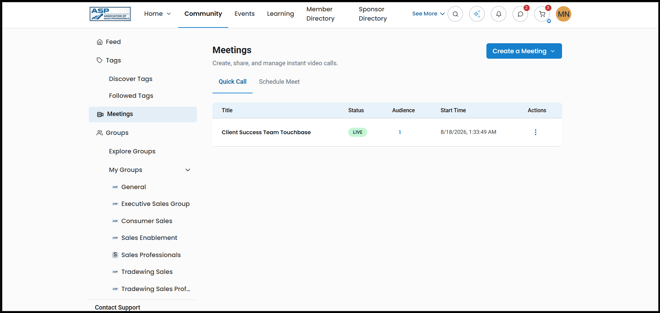
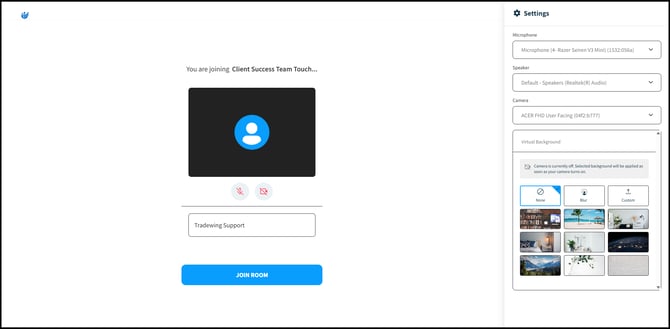
Once created, the meeting will appear under the Meetings tab on the member site for all invited members.
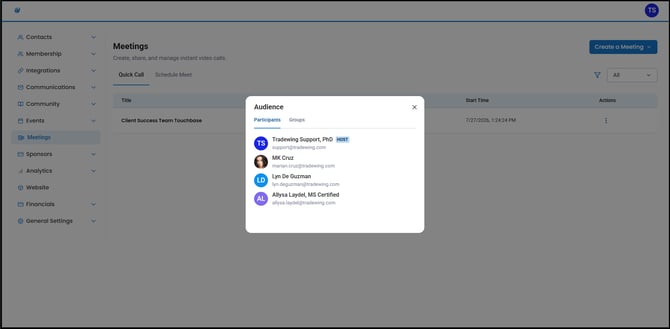
5. After the meeting, you can click the Audience tab.
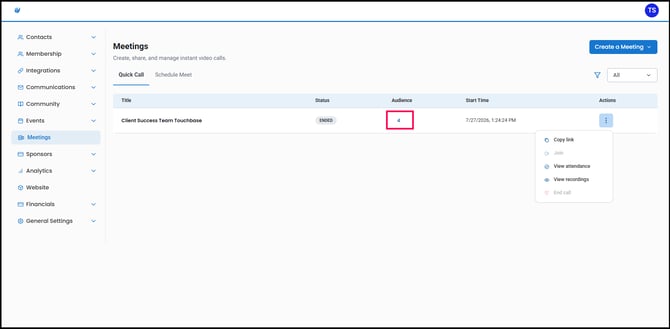
Once clicked, you’ll see the list of participants or groups you invited to the meeting.
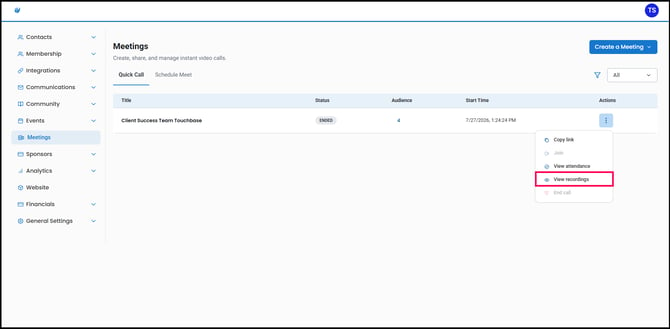
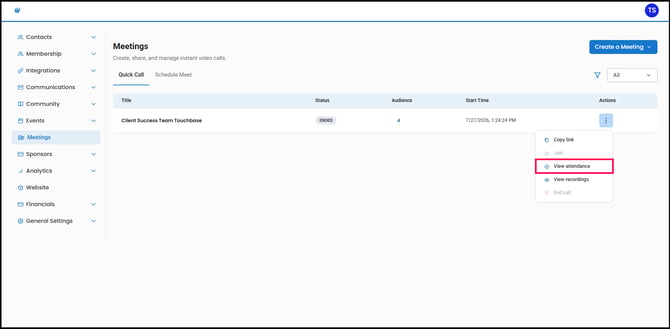
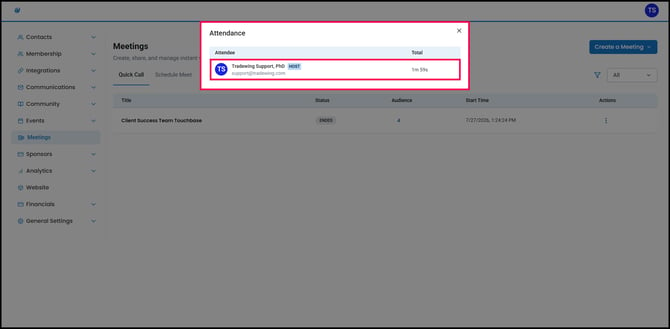
You can also view the attendance by clicking the three dots and selecting View Attendance.
This will allow you to see everyone who attended the meeting and how long they participated.
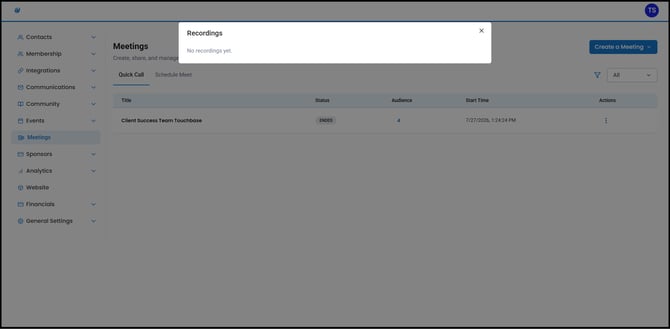
6. You can also view the meeting recordings by clicking View Recordings.