
Financials in the Admin Site
Admins can now create, update, and activate/deactivate entries in both Chart of Accounts (CoA) and Account Classes, with the option to associate these with Membership Types.
These tools are designed to support your association’s financial reporting and to help with tracking revenue from memberships if you are using Tradewing’s Membership Management features.
You can access this section by navigating to your Admin Site and clicking the Financials tab.
Chart of Account (CoA)
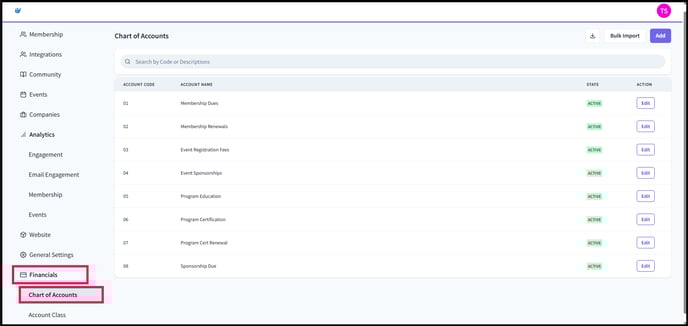
- Account Code: A code used for identification purposes (e.g., 12345678).
- Account Name: A descriptive label representing a ledger account, typically used for mapping revenue recognition (e.g., Membership Dues – Basic).
- Status: Indicates whether the account is Active (available for new assignments) or Inactive (no longer selectable but kept for historical records).
- Action: Select Edit to update account details.
Account Class

- Account Code: A code used for identification purposes (e.g., 0001).
- Account Name: A descriptive label representing a classification or grouping for accounts (e.g., Chapter: Minnesota).
- Status: Indicates whether the account is Active (available for new assignments) or Inactive (no longer selectable but kept for historical records).
- Action: Select Edit to update account details.
As an admin, you have the option to link the CoAs and Account Classes to your configured Membership Types by heading over to the Membership Types in the Community Tab and editing the membership types:
Financial Settings in Membership Types
As an admin, you can link your configured Chart of Accounts and Account Classes to specific Membership Types.
To do this:
- Navigate to the Community tab.
- Click Membership Types.
- Select the Membership Type you wish to edit. [insert screenshots]
- Under Financial Settings, link the appropriate Chart of Account and Account Class. [insert screenshots]
- Click Save Changes.