
In Tradewing, promo codes can be used by users (i.e., members, non-members) to apply for a discount to an event, membership, and membership renewal.
If you want to read on a specific part of this article, you may click on any of the in-page links to skip to that section of this guide.
If there is an existing promo code for your desired event, membership, or membership renewal and you would like to use it to get a discounted price, kindly see the step-by-step instructions below.
How to Apply Promo Code for Event as a User
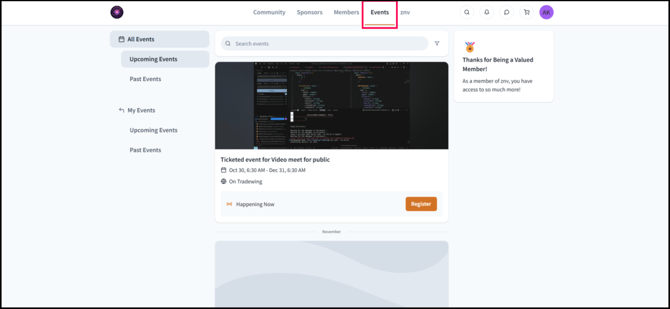
- Visit the Events tab.
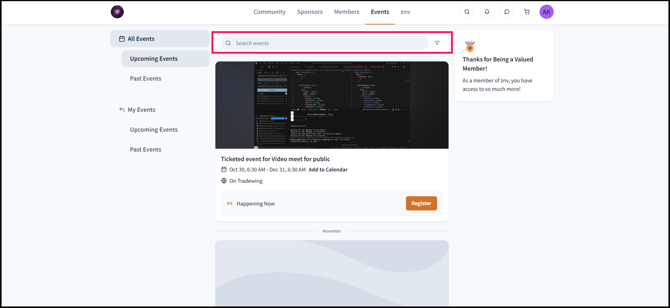
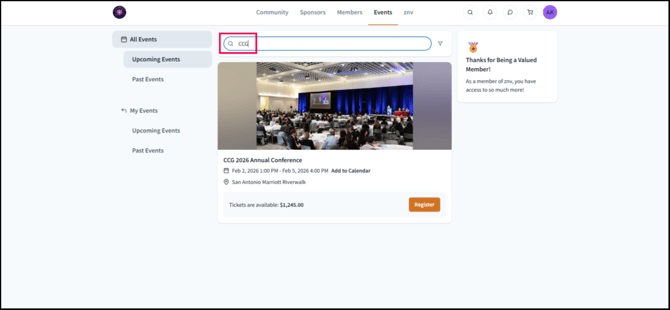
- Navigate to the event by searching the name of the event (for example: CCG 2026 Annual Conference) to which the promo code is applicable to.
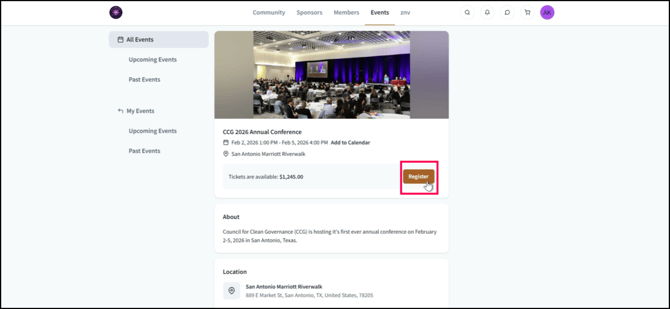
- Click Register.
- Add the ticket that you would like to purchase.
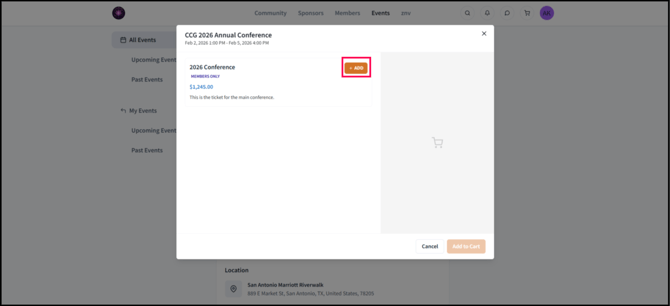
- Click Yes, register me if you are the person whose name will be on the ticket.
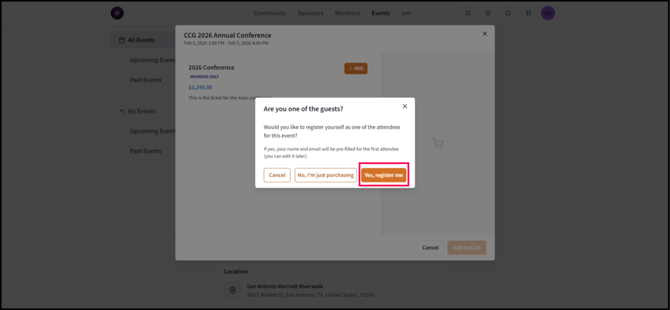
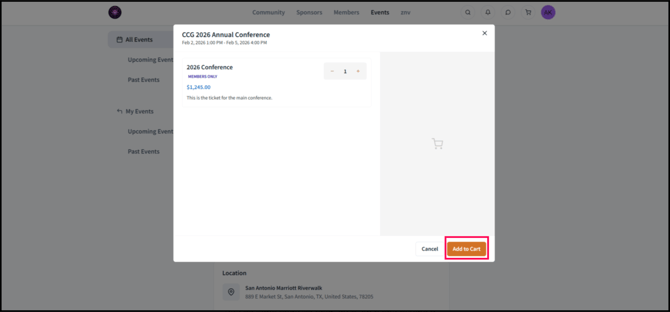
If you are purchasing the ticket for someone else, click No, I’m just purchasing. - Click Add to Cart.
- Check if the First Name, Last Name, and Email Address are correct. If they are, click Save.
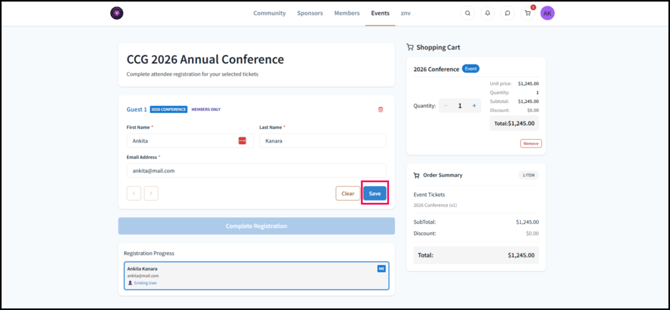
- Click Complete Registration.
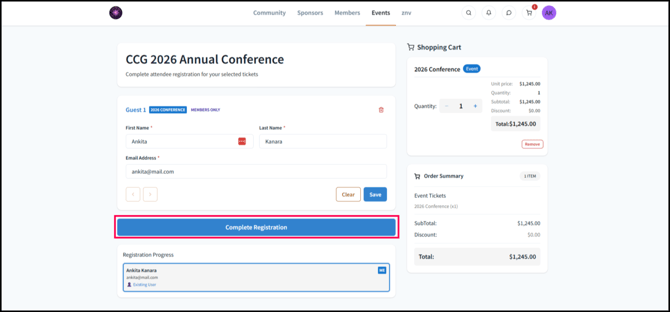
- This will lead you to an overview of the shopping cart containing your ticket.
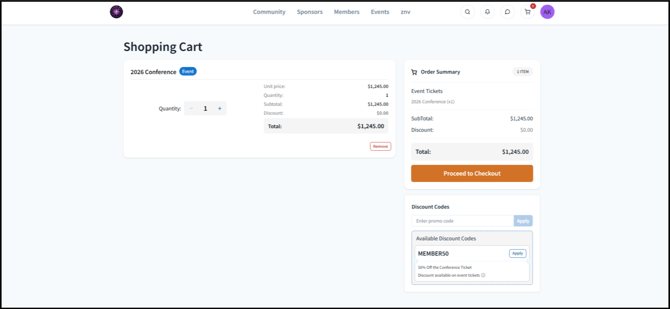
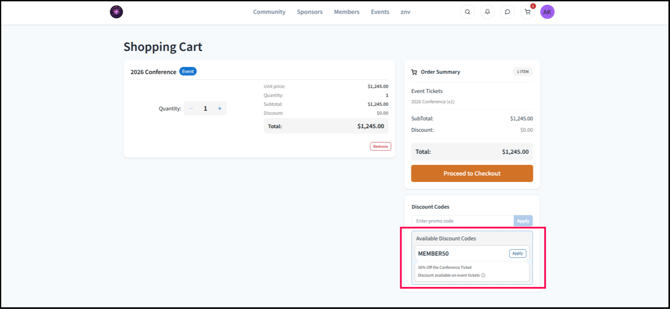
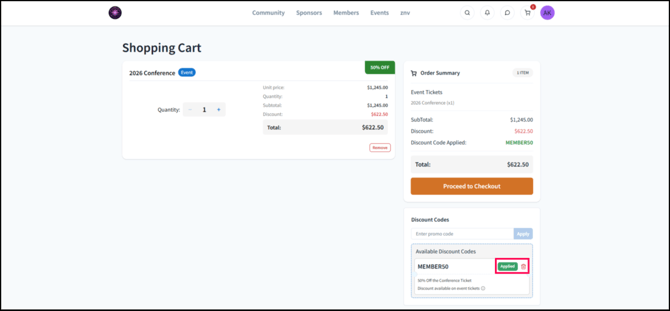
- A Under Discount Codes, navigate to the Promo Code that you would like to avail (for example: MEMBER50).
- Click Apply.
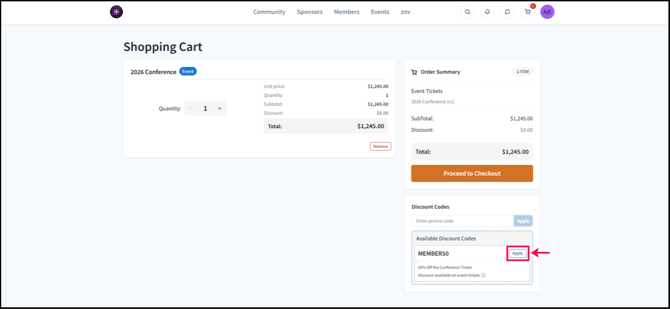
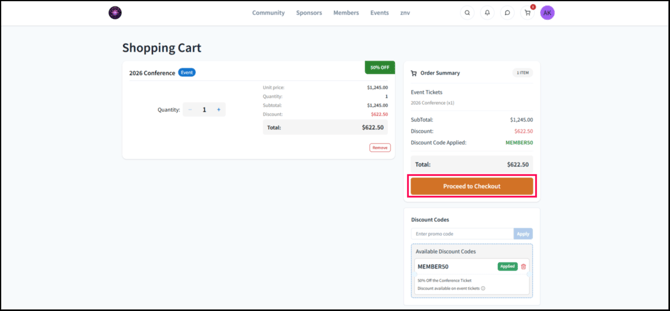
- This will apply the discount to the subtotal.
- Click Proceed to Checkout.
How to Apply Promo Code for Membership as a User
If you are a user and you currently do not have a membership in your association and would like to use a promo code to purchase one or if you are a member and would like to have a new membership, you can do the following steps:
-
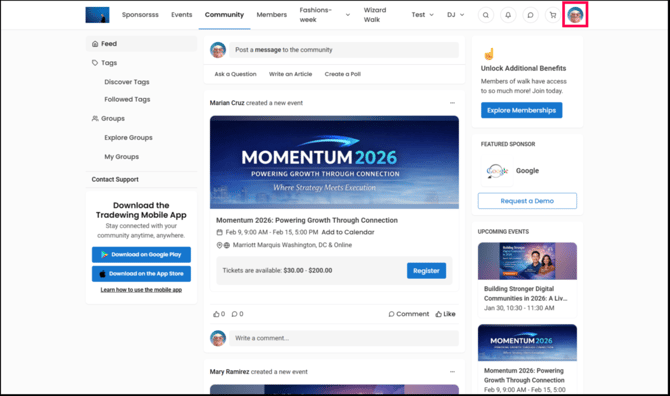
In Home, click on your profile icon. This is the circular image or initials that you have on the top right corner of the home page.
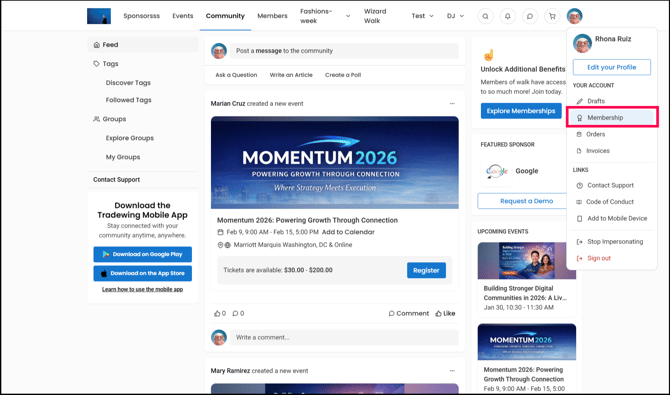
- Under Your Account, click Membership.
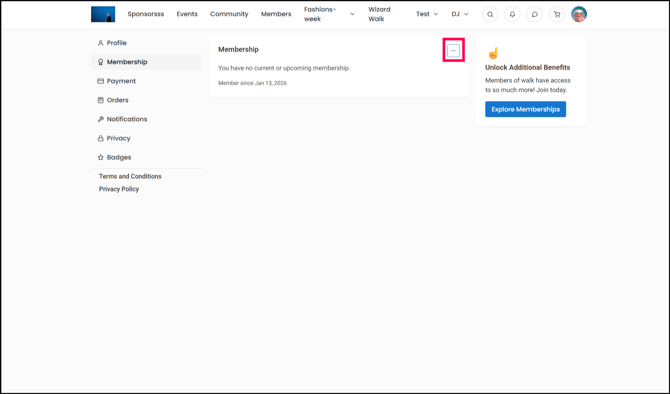
- Click the three-dotted button in the Membership section, then click Add a Membership.
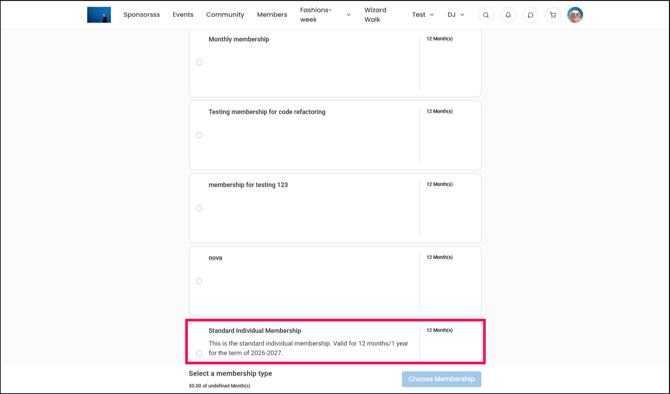
- Select your desired membership type. (For example: Standard Individual Membership)
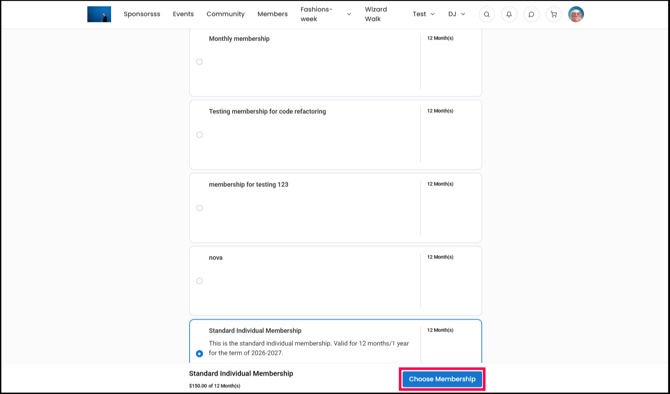
- Click Choose Membership.
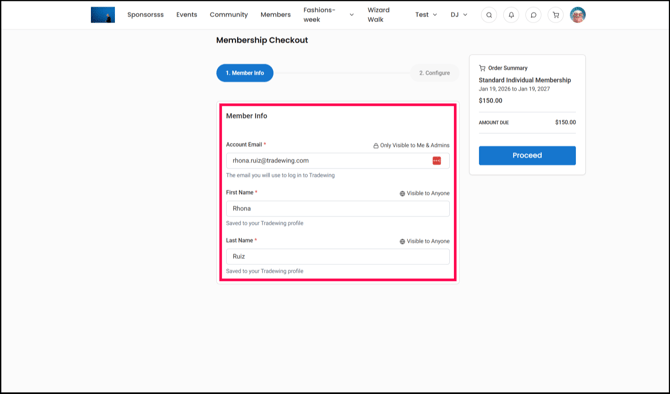
- Make sure that the information auto-populated in the Member Info is correct. Once finalized, click Proceed.
.png?width=670&height=394&name=Screenshot%2020-01-2026%20at%2009.30%20(1).png)
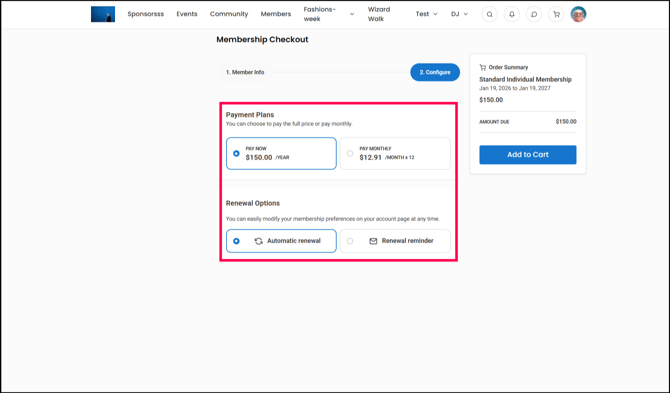
- Select your desired Payment Plans and Renewal Options. Once done, click Go to Cart.
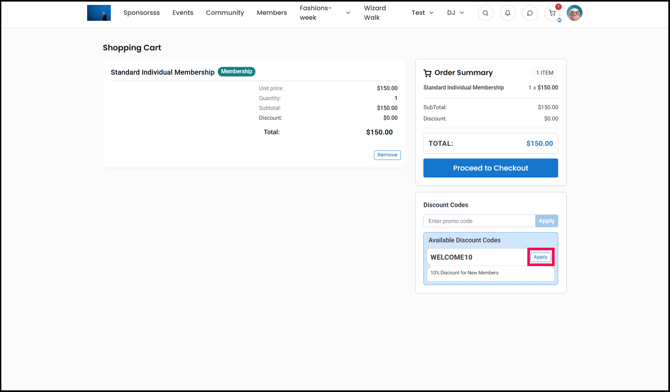
- In Discount Codes, select Apply under your desired promo code. (For example: WELCOME10.)
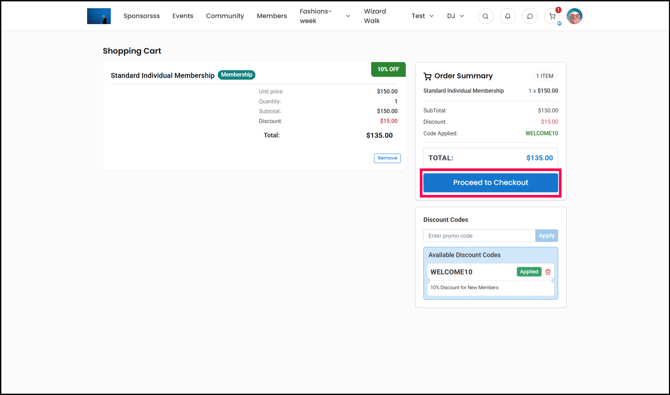
- Once the discount has been deducted from the Subtotal, click Proceed to Checkout.
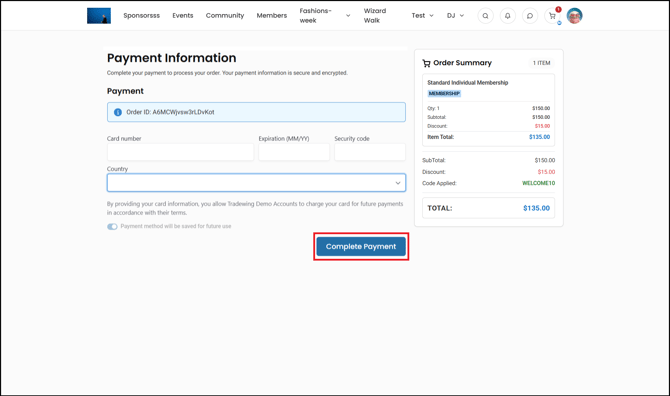
- Fill out the Payment Information and then click Complete Payment.
How to Apply Promo Code for a Membership Renewal as a User
If you are a user and you are within your renewal period and the association is offering you a promo code to use for you to renew your membership, here are the steps that you can follow to use the promo code:
-
In Home, click on your profile icon. This is the circular image or initials that you have on the top right corner of the home page.
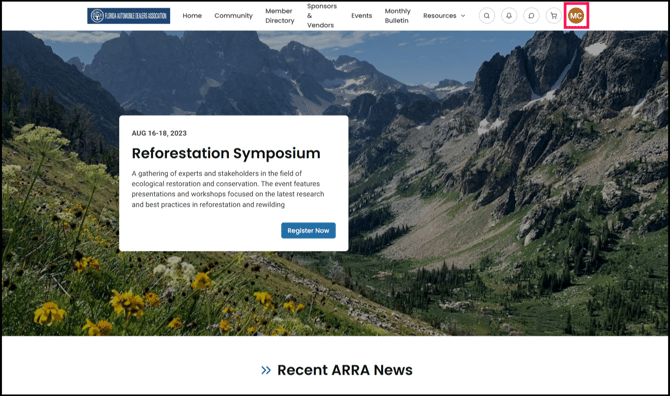
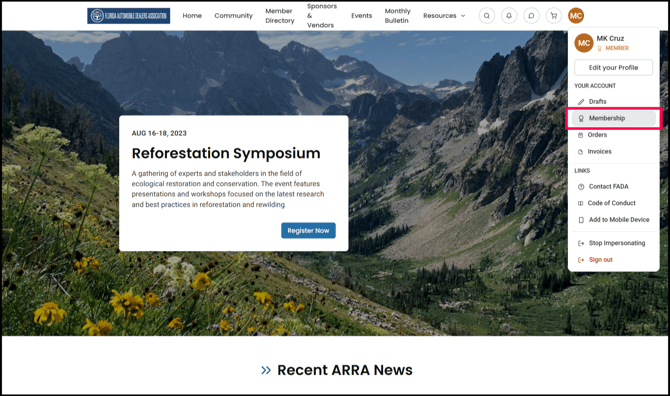
- Under Your Account, click Membership.
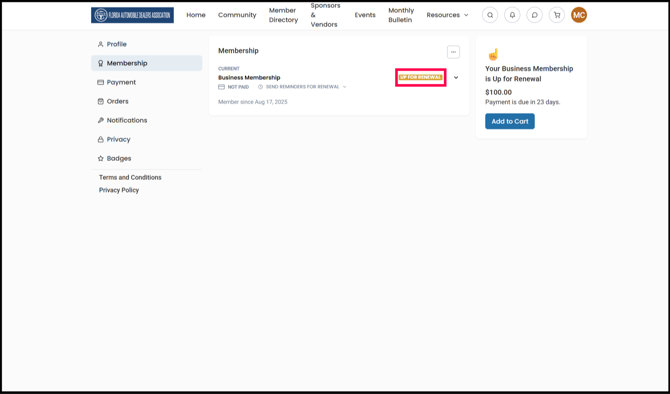
- Since your membership is up for renewal, the Membership section of your profile will show that your CURRENT membership is UP FOR RENEWAL.
- To renew your membership, you can click the Add to Cart button.
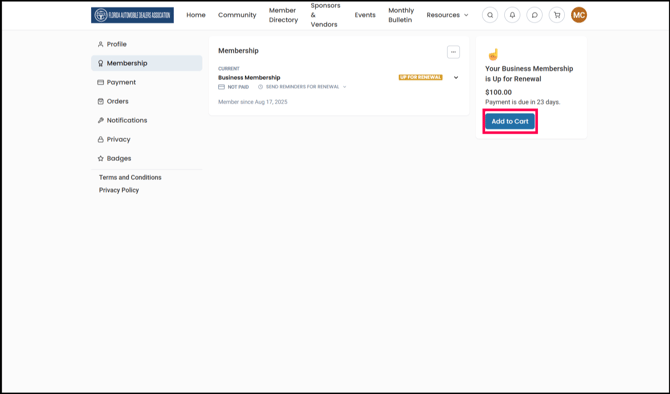
Or click the dropdown button on the right side of the UP FOR RENEWAL button and click Add to Cart there..png?width=670&height=395&name=Screenshot%2020-01-2026%20at%2012.37%20(1).png)
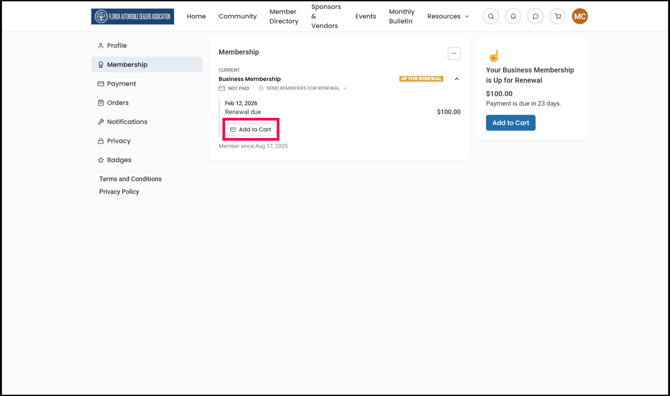
- Either of these actions will lead you to the Renew your Membership page. Make sure that the information auto-populated in the Member Info is correct. Once finalized, click Proceed.
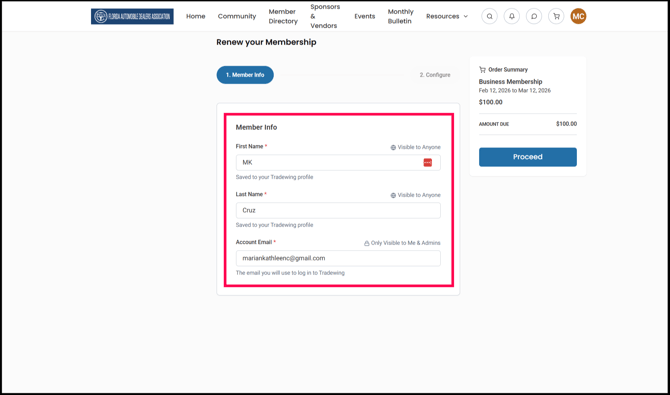
- Set the desired Payment Plan and Renewal Option. Once finalized, click Add to Cart.
.png?width=670&height=396&name=Screenshot%2020-01-2026%20at%2012.46%20(1).png)
- In Discount Codes, select Apply under your desired promo code. (For example: RENEW10).
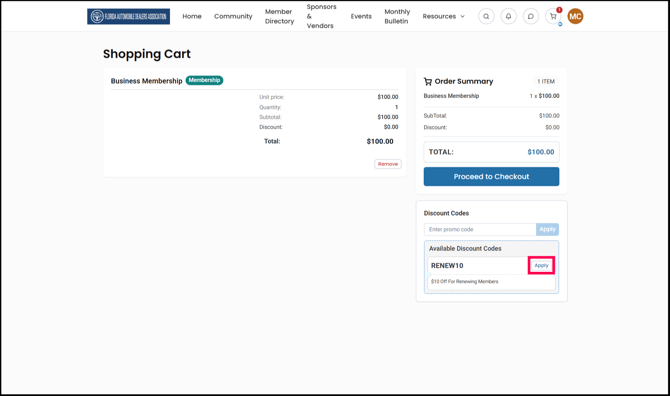
- Once the discount has been deducted to the Subtotal, click Proceed to Checkout.
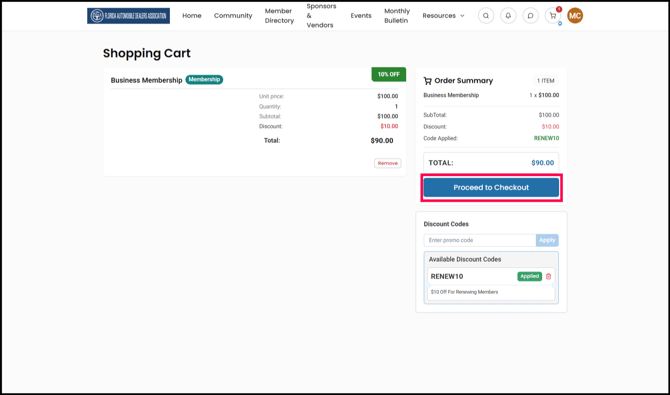
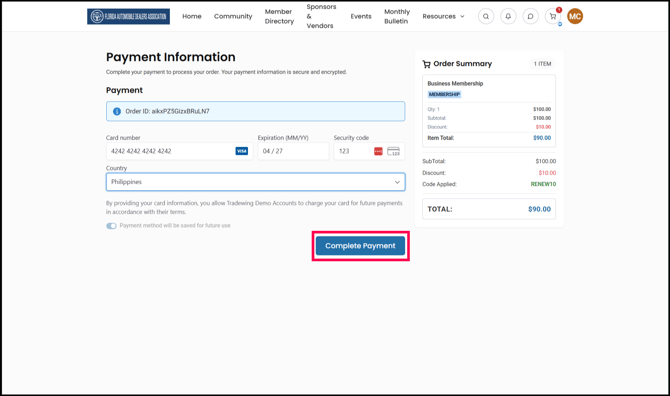
- Fill out the Payment Information and then click Complete Payment.
If you have further questions, you may contact us via support@tradewing.com.