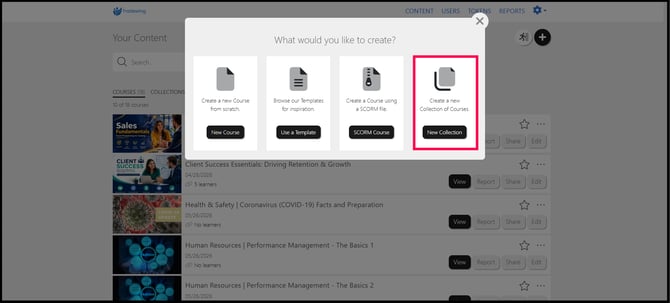
1. Once you have finished creating your courses in Intuto, select the New Collection button to begin setting up a new collection.
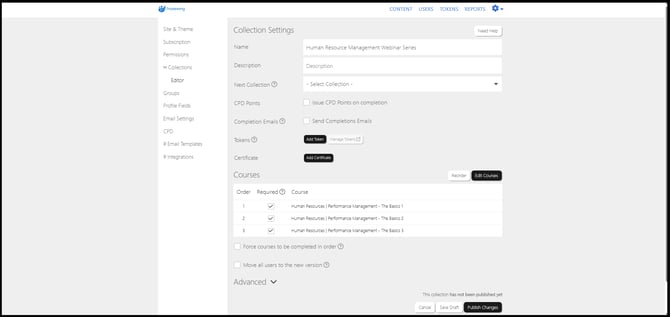
2. Configure the collection settings, including the Name, Description, and Next Collection (if it will be part of a series). Next, select the courses you want to include in this collection. You may also enable options to issue CPD points upon completion, send completion emails, add tokens, issue certificates, and require learners to complete courses in a specific order. When you are satisfied with your configuration, publish the collection to apply your changes.
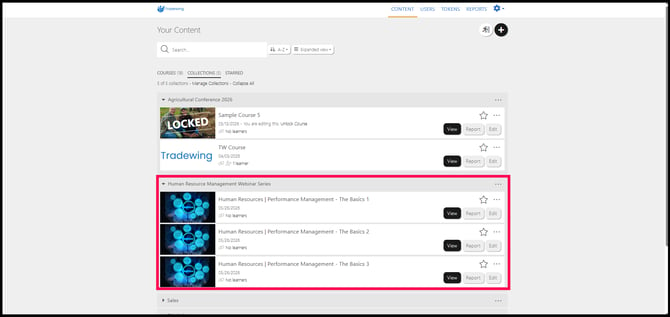
Once the collection has been successfully created and published, it will appear under the Collections tab on the Content page, along with all of the courses you included in that collection.
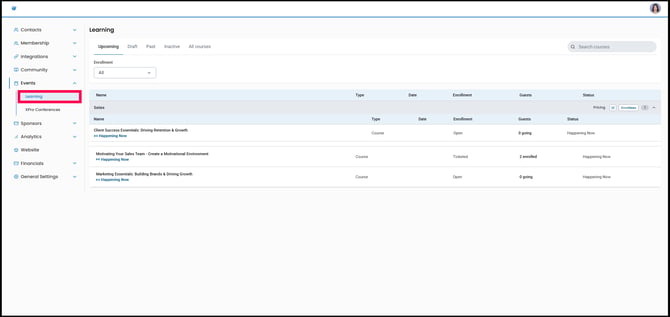
3. Tradewing automatically retrieves courses from the Intuto LMS every day at 7:00 a.m. EST. Go to the Learning subtab under Events to check if your courses and collections have already been fetched.
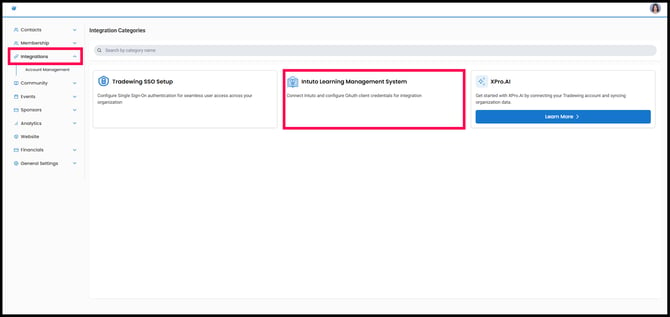
4. If your courses and collections do not appear in the Learning subtab, go to the Integrations tab and select Intuto Learning Management System.
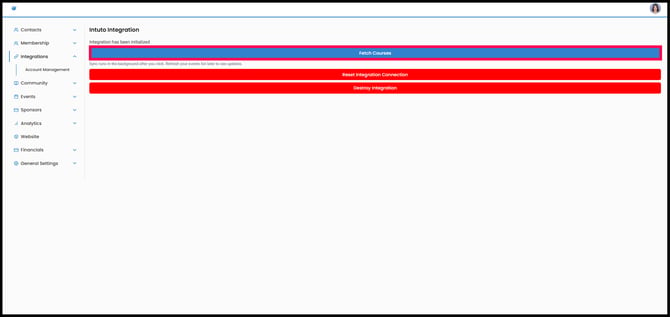
5. Click the Fetch Courses button. If the sync is successful, a green confirmation message will appear.
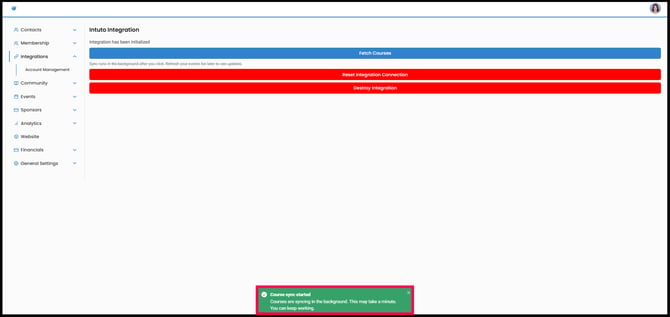
6. In the Learning subtab, verify that your courses have finished syncing. The fetch process can take some time, especially if you have a large number of courses. If all courses are not visible yet, wait a few moments and refresh the page to check the latest status.
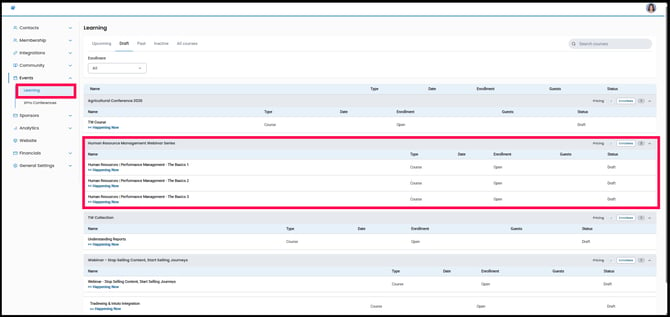
7. In Tradewing, you can set enrollment prices for tickets that provide access to individual courses, as well as for course bundles or collections. To configure enrollment options for a specific course, select the course you want to update. From there, you can edit the course description, date and time, and enrollment settings, including whether registration is open to all or requires a paid ticket.
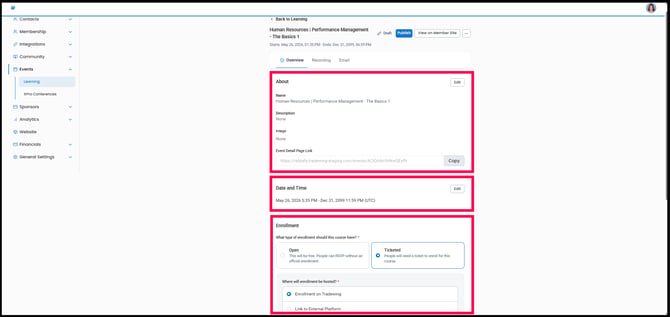
Then, after publishing your updates, go to the Tickets tab to create the appropriate Ticket Types. When you have finished configuring the tickets, select Publish again to make all changes live.
Note: You can only designate a collection as paid if every course included in that collection is also set up as a paid course.
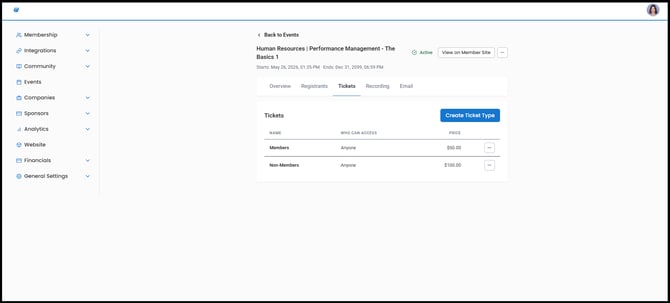
8. After publishing, you'll see your courses or collections under the Upcoming tab.
NOTE: You can only configure the Pricing of each collection once all the courses are published.
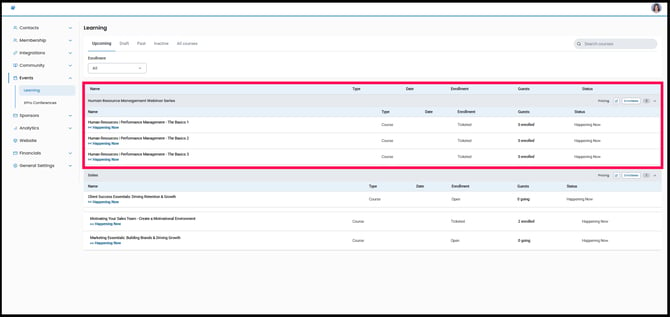
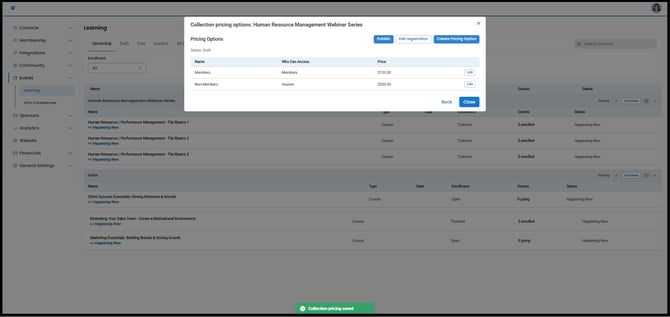
9. Within each collection, you can view the total number of courses it contains and see who has enrolled once the collection is published. You can also select the Pricing button to configure or update the enrollment price for that collection.
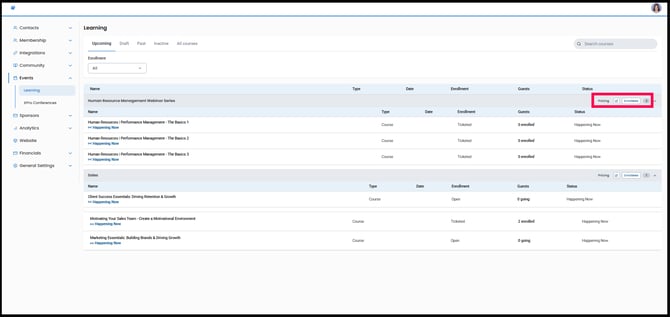
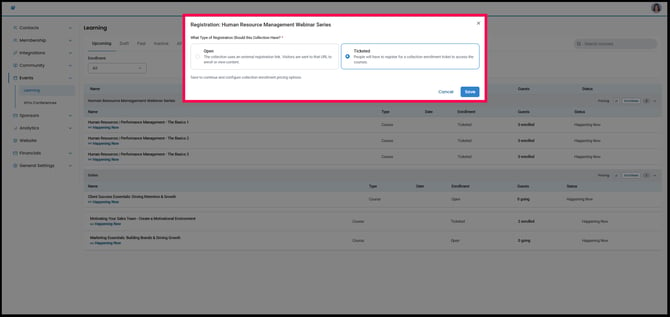
10. To configure registration for a collection, select the Pricing button. Choose Open registration if you do not want to require tickets or enrollment fees, or select Ticketed registration if access should be controlled through configured enrollment tickets.
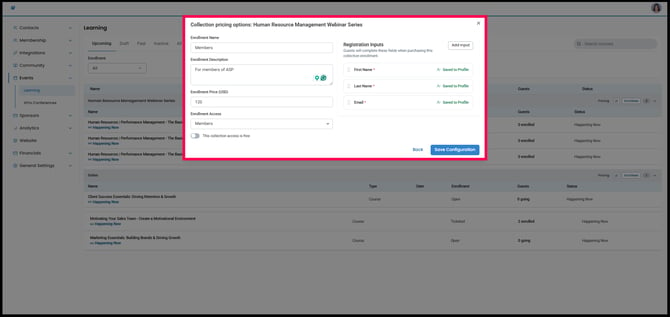
You can define the Enrollment Name, Enrollment Description, Enrollment Price, and Enrollment Access (for example, limiting access to members, all users, or the public). If you do not wish to charge for access, you can set the enrollment to free. You may also add registration fields to collect specific information that registrants must provide when signing up.
11. After configuring your tickets, review the collection settings to ensure all details are correct. When you are ready to make the collection available for registration, select Publish.
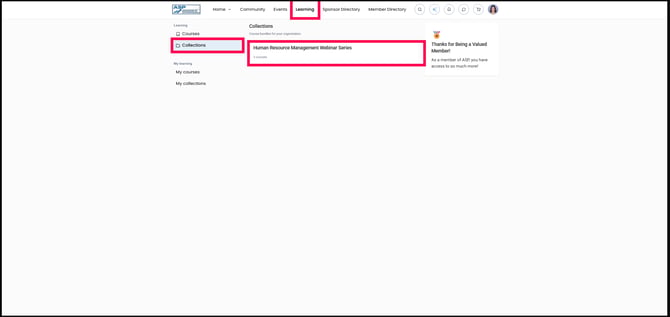
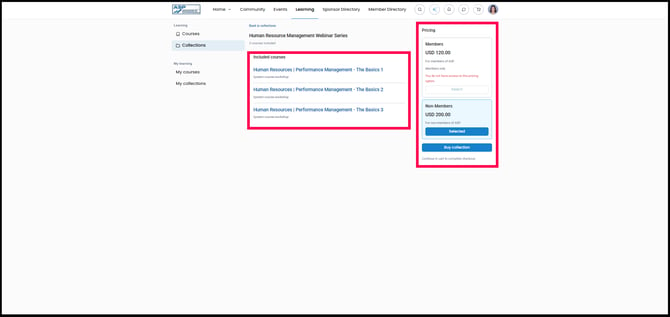
12. You can view your published collections on the Member Site by navigating to the Learning tab and selecting the Collections subtab. There, you will see each collection, the courses it contains, and any associated enrollment prices.